# CurlShot: everything in one file
> Paste a website address and get a screenshot of the whole page as an image or PDF. Free to try, nothing to install. For developers, one simple screenshot API.
This file holds what CurlShot does (one section per task), its prices, the questions people ask, and every page of the docs. The short map is at https://curlshot.com/llms.txt and the OpenAPI description at https://curlshot.com/openapi.json.
---
Source: https://curlshot.com/tools/full-page-screenshot
# Take a full-page screenshot of any website
> Take a screenshot of a whole web page, from the top to the very bottom, as one image. Paste the address, nothing to install. Also available as an API.
To take a screenshot of a whole web page, paste its address into CurlShot and press the button. CurlShot opens the page in a real browser, scrolls it from top to bottom so every image loads, and gives you one tall image of the entire page. Nothing to install, and no browser extension.
Do it in the browser, free and without an account: https://curlshot.com/tools/full-page-screenshot
## Steps
1. Copy the address of the page from the bar at the top of your browser and paste it into the box.
2. Keep "Whole page" selected. Choose a computer, phone or tablet view.
3. Press "Take the screenshot", then download the image.
## What people use it for
- Keep a record of how a page looked on a certain day
- Send a whole page to a client or a colleague as one file
- Save a long article, a price list or terms before they change
- Review a design from top to bottom without scrolling
## The same thing with the API
```bash
curl "https://curlshot.com/api/v1/screenshot?access_key=YOUR_ACCESS_KEY&url=https://example.com&full_page=true" \
--output page.png
```
An access key is free: https://curlshot.com/register. Read more:
- [Full-page screenshots](https://curlshot.com/docs/full-page.md)
- [Waiting and timing](https://curlshot.com/docs/waiting.md)
## Questions
### How do I screenshot an entire web page, not only the part I see?
Paste the page address into CurlShot and keep "Whole page" selected. The screenshot covers the page from the top to the bottom, including everything you would have to scroll to see.
### Do images further down the page appear in the screenshot?
Yes. Many pages load images only when you scroll to them. CurlShot scrolls through the page first so those images load, then takes the screenshot.
### Is there a limit to how tall the page can be?
Yes. Very long pages are cut off at a maximum height so the image stays a usable size. The limit is higher on paid plans, and with the API you set it yourself with the full_page_max_height option.
### Is it free?
You can try it on this page without an account. A free account adds a monthly allowance of screenshots and keeps them in one place.
## Related
- [Web page to PDF](https://curlshot.com/tools/website-to-pdf.md): Turn a web page into a PDF document from its address. Real pages, working links and selectable text. Paste the address, nothing to install. Also an API.
- [Mobile screenshot](https://curlshot.com/tools/mobile-screenshot.md): See and screenshot any website as it looks on an iPhone, an Android phone or a tablet, without picking one up. Paste the address. Free to try, also an API.
- [Screenshot without cookie banners](https://curlshot.com/tools/screenshot-without-cookie-banners.md): Take a clean screenshot of any web page: cookie banners, consent pop-ups, ads and chat bubbles are hidden before the capture. Free to try, also an API.
---
Source: https://curlshot.com/tools/website-to-pdf
# Save any web page as a PDF
> Turn a web page into a PDF document from its address. Real pages, working links and selectable text. Paste the address, nothing to install. Also an API.
To save a web page as a PDF, paste its address into CurlShot, choose PDF and press the button. You get a PDF document with real pages and selectable text that you can print, email or file. It works for articles, invoices, reports and any public page.
Do it in the browser, free and without an account: https://curlshot.com/tools/website-to-pdf
## Steps
1. Paste the address of the page into the box.
2. Choose "PDF" as the result.
3. Press "Take the screenshot", then download the PDF.
## What people use it for
- File an invoice, a receipt or an order confirmation
- Archive an article or a report as a document
- Print a page without the browser print dialog
- Attach a web page to an email
## The same thing with the API
```bash
curl "https://curlshot.com/api/v1/screenshot?access_key=YOUR_ACCESS_KEY&url=https://example.com&format=pdf&pdf_paper_format=a4" \
--output page.pdf
```
An access key is free: https://curlshot.com/register. Read more:
- [PDF rendering](https://curlshot.com/docs/pdf.md)
- [Archive pages as PDF](https://curlshot.com/docs/guides/archive-pages-as-pdf.md)
## Questions
### How do I convert a URL to a PDF?
Paste the URL into CurlShot, choose PDF and press the button. Developers send one request: the screenshot address with format=pdf.
### Can I select and copy the text in the PDF?
Yes. The PDF is made by a real browser, the same way as its "Save as PDF", so the text stays text and links keep working.
### Can I choose the paper size?
With the API, yes: paper format, landscape, margins and whether backgrounds are printed are all options. There is also an option to fit the whole page on one long sheet.
### Is it free?
You can try it on this page without an account. A free account adds a monthly allowance of screenshots and keeps them in one place.
## Related
- [Full-page screenshot](https://curlshot.com/tools/full-page-screenshot.md): Take a screenshot of a whole web page, from the top to the very bottom, as one image. Paste the address, nothing to install. Also available as an API.
- [URL to image](https://curlshot.com/tools/url-to-image.md): Convert any URL into an image file. Paste a web address and download a PNG, JPEG or WebP screenshot of the page. Free to try, and one request by API.
- [Screenshot API](https://curlshot.com/tools/screenshot-api.md): A screenshot API for developers. One HTTP request turns a URL, HTML or Markdown into a PNG, JPEG, WebP or PDF. Full page, devices, blocking, cache, MCP.
---
Source: https://curlshot.com/tools/url-to-image
# Turn any URL into an image
> Convert any URL into an image file. Paste a web address and download a PNG, JPEG or WebP screenshot of the page. Free to try, and one request by API.
To turn a URL into an image, paste the address into CurlShot and press the button. CurlShot loads the page in a real browser and returns a screenshot of it as an image file. On this page you download a JPEG; with the API you choose PNG, JPEG or WebP.
Do it in the browser, free and without an account: https://curlshot.com/tools/url-to-image
## Steps
1. Paste the URL into the box.
2. Choose the whole page or just the top, and the screen size.
3. Press "Take the screenshot", then download the image.
## What people use it for
- Put a screenshot of a website into a document or a slide
- Show a page in a chat or a ticket without sending a link
- Make an image of a page for a blog post or a newsletter
- Generate images of pages automatically from your own code
## The same thing with the API
```bash
curl "https://curlshot.com/api/v1/screenshot?access_key=YOUR_ACCESS_KEY&url=https://example.com&format=webp&image_quality=80" \
--output page.webp
```
An access key is free: https://curlshot.com/register. Read more:
- [The screenshot URL](https://curlshot.com/docs/screenshot-url.md)
- [Options reference](https://curlshot.com/docs/options.md)
## Questions
### How do I convert a URL to a PNG or JPG?
Paste the URL into CurlShot and download the screenshot. With the API, add format=png, format=jpeg or format=webp to the request.
### Which image format should I pick?
PNG is exact and best for pages with text and flat colour. JPEG and WebP make much smaller files and are the better choice for long pages and photos.
### Can I get a smaller image, such as a thumbnail?
Yes. With the API, image_width and image_height resize the result, so you can ask for a 400 pixel wide thumbnail directly.
### Is it free?
You can try it on this page without an account. A free account adds a monthly allowance of screenshots and keeps them in one place.
## Related
- [Full-page screenshot](https://curlshot.com/tools/full-page-screenshot.md): Take a screenshot of a whole web page, from the top to the very bottom, as one image. Paste the address, nothing to install. Also available as an API.
- [Website thumbnail](https://curlshot.com/tools/website-thumbnail.md): Make a thumbnail or preview image of any website from its address. For directories, link lists, portfolios and newsletters. Free to try, one request by API.
- [HTML to image](https://curlshot.com/tools/html-to-image.md): Render your own HTML, CSS or Markdown into an image or a PDF with one API request. For social cards, certificates, receipts and reports.
---
Source: https://curlshot.com/tools/mobile-screenshot
# Screenshot a website as a phone shows it
> See and screenshot any website as it looks on an iPhone, an Android phone or a tablet, without picking one up. Paste the address. Free to try, also an API.
To see how a website looks on a phone, paste its address into CurlShot and choose Phone. CurlShot opens the page with a phone-sized screen, the phone's pixel density and a mobile browser identity, so the site serves its mobile layout, and returns a screenshot of it. Tablet and computer views work the same way.
Do it in the browser, free and without an account: https://curlshot.com/tools/mobile-screenshot
## Steps
1. Paste the address of the website into the box.
2. Choose "Phone" or "Tablet".
3. Press "Take the screenshot", then download the image.
## What people use it for
- Check your own site on a phone without a phone at hand
- Show a client how their shop looks on mobile
- Compare the phone, tablet and computer layout of a page
- Catch a broken mobile layout after a change
## The same thing with the API
```bash
curl "https://curlshot.com/api/v1/screenshot?access_key=YOUR_ACCESS_KEY&url=https://example.com&viewport_device=iphone_15_pro&full_page=true" \
--output phone.png
```
An access key is free: https://curlshot.com/register. Read more:
- [Devices](https://curlshot.com/docs/devices.md)
- [Dark mode and emulation](https://curlshot.com/docs/dark-mode-and-emulation.md)
## Questions
### How can I see what my website looks like on a phone?
Paste the address into CurlShot and choose Phone. You get a screenshot of the mobile version of the page, as a phone would show it.
### Which devices can I choose?
On this page: a phone, a tablet and a computer. The API has a list of named devices, including current iPhone, Pixel and iPad models and common laptop and desktop sizes, and you can also set any width and height yourself.
### Is this a real phone?
No. It is a real browser set up like the phone: the same screen size, pixel density, touch support and browser identity. That is what decides which layout a site serves, so the result matches what the phone shows for almost all sites.
### Is it free?
You can try it on this page without an account. A free account adds a monthly allowance of screenshots and keeps them in one place.
## Related
- [Full-page screenshot](https://curlshot.com/tools/full-page-screenshot.md): Take a screenshot of a whole web page, from the top to the very bottom, as one image. Paste the address, nothing to install. Also available as an API.
- [Website thumbnail](https://curlshot.com/tools/website-thumbnail.md): Make a thumbnail or preview image of any website from its address. For directories, link lists, portfolios and newsletters. Free to try, one request by API.
- [Screenshot API](https://curlshot.com/tools/screenshot-api.md): A screenshot API for developers. One HTTP request turns a URL, HTML or Markdown into a PNG, JPEG, WebP or PDF. Full page, devices, blocking, cache, MCP.
---
Source: https://curlshot.com/tools/screenshot-without-cookie-banners
# Screenshot a page without cookie banners and ads
> Take a clean screenshot of any web page: cookie banners, consent pop-ups, ads and chat bubbles are hidden before the capture. Free to try, also an API.
To get a clean screenshot of a web page, paste its address into CurlShot and keep "Hide ads and cookie pop-ups" switched on. CurlShot hides cookie banners and consent pop-ups, blocks ads, and then takes the screenshot, so the page itself is what you see.
Do it in the browser, free and without an account: https://curlshot.com/tools/screenshot-without-cookie-banners
## Steps
1. Paste the address of the page into the box.
2. Keep "Hide ads and cookie pop-ups" switched on.
3. Press "Take the screenshot", then download the image.
## What people use it for
- Screenshots for a presentation or a portfolio, without a consent box in the middle
- Clean previews of websites in a directory or a newsletter
- Records of a page where the content is what matters
- Monitoring a page without pop-ups changing the screenshot
## The same thing with the API
```bash
curl "https://curlshot.com/api/v1/screenshot?access_key=YOUR_ACCESS_KEY&url=https://example.com&block_cookie_banners=true&block_ads=true&full_page=true" \
--output clean.png
```
An access key is free: https://curlshot.com/register. Read more:
- [Blocking ads, cookie banners, trackers and chats](https://curlshot.com/docs/blocking.md)
- [Custom CSS, JavaScript and clicks](https://curlshot.com/docs/customize.md)
## Questions
### How do I take a screenshot without the cookie banner?
Use CurlShot with "Hide ads and cookie pop-ups" switched on. With the API, add block_cookie_banners=true to the request.
### Does it work on every website?
It works on most sites, not all. The common consent tools are covered. For a site with an unusual pop-up, the API can hide any element by its selector or click a button before the capture.
### What else can be removed?
Ads, trackers and chat widgets each have their own switch in the API: block_ads, block_trackers and block_chats.
### Is it free?
You can try it on this page without an account. A free account adds a monthly allowance of screenshots and keeps them in one place.
## Related
- [Full-page screenshot](https://curlshot.com/tools/full-page-screenshot.md): Take a screenshot of a whole web page, from the top to the very bottom, as one image. Paste the address, nothing to install. Also available as an API.
- [Web page to PDF](https://curlshot.com/tools/website-to-pdf.md): Turn a web page into a PDF document from its address. Real pages, working links and selectable text. Paste the address, nothing to install. Also an API.
- [URL to image](https://curlshot.com/tools/url-to-image.md): Convert any URL into an image file. Paste a web address and download a PNG, JPEG or WebP screenshot of the page. Free to try, and one request by API.
---
Source: https://curlshot.com/tools/website-thumbnail
# Make a thumbnail of any website
> Make a thumbnail or preview image of any website from its address. For directories, link lists, portfolios and newsletters. Free to try, one request by API.
To make a thumbnail of a website, paste its address into CurlShot and choose "Just the top". You get an image of the first screen of the page, which is what a preview needs. With the API you ask for the exact width you want, and repeat requests for the same page can come from the cache at no cost.
Do it in the browser, free and without an account: https://curlshot.com/tools/website-thumbnail
## Steps
1. Paste the address of the website into the box.
2. Choose "Just the top".
3. Press "Take the screenshot", then download the image.
## What people use it for
- Preview images next to each site in a directory or a list of links
- Screenshots of client sites in a portfolio
- A screenshot of the linked page in a newsletter
- Previews of user-submitted links in your own product
## The same thing with the API
```bash
curl "https://curlshot.com/api/v1/screenshot?access_key=YOUR_ACCESS_KEY&url=https://example.com&image_width=400&format=webp&cache=true" \
--output thumb.webp
```
An access key is free: https://curlshot.com/register. Read more:
- [Website previews](https://curlshot.com/docs/guides/website-previews.md)
- [Caching](https://curlshot.com/docs/caching.md)
## Questions
### How do I generate a thumbnail from a URL?
Paste the URL into CurlShot and choose "Just the top". With the API, add image_width to get the thumbnail at the size you need.
### Can I show the thumbnail directly in a web page?
Yes. The screenshot request is a normal web address, so it can be the source of an image. Use a signed link so your access key is not visible in the page.
### Do repeated views cost screenshots?
Not with the cache switched on. A cached screenshot is served again without counting against your allowance.
### Is it free?
You can try it on this page without an account. A free account adds a monthly allowance of screenshots and keeps them in one place.
## Related
- [URL to image](https://curlshot.com/tools/url-to-image.md): Convert any URL into an image file. Paste a web address and download a PNG, JPEG or WebP screenshot of the page. Free to try, and one request by API.
- [Mobile screenshot](https://curlshot.com/tools/mobile-screenshot.md): See and screenshot any website as it looks on an iPhone, an Android phone or a tablet, without picking one up. Paste the address. Free to try, also an API.
- [Screenshot API](https://curlshot.com/tools/screenshot-api.md): A screenshot API for developers. One HTTP request turns a URL, HTML or Markdown into a PNG, JPEG, WebP or PDF. Full page, devices, blocking, cache, MCP.
---
Source: https://curlshot.com/tools/screenshot-api
# A screenshot API that is one HTTP request
> A screenshot API for developers. One HTTP request turns a URL, HTML or Markdown into a PNG, JPEG, WebP or PDF. Full page, devices, blocking, cache, MCP.
CurlShot is a website screenshot API. Send one HTTP request with the address of a page and get back a PNG, JPEG, WebP or PDF of it. It renders in a real browser, captures full pages, emulates phones and tablets, hides cookie banners and ads, and works from any language because it is a plain URL. There is a free plan, an OpenAPI description and an MCP server for AI agents.
Do it in the browser, free and without an account: https://curlshot.com/tools/screenshot-api
## Steps
1. Create a free account and copy your access key.
2. Build the request: the screenshot address, your key, and the URL of the page.
3. Fetch it and save what comes back. Add options as more words in the address.
## What people use it for
- Full-page and first-screen captures, as PNG, JPEG, WebP or PDF
- Device presets for phones, tablets and laptops
- Blocking of ads, cookie banners, trackers and chat widgets
- Response cache, signed links, async renders with webhooks, bulk requests
- HTML and Markdown input, for images made from your own templates
- An MCP server and an OpenAPI description, for AI agents and generated clients
## The same thing with the API
```bash
curl "https://curlshot.com/api/v1/screenshot?access_key=YOUR_ACCESS_KEY&url=https://example.com&full_page=true&block_cookie_banners=true" \
--output example.png
```
An access key is free: https://curlshot.com/register. Read more:
- [Getting started](https://curlshot.com/docs/getting-started.md)
- [Options reference](https://curlshot.com/docs/options.md)
- [For AI agents](https://curlshot.com/docs/guides/ai-agents.md)
## Questions
### What is a screenshot API?
A service that takes screenshots of web pages for your code. You send the address of a page, it opens the page in a browser on its own servers and returns the image, so you do not run or maintain headless browsers yourself.
### Which languages does it work with?
Any language that can fetch a URL. The docs have complete samples for cURL, Node.js, Python, PHP, Go and Ruby. There is nothing to install.
### How is usage counted?
One successful render is one screenshot, whatever its size. Failed renders and cache hits are not counted. Each plan is a fixed number of screenshots a month for a fixed price.
### Can an AI agent use it?
Yes. CurlShot has an MCP server with a take_screenshot tool, an OpenAPI description and an llms.txt file, so an agent can look at any web page.
## Related
- [Full-page screenshot](https://curlshot.com/tools/full-page-screenshot.md): Take a screenshot of a whole web page, from the top to the very bottom, as one image. Paste the address, nothing to install. Also available as an API.
- [Web page to PDF](https://curlshot.com/tools/website-to-pdf.md): Turn a web page into a PDF document from its address. Real pages, working links and selectable text. Paste the address, nothing to install. Also an API.
- [HTML to image](https://curlshot.com/tools/html-to-image.md): Render your own HTML, CSS or Markdown into an image or a PDF with one API request. For social cards, certificates, receipts and reports.
---
Source: https://curlshot.com/tools/html-to-image
# Render HTML to an image with one request
> Render your own HTML, CSS or Markdown into an image or a PDF with one API request. For social cards, certificates, receipts and reports.
To turn HTML into an image, send it to CurlShot in a POST request and get back a PNG, JPEG, WebP or PDF. The HTML is rendered by a real browser, so web fonts, flexbox, grid and images work as they do on a web page. Markdown is accepted the same way. It is the simple way to make social sharing cards, certificates, receipts and reports from a template.
Page for people: https://curlshot.com/tools/html-to-image
## Steps
1. Write the HTML and CSS of the image, as you would for a web page.
2. Send it in a POST request, with the width and height you want.
3. Save the image that comes back, or let your code do it for every item.
## What people use it for
- Open Graph and social sharing cards, one per article or product
- Certificates, tickets and badges with a name filled in
- Receipts, invoices and reports as PDF
- Charts and tables as an image for an email
## The same thing with the API
```bash
curl -X POST "https://curlshot.com/api/v1/screenshot" \
-H "X-Access-Key: YOUR_ACCESS_KEY" \
-H "Content-Type: application/json" \
-d '{"html":"
Hello
","viewport_width":1200,"viewport_height":630}' \
--output card.png
```
An access key is free: https://curlshot.com/register. Read more:
- [HTML and Markdown input](https://curlshot.com/docs/html-and-markdown.md)
- [Open Graph images](https://curlshot.com/docs/guides/open-graph-images.md)
## Questions
### How do I convert HTML to an image?
Send the HTML to CurlShot in the html field of a POST request. The answer is the image file. Set viewport_width and viewport_height to the size the image should have.
### Can I use my own fonts and images?
Yes. The HTML is rendered like a web page, so fonts and images referenced by a public address load normally.
### Can I get a PDF instead?
Yes. Add format=pdf. Paper size, margins and orientation are options.
### Does it take Markdown?
Yes. Send a markdown field instead of html and it is rendered as a clean, styled page.
## Related
- [Web page to PDF](https://curlshot.com/tools/website-to-pdf.md): Turn a web page into a PDF document from its address. Real pages, working links and selectable text. Paste the address, nothing to install. Also an API.
- [URL to image](https://curlshot.com/tools/url-to-image.md): Convert any URL into an image file. Paste a web address and download a PNG, JPEG or WebP screenshot of the page. Free to try, and one request by API.
- [Screenshot API](https://curlshot.com/tools/screenshot-api.md): A screenshot API for developers. One HTTP request turns a URL, HTML or Markdown into a PNG, JPEG, WebP or PDF. Full page, devices, blocking, cache, MCP.
---
Source: https://curlshot.com/tools/website-scrolling-video
# Record a scrolling video of any website
> Record a video of a web page scrolling from top to bottom, from its address. MP4, WebM or GIF, computer or phone view. One API request, nothing to install.
To make a video of a website scrolling, give CurlShot the address of the page and ask for an MP4. CurlShot opens the page in a real browser, scrolls it from the top to the bottom at a steady pace and gives you the recording as a video file. A WebM or an animated GIF works the same way, and so does a phone view for a vertical video. Nothing to install, and no screen recorder.
Page for people: https://curlshot.com/tools/website-scrolling-video
## Steps
1. Create a free account and open the playground in your dashboard.
2. Paste the address of the page and set the format to mp4, webm or gif.
3. Press "Record video", then download the file. Developers send the same thing as one request.
## What people use it for
- Show a landing page or a redesign in a post, a pitch or a portfolio
- Add a moving preview of a site to a directory or a template shop
- Send a client a walk through a whole page without a screen recorder
- Put an animated GIF of a page in an email or a README
## The same thing with the API
```bash
curl "https://curlshot.com/api/v1/screenshot?access_key=YOUR_ACCESS_KEY&url=https://example.com&format=mp4&video_duration=8" \
--output page.mp4
```
An access key is free: https://curlshot.com/register. Read more:
- [Scrolling videos](https://curlshot.com/docs/video.md)
- [Async and webhooks](https://curlshot.com/docs/async-and-webhooks.md)
## Questions
### How do I record a video of a website scrolling?
Send CurlShot the address of the page with format=mp4. The answer is the video file: the page from top to bottom, in a 1280 by 720 window. In the dashboard playground you do the same with a form and a button.
### Can I get a GIF instead of a video?
Yes. Ask for format=gif. A GIF is 640 pixels wide unless you set another width, and it is a much larger file than an MP4 of the same page.
### How long is the video?
As long as the page needs: a taller page gives a longer video, up to 30 seconds. Set video_duration to choose the length yourself, and the scroll speeds up or slows down to fit.
### Can I record the phone version of a site?
Yes. Add a device, for example viewport_device=iphone_15_pro, and you get a tall video of the mobile layout.
### Does a video cost more than a screenshot?
No. A video counts as one screenshot of your monthly allowance. Plans differ in how long a video may be, up to 30 seconds.
## Related
- [Full-page screenshot](https://curlshot.com/tools/full-page-screenshot.md): Take a screenshot of a whole web page, from the top to the very bottom, as one image. Paste the address, nothing to install. Also available as an API.
- [Mobile screenshot](https://curlshot.com/tools/mobile-screenshot.md): See and screenshot any website as it looks on an iPhone, an Android phone or a tablet, without picking one up. Paste the address. Free to try, also an API.
- [Screenshot API](https://curlshot.com/tools/screenshot-api.md): A screenshot API for developers. One HTTP request turns a URL, HTML or Markdown into a PNG, JPEG, WebP or PDF. Full page, devices, blocking, cache, MCP.
---
Source: https://curlshot.com/tools/webpage-to-jpg
# Save a web page as a JPG
> Save any web page as a JPG image. Paste the address, choose the whole page or just the top, and download the file. Free to try, also one request by API.
To save a web page as a JPG, paste its address into CurlShot and press the button. CurlShot opens the page in a real browser and gives you a JPG image of it to download, the whole page or just the first screen. A JPG is small, opens everywhere and can be attached to an email or dropped into a document. With the API you can also ask for PNG or WebP.
Do it in the browser, free and without an account: https://curlshot.com/tools/webpage-to-jpg
## Steps
1. Paste the address of the web page into the box.
2. Choose "Whole page" or "Just the top".
3. Press "Take the screenshot", then download the JPG.
## What people use it for
- Attach a web page to an email as an image
- Put a page into a slide, a document or a chat
- Keep a small copy of a page that opens on any device
- Share a page with someone who should not need the link
## The same thing with the API
```bash
curl "https://curlshot.com/api/v1/screenshot?access_key=YOUR_ACCESS_KEY&url=https://example.com&format=jpeg&image_quality=85&full_page=true" \
--output example.jpg
```
An access key is free: https://curlshot.com/register. Read more:
- [Screenshot a URL](https://curlshot.com/docs/screenshot-url.md)
- [Options reference](https://curlshot.com/docs/options.md)
## Questions
### How do I convert a web page to a JPG?
Paste the address of the page into CurlShot and press "Take the screenshot". The download is a JPG image of the page.
### Can I choose the quality of the JPG?
With the API, yes. image_quality takes a number from 1 to 100: a lower number makes a smaller file, a higher one a sharper image.
### JPG, PNG or WebP: which should I use?
JPG is the small, universal choice for pages with photos. PNG keeps text and flat colors perfectly sharp and can have a transparent background. WebP is the smallest of the three and is meant for use on websites.
### Is it free?
You can try it on this page without an account. A free account adds a monthly allowance of screenshots and keeps them in one place.
## Related
- [Full-page screenshot](https://curlshot.com/tools/full-page-screenshot.md): Take a screenshot of a whole web page, from the top to the very bottom, as one image. Paste the address, nothing to install. Also available as an API.
- [Web page to PDF](https://curlshot.com/tools/website-to-pdf.md): Turn a web page into a PDF document from its address. Real pages, working links and selectable text. Paste the address, nothing to install. Also an API.
- [URL to image](https://curlshot.com/tools/url-to-image.md): Convert any URL into an image file. Paste a web address and download a PNG, JPEG or WebP screenshot of the page. Free to try, and one request by API.
---
Source: https://curlshot.com/tools/tablet-screenshot
# Screenshot a website as a tablet shows it
> See and screenshot any website as it looks on an iPad or another tablet, without owning one. Paste the address and choose Tablet. Free to try, also an API.
To see how a website looks on a tablet, paste its address into CurlShot and choose Tablet. CurlShot opens the page with a tablet-sized screen, the tablet's pixel density and a tablet browser identity, so the site serves the layout it gives to tablets, and returns a screenshot of it. The API has presets for the iPad, iPad mini, iPad Air and iPad Pro.
Do it in the browser, free and without an account: https://curlshot.com/tools/tablet-screenshot
## Steps
1. Paste the address of the website into the box.
2. Choose "Tablet".
3. Press "Take the screenshot", then download the image.
## What people use it for
- Check the in-between layout that neither a phone nor a computer shows
- Test a menu, a table or a form at tablet width
- Show a client how their site looks on an iPad
- Screenshots for a store listing or a presentation
## The same thing with the API
```bash
curl "https://curlshot.com/api/v1/screenshot?access_key=YOUR_ACCESS_KEY&url=https://example.com&viewport_device=ipad&full_page=true" \
--output tablet.png
```
An access key is free: https://curlshot.com/register. Read more:
- [Devices](https://curlshot.com/docs/devices.md)
## Questions
### How do I take a screenshot of a website on an iPad without an iPad?
Paste the address into CurlShot and choose Tablet. The page is opened with the screen size and browser identity of a tablet, and you get a screenshot of what it shows.
### Can I get the landscape view?
With the API, yes. Add viewport_landscape=true and the tablet is turned on its side before the screenshot is taken.
### Which tablets are available?
The API has presets for the iPad, iPad mini, iPad Air and iPad Pro, and you can set any screen width and height yourself.
### Is it free?
You can try it on this page without an account. A free account adds a monthly allowance of screenshots and keeps them in one place.
## Related
- [Full-page screenshot](https://curlshot.com/tools/full-page-screenshot.md): Take a screenshot of a whole web page, from the top to the very bottom, as one image. Paste the address, nothing to install. Also available as an API.
- [URL to image](https://curlshot.com/tools/url-to-image.md): Convert any URL into an image file. Paste a web address and download a PNG, JPEG or WebP screenshot of the page. Free to try, and one request by API.
- [Mobile screenshot](https://curlshot.com/tools/mobile-screenshot.md): See and screenshot any website as it looks on an iPhone, an Android phone or a tablet, without picking one up. Paste the address. Free to try, also an API.
---
Source: https://curlshot.com/tools/dark-mode-screenshot
# Screenshot a website in dark mode
> Screenshot any website in its dark theme. One option asks the page for dark mode before the screenshot is taken. Works with full pages, devices and PDF.
To screenshot a website in dark mode, add dark_mode=true to a CurlShot request. The browser then tells the page that the visitor prefers a dark theme, exactly as a phone or computer set to dark does, and the screenshot shows the dark version. It works on every site that has a dark theme; a site without one looks the same as before.
Page for people: https://curlshot.com/tools/dark-mode-screenshot
## Steps
1. Create a free account and copy your access key.
2. Add dark_mode=true to the request, next to the address of the page.
3. Fetch it and save the image. Leave the option out to get the light version.
## What people use it for
- Light and dark screenshots of your product, side by side
- Store listings, docs and landing pages that show both themes
- Check that a change did not break the dark theme
- Previews that match the theme of the app they appear in
## The same thing with the API
```bash
curl "https://curlshot.com/api/v1/screenshot?access_key=YOUR_ACCESS_KEY&url=https://example.com&dark_mode=true" \
--output dark.png
```
An access key is free: https://curlshot.com/register. Read more:
- [Dark mode and emulation](https://curlshot.com/docs/dark-mode-and-emulation.md)
- [Options reference](https://curlshot.com/docs/options.md)
## Questions
### How do I take a screenshot of a website in dark mode?
Send a CurlShot request with dark_mode=true. The page is asked for its dark theme before the screenshot is taken.
### Does it work on every website?
It works on every site that follows the visitor's system setting, which is how most dark themes work. A site with no dark theme, or one that only changes with its own switch, stays light.
### Can I also turn animations off?
Yes. reduced_motion=true asks the page to stop its animations, which gives the same screenshot every time.
### Can I combine it with a phone view or a full page?
Yes. dark_mode works together with every other option: device presets, full_page, element captures and PDF.
## Related
- [Full-page screenshot](https://curlshot.com/tools/full-page-screenshot.md): Take a screenshot of a whole web page, from the top to the very bottom, as one image. Paste the address, nothing to install. Also available as an API.
- [Mobile screenshot](https://curlshot.com/tools/mobile-screenshot.md): See and screenshot any website as it looks on an iPhone, an Android phone or a tablet, without picking one up. Paste the address. Free to try, also an API.
- [Screenshot API](https://curlshot.com/tools/screenshot-api.md): A screenshot API for developers. One HTTP request turns a URL, HTML or Markdown into a PNG, JPEG, WebP or PDF. Full page, devices, blocking, cache, MCP.
---
Source: https://curlshot.com/tools/element-screenshot
# Screenshot one element of a page
> Capture one part of a web page instead of all of it: a chart, a pricing table, a card. Name the element with a CSS selector and get an image of it alone.
To screenshot one element of a web page, add a CSS selector to a CurlShot request, for example selector=h1 or selector=.pricing-table. CurlShot opens the page, finds the first element that matches and returns an image of that element alone, cropped to its edges. To cut out a fixed area instead, give its position and size in pixels.
Page for people: https://curlshot.com/tools/element-screenshot
## Steps
1. Create a free account and copy your access key.
2. Find the CSS selector of the element: its id, its class or its tag.
3. Add selector to the request and save the image that comes back.
## What people use it for
- A chart or a dashboard tile as an image for a report or an email
- A pricing table, a testimonial or a product card on its own
- One component of your app for the docs
- Watching one part of a page for changes
## The same thing with the API
```bash
curl "https://curlshot.com/api/v1/screenshot?access_key=YOUR_ACCESS_KEY&url=https://example.com&selector=p" \
--output element.png
```
An access key is free: https://curlshot.com/register. Read more:
- [Capture one element](https://curlshot.com/docs/element.md)
- [Customize the page](https://curlshot.com/docs/customize.md)
## Questions
### How do I take a screenshot of a specific element?
Add selector to a CurlShot request with the CSS selector of the element. The image contains that element and nothing else.
### What if the element appears late?
Add wait_for_selector with the same selector. The screenshot is taken only after the element is visible.
### Can I capture an area by coordinates?
Yes. clip_x, clip_y, clip_width and clip_height cut out a rectangle of the page, measured in pixels from its top left corner.
### Can I hide things inside or around the element?
Yes. hide_selectors hides any elements you name, and styles adds your own CSS to the page before the screenshot.
## Related
- [Full-page screenshot](https://curlshot.com/tools/full-page-screenshot.md): Take a screenshot of a whole web page, from the top to the very bottom, as one image. Paste the address, nothing to install. Also available as an API.
- [Screenshot API](https://curlshot.com/tools/screenshot-api.md): A screenshot API for developers. One HTTP request turns a URL, HTML or Markdown into a PNG, JPEG, WebP or PDF. Full page, devices, blocking, cache, MCP.
- [HTML to image](https://curlshot.com/tools/html-to-image.md): Render your own HTML, CSS or Markdown into an image or a PDF with one API request. For social cards, certificates, receipts and reports.
---
Source: https://curlshot.com/tools/high-resolution-screenshot
# A high-resolution screenshot of any website
> Take sharp, high-resolution screenshots of any website. One option doubles or triples the pixel density, for print, retina displays and zooming in.
To take a high-resolution screenshot of a website, add device_scale_factor=2 to a CurlShot request. The page is drawn with twice the pixels in each direction, the way a retina display draws it, so text and icons stay sharp when the image is enlarged or printed. The layout of the page does not change, only its sharpness. Use 3 for three times the density.
Page for people: https://curlshot.com/tools/high-resolution-screenshot
## Steps
1. Create a free account and copy your access key.
2. Add device_scale_factor=2 to the request, and format=png for the sharpest text.
3. Fetch it and save the image.
## What people use it for
- Screenshots for print, slides and posters
- Product images on a landing page that stay sharp on retina displays
- Images that people zoom into, like long articles and dashboards
- Store listings that ask for large images
## The same thing with the API
```bash
curl "https://curlshot.com/api/v1/screenshot?access_key=YOUR_ACCESS_KEY&url=https://example.com&device_scale_factor=2&format=png" \
--output sharp.png
```
An access key is free: https://curlshot.com/register. Read more:
- [Devices and screen sizes](https://curlshot.com/docs/devices.md)
- [Options reference](https://curlshot.com/docs/options.md)
## Questions
### How do I take a high-resolution screenshot of a website?
Add device_scale_factor=2 to a CurlShot request. The image has twice the width and height in pixels, with the same layout.
### What is the difference from a wider browser window?
A wider window changes the layout: the page shows its large-screen design. A higher pixel density keeps the layout and draws it with more pixels, so it is sharper.
### Which format is best for sharp text?
PNG keeps every pixel as it was drawn. For smaller files use WebP or JPEG with image_quality set to 90 or more.
### Can I set the exact size of the image?
Yes. viewport_width and viewport_height set the size of the browser window, and image_width resizes the finished image.
## Related
- [Full-page screenshot](https://curlshot.com/tools/full-page-screenshot.md): Take a screenshot of a whole web page, from the top to the very bottom, as one image. Paste the address, nothing to install. Also available as an API.
- [URL to image](https://curlshot.com/tools/url-to-image.md): Convert any URL into an image file. Paste a web address and download a PNG, JPEG or WebP screenshot of the page. Free to try, and one request by API.
- [Screenshot API](https://curlshot.com/tools/screenshot-api.md): A screenshot API for developers. One HTTP request turns a URL, HTML or Markdown into a PNG, JPEG, WebP or PDF. Full page, devices, blocking, cache, MCP.
---
Source: https://curlshot.com/tools/screenshot-without-ads
# Screenshot a website without ads
> Take a clean screenshot of any website: ads, trackers, cookie banners and chat bubbles are removed before the screenshot. Paste the address. Free to try.
To screenshot a website without ads, paste its address into CurlShot. Before the screenshot is taken, CurlShot blocks requests to ad networks and trackers, hides cookie banners and removes chat bubbles, so the image shows the page and not what is laid over it. Pages also load faster this way. With the API each kind of blocking is its own switch.
Do it in the browser, free and without an account: https://curlshot.com/tools/screenshot-without-ads
## Steps
1. Paste the address of the website into the box.
2. Press "Take the screenshot". The cleaning happens for you.
3. Download the image of the page without the clutter.
## What people use it for
- Clean screenshots of articles for a presentation or a report
- Archiving a page as its content, not as its advertising
- Previews and thumbnails with no banner over them
- Faster, steadier screenshots for monitoring
## The same thing with the API
```bash
curl "https://curlshot.com/api/v1/screenshot?access_key=YOUR_ACCESS_KEY&url=https://example.com&block_ads=true&block_trackers=true&block_chats=true&full_page=true" \
--output clean.png
```
An access key is free: https://curlshot.com/register. Read more:
- [Blocking](https://curlshot.com/docs/blocking.md)
## Questions
### How do I screenshot a page without the ads?
Paste the address into CurlShot. Ad networks are blocked while the page loads, so the ads never appear in the screenshot.
### What is left where the ad was?
Usually an empty space the size of the ad, or nothing at all when the page closes the gap. The content of the page is not changed.
### Can I block something else on the page?
With the API, yes. block_requests blocks any address pattern you give, block_resources blocks whole kinds of files such as fonts or video, and hide_selectors hides any element.
### Is it free?
You can try it on this page without an account. A free account adds a monthly allowance of screenshots and keeps them in one place.
## Related
- [Full-page screenshot](https://curlshot.com/tools/full-page-screenshot.md): Take a screenshot of a whole web page, from the top to the very bottom, as one image. Paste the address, nothing to install. Also available as an API.
- [Web page to PDF](https://curlshot.com/tools/website-to-pdf.md): Turn a web page into a PDF document from its address. Real pages, working links and selectable text. Paste the address, nothing to install. Also an API.
- [Screenshot without cookie banners](https://curlshot.com/tools/screenshot-without-cookie-banners.md): Take a clean screenshot of any web page: cookie banners, consent pop-ups, ads and chat bubbles are hidden before the capture. Free to try, also an API.
---
Source: https://curlshot.com/tools/html-to-pdf
# Convert HTML to PDF with one request
> Convert your own HTML and CSS into a PDF with one API request. Paper size, margins, landscape and backgrounds are options. For invoices and reports.
To convert HTML to a PDF, send the HTML to CurlShot in a POST request with format=pdf. A real browser lays the page out and prints it, so your CSS, web fonts, tables and images come out as they look on screen, with text you can select and search. Paper size, margins, orientation and background printing are options.
Page for people: https://curlshot.com/tools/html-to-pdf
## Steps
1. Write the document as HTML and CSS, as you would a web page.
2. Send it in a POST request with format set to pdf and the paper size you want.
3. Save the PDF that comes back, or make one for every order, user or report.
## What people use it for
- Invoices and receipts from an HTML template
- Reports and statements with tables and charts
- Tickets, certificates and contracts with the details filled in
- A printable version of a page of your app
## The same thing with the API
```bash
curl -X POST "https://curlshot.com/api/v1/screenshot" \
-H "X-Access-Key: YOUR_ACCESS_KEY" \
-H "Content-Type: application/json" \
-d '{"html":"
Invoice 1042
Total: 120.00
","format":"pdf","pdf_paper_format":"a4","pdf_margin":"20mm"}' \
--output invoice.pdf
```
An access key is free: https://curlshot.com/register. Read more:
- [PDF options](https://curlshot.com/docs/pdf.md)
- [HTML and Markdown input](https://curlshot.com/docs/html-and-markdown.md)
## Questions
### How do I convert HTML to PDF?
Send the HTML to CurlShot in the html field of a POST request and add format=pdf. The answer is the PDF file.
### Do backgrounds and colors print?
Yes. Background colors and images are printed unless you switch them off with pdf_print_background=false, for a document that saves ink.
### Can I control page breaks?
Yes, with normal CSS. Rules such as break-before, break-after and break-inside work as they do when a browser prints.
### Can the whole document be one long page?
Yes. pdf_fit_one_page puts everything on a single tall page with no breaks.
## Related
- [Web page to PDF](https://curlshot.com/tools/website-to-pdf.md): Turn a web page into a PDF document from its address. Real pages, working links and selectable text. Paste the address, nothing to install. Also an API.
- [HTML to image](https://curlshot.com/tools/html-to-image.md): Render your own HTML, CSS or Markdown into an image or a PDF with one API request. For social cards, certificates, receipts and reports.
- [Markdown to PDF](https://curlshot.com/tools/markdown-to-pdf.md): Turn Markdown into a clean, styled PDF or image with one API request. Headings, lists, tables and code are laid out for you. For notes, docs and reports.
---
Source: https://curlshot.com/tools/markdown-to-pdf
# Turn Markdown into a PDF
> Turn Markdown into a clean, styled PDF or image with one API request. Headings, lists, tables and code are laid out for you. For notes, docs and reports.
To turn Markdown into a PDF, send the text to CurlShot in the markdown field of a POST request with format=pdf. It is rendered as a clean, styled page, with headings, lists, tables, links and code blocks laid out for reading, and comes back as a PDF. Leave format out to get an image of the same page instead.
Page for people: https://curlshot.com/tools/markdown-to-pdf
## Steps
1. Write the document in Markdown, or take the text your app already has.
2. Send it in a POST request in the markdown field, with format set to pdf.
3. Save the PDF that comes back.
## What people use it for
- Notes, READMEs and changelogs as a PDF to send
- Reports written by a script or an AI assistant, as a document
- Release notes as an image for a post
- Meeting notes and summaries people can print
## The same thing with the API
```bash
curl -X POST "https://curlshot.com/api/v1/screenshot" \
-H "X-Access-Key: YOUR_ACCESS_KEY" \
-H "Content-Type: application/json" \
-d '{"markdown":"# Weekly report\n\n- Visits: 1,204\n- Signups: 38","format":"pdf"}' \
--output report.pdf
```
An access key is free: https://curlshot.com/register. Read more:
- [HTML and Markdown input](https://curlshot.com/docs/html-and-markdown.md)
- [PDF options](https://curlshot.com/docs/pdf.md)
## Questions
### How do I convert Markdown to PDF?
Send the Markdown to CurlShot in the markdown field of a POST request and add format=pdf. The answer is the PDF file.
### Can I change how it looks?
Yes. The styles option adds your own CSS to the page, so fonts, colors and spacing can match your brand.
### Can I get an image instead of a PDF?
Yes. Leave format out for a PNG, or ask for jpeg or webp. Set viewport_width to choose how wide the page is.
### Are tables and code blocks supported?
Yes. Tables, fenced code blocks, lists, links, quotes and images are all rendered.
## Related
- [Screenshot API](https://curlshot.com/tools/screenshot-api.md): A screenshot API for developers. One HTTP request turns a URL, HTML or Markdown into a PNG, JPEG, WebP or PDF. Full page, devices, blocking, cache, MCP.
- [HTML to image](https://curlshot.com/tools/html-to-image.md): Render your own HTML, CSS or Markdown into an image or a PDF with one API request. For social cards, certificates, receipts and reports.
- [HTML to PDF](https://curlshot.com/tools/html-to-pdf.md): Convert your own HTML and CSS into a PDF with one API request. Paper size, margins, landscape and backgrounds are options. For invoices and reports.
---
Source: https://curlshot.com/tools/open-graph-image-generator
# Generate Open Graph images from a template
> Generate the image that shows when a link is shared: one card per article or product, made from your own HTML template at 1200 by 630 pixels, by API.
To generate Open Graph images, write the card once as HTML and send it to CurlShot with a window of 1200 by 630 pixels, the size social networks and chat apps expect. Put the title of each article or product into the template and you get one sharing image per page, in your own design. Switch the cache on and each card is rendered once and then served from storage.
Page for people: https://curlshot.com/tools/open-graph-image-generator
## Steps
1. Design the card as HTML and CSS, with a place for the title.
2. Send it with viewport_width 1200 and viewport_height 630 for each page.
3. Save the image, or point the og:image tag of the page at a signed link.
## What people use it for
- A sharing card for every blog post, made when it is published
- Product cards with the name, the price and a photo
- Cards for user profiles, events and job posts
- Images for X, LinkedIn, Facebook, Slack and iMessage previews
## The same thing with the API
```bash
curl -X POST "https://curlshot.com/api/v1/screenshot" \
-H "X-Access-Key: YOUR_ACCESS_KEY" \
-H "Content-Type: application/json" \
-d '{"html":"
How we cut our build time in half
","viewport_width":1200,"viewport_height":630}' \
--output og.png
```
An access key is free: https://curlshot.com/register. Read more:
- [Open Graph images](https://curlshot.com/docs/guides/open-graph-images.md)
- [Signed links](https://curlshot.com/docs/signed-links.md)
- [Caching](https://curlshot.com/docs/caching.md)
## Questions
### What size should an Open Graph image be?
1200 by 630 pixels is the size that X, LinkedIn, Facebook and most chat apps show without cropping.
### How do I make one image per page automatically?
Keep one HTML template and fill in the title of each page before you send it to CurlShot. Each request returns the card for that page.
### Can I use a screenshot of the page itself as the image?
Yes. Send the address of the page instead of HTML, with the same window size, and the card is a screenshot of its first screen.
### Is the image rendered again every time someone shares the link?
Not with the cache switched on. The card is rendered once and repeat requests are served from storage, without counting against your allowance.
## Related
- [Website thumbnail](https://curlshot.com/tools/website-thumbnail.md): Make a thumbnail or preview image of any website from its address. For directories, link lists, portfolios and newsletters. Free to try, one request by API.
- [Screenshot API](https://curlshot.com/tools/screenshot-api.md): A screenshot API for developers. One HTTP request turns a URL, HTML or Markdown into a PNG, JPEG, WebP or PDF. Full page, devices, blocking, cache, MCP.
- [HTML to image](https://curlshot.com/tools/html-to-image.md): Render your own HTML, CSS or Markdown into an image or a PDF with one API request. For social cards, certificates, receipts and reports.
---
Source: https://curlshot.com/tools/screenshot-behind-login
# Screenshot a page behind a login
> Screenshot dashboards, admin pages and staging sites that need a login. Send a session cookie or a header with the request and the page opens signed in.
To screenshot a page that needs a login, send the session cookie of a signed-in user with the CurlShot request. The browser sets the cookie before it opens the page, so the site treats it as that user and shows the page instead of the sign-in form. Sites that use a token take it as an HTTP header, and password-protected staging sites take an Authorization value.
Page for people: https://curlshot.com/tools/screenshot-behind-login
## Steps
1. Sign in to the site as a user made for this, and copy its session cookie.
2. Send the address of the page with the cookie in the cookies field.
3. Save the screenshot of the signed-in page.
## What people use it for
- Dashboards and reports as an image in a weekly email
- Screenshots of your own app for docs and release notes
- Staging and preview sites behind a password
- Admin pages, for a record of how they looked
## The same thing with the API
```bash
curl -X POST "https://curlshot.com/api/v1/screenshot" \
-H "X-Access-Key: YOUR_ACCESS_KEY" \
-H "Content-Type: application/json" \
-d '{"url":"https://example.com/dashboard","cookies":["session=YOUR_SESSION_COOKIE; Domain=example.com; Secure"]}' \
--output dashboard.png
```
An access key is free: https://curlshot.com/register. Read more:
- [Screenshot a page behind a login](https://curlshot.com/docs/guides/screenshot-behind-login.md)
- [Customize the page](https://curlshot.com/docs/customize.md)
## Questions
### How do I take a screenshot of a page that requires login?
Send the session cookie of a signed-in user in the cookies field of a CurlShot request. The page then opens as that user.
### What if the site uses a token and not a cookie?
Send it with the headers option, as a named HTTP header. For HTTP basic authentication use the authorization option.
### Which account should I use?
One made for screenshots, with read-only access to the pages you need and nothing else. Send the request with POST so the cookie is in the body and not in a web address.
### Can it click through a sign-in form?
A cookie or a header is the reliable way. The click option presses one element before the screenshot and scripts runs your own JavaScript on the page, for a step such as closing a dialog.
## Related
- [Full-page screenshot](https://curlshot.com/tools/full-page-screenshot.md): Take a screenshot of a whole web page, from the top to the very bottom, as one image. Paste the address, nothing to install. Also available as an API.
- [Screenshot API](https://curlshot.com/tools/screenshot-api.md): A screenshot API for developers. One HTTP request turns a URL, HTML or Markdown into a PNG, JPEG, WebP or PDF. Full page, devices, blocking, cache, MCP.
- [Element screenshot](https://curlshot.com/tools/element-screenshot.md): Capture one part of a web page instead of all of it: a chart, a pricing table, a card. Name the element with a CSS selector and get an image of it alone.
---
Source: https://curlshot.com/tools/bulk-screenshots
# Screenshot a list of URLs at once
> Screenshot a whole list of web pages at once. Start up to 100 screenshots with one API call, then collect the results by webhook or one status request.
To screenshot many web pages at once, send the list to the CurlShot bulk endpoint: up to 100 requests in one call, each with its own options, on plans that include bulk. You get an answer at once with one job per page. The screenshots are made in the background, and you collect them with one status request for the whole batch or receive each one by webhook as it finishes.
Page for people: https://curlshot.com/tools/bulk-screenshots
## Steps
1. Create an account on a plan that includes bulk, and copy your access key.
2. Send the list of addresses in one POST request to the bulk endpoint.
3. Follow the batch with one status request, or receive each result by webhook.
## What people use it for
- Thumbnails for every site in a directory
- A screenshot of every page of a site before and after a redesign
- Nightly captures of a list of competitor or client pages
- PDF copies of a list of articles
## The same thing with the API
```bash
curl "https://curlshot.com/api/v1/screenshot?access_key=YOUR_ACCESS_KEY&url=https://example.com&async=true&webhook_url=https://example.com/webhooks/screenshot" \
--output job.json
```
An access key is free: https://curlshot.com/register. Read more:
- [Bulk screenshots](https://curlshot.com/docs/bulk.md)
- [Async and webhooks](https://curlshot.com/docs/async-and-webhooks.md)
## Questions
### How do I take screenshots of multiple URLs at once?
Send them to the CurlShot bulk endpoint as one list. Each item is a normal request with its own address and options, and up to 100 fit in one call.
### How do I get the results?
Ask for the status of the batch, which lists every job and a link to each finished file, or give a webhook address and each result is sent to it when it is ready.
### What does the request on this page do?
It starts one screenshot in the background and sends the result to a webhook. A bulk call is a list of requests like it, started together.
### How is a batch counted?
Like the same screenshots made one by one: each successful render is one screenshot. Failed renders are not counted. The pricing page shows which plans include bulk calls.
## Related
- [Web page to PDF](https://curlshot.com/tools/website-to-pdf.md): Turn a web page into a PDF document from its address. Real pages, working links and selectable text. Paste the address, nothing to install. Also an API.
- [Website thumbnail](https://curlshot.com/tools/website-thumbnail.md): Make a thumbnail or preview image of any website from its address. For directories, link lists, portfolios and newsletters. Free to try, one request by API.
- [Screenshot API](https://curlshot.com/tools/screenshot-api.md): A screenshot API for developers. One HTTP request turns a URL, HTML or Markdown into a PNG, JPEG, WebP or PDF. Full page, devices, blocking, cache, MCP.
---
Source: https://curlshot.com/tools/screenshot-tool-for-ai-agents
# Let an AI agent see a web page
> Let an AI agent look at any web page. An MCP server with a take_screenshot tool, an OpenAPI description and llms.txt, or one plain HTTP request.
To let an AI agent see a web page, connect it to the CurlShot MCP server. The agent gets a take_screenshot tool: it passes the address of a page and receives a screenshot of it, which a model that reads images can look at. Agents without MCP use the same thing as one HTTP request, described in an OpenAPI file and in llms.txt.
Page for people: https://curlshot.com/tools/screenshot-tool-for-ai-agents
## Steps
1. Create a free account and copy your access key.
2. Add the MCP server to your agent, or give it the screenshot request.
3. Ask the agent to look at a page. It takes the screenshot itself.
## What people use it for
- A coding agent that checks how the page it just changed looks
- Research agents that read pages which need a real browser to load
- Visual checks: is the banner there, did the layout break
- Reports with screenshots, written by an assistant
## The same thing with the API
```bash
curl "https://curlshot.com/api/v1/screenshot?access_key=YOUR_ACCESS_KEY&url=https://example.com&response_type=json&image_width=1200" \
--output screenshot.json
```
An access key is free: https://curlshot.com/register. Read more:
- [For AI agents](https://curlshot.com/docs/guides/ai-agents.md)
- [Getting started](https://curlshot.com/docs/getting-started.md)
## Questions
### How can an AI agent take a screenshot of a website?
Through the CurlShot MCP server, which gives the agent a take_screenshot tool, or with one HTTP request that returns the image.
### What does the agent get back?
The image itself, or with response_type=json a short JSON answer with a link to the file, which is easier for a tool call to pass on.
### Can the agent read the page as text too?
The service returns images and PDFs. A PDF of a page has text that can be selected and extracted, and a model that reads images can read a screenshot directly.
### How do I keep the cost of an agent under control?
Each plan is a fixed number of screenshots a month, and an access key can be revoked at any time. Repeat requests for the same page can come from the cache at no cost.
## Related
- [Full-page screenshot](https://curlshot.com/tools/full-page-screenshot.md): Take a screenshot of a whole web page, from the top to the very bottom, as one image. Paste the address, nothing to install. Also available as an API.
- [Screenshot API](https://curlshot.com/tools/screenshot-api.md): A screenshot API for developers. One HTTP request turns a URL, HTML or Markdown into a PNG, JPEG, WebP or PDF. Full page, devices, blocking, cache, MCP.
- [HTML to image](https://curlshot.com/tools/html-to-image.md): Render your own HTML, CSS or Markdown into an image or a PDF with one API request. For social cards, certificates, receipts and reports.
---
Source: https://curlshot.com/pricing
# CurlShot pricing
Each plan is a fixed number of screenshots a month for a fixed price. There are no extra charges on top.
| Plan | Price per month | Screenshots per month | Requests per minute | Renders at once |
| --- | --- | --- | --- | --- |
| Free | Free | 100 | 10 | 1 |
| Starter | $19 | 3,000 | 60 | 5 |
| Growth | $79 | 15,000 | 150 | 15 |
| Scale | $249 | 60,000 | 400 | 40 |
## What counts
- One successful render is one screenshot, whatever its size: a full-page capture of a long article counts the same as a thumbnail.
- Failed renders are not counted.
- Cache hits are not counted: a screenshot served again from the cache is free.
- The tool on the home page works without an account.
## Limits next to the monthly number
- Requests per minute and renders at once, as in the table.
- A maximum height and pixel density for full-page captures, which is lower on the free plan. `GET /usage` reports the values of an account.
Start free, no card: https://curlshot.com/register. Page for people: https://curlshot.com/pricing. Details: https://curlshot.com/docs/usage-and-limits.md
---
Source: https://curlshot.com/
# CurlShot: questions and answers
## What is CurlShot?
CurlShot takes a screenshot of any web page. You give it the address of the page, it opens the page the way a normal browser would, and it hands you the screenshot as an image or a PDF.
## Do I need to install anything?
No. It works right on this page, in any browser, on a computer or a phone. There is nothing to download or set up.
## Is it free?
You can try it on this page without an account. A free account gives you 100 screenshots every month, and you do not need a card to sign up. If you need more, the paid plans have a fixed price each month.
## Can it take a screenshot of the whole page, not only the part I see on my screen?
Yes. Choose "Whole page" and the screenshot runs from the top of the page to the very bottom, including everything you would normally have to scroll to see.
## Can I get a PDF instead of an image?
Yes. Choose "PDF" and the page is laid out on paper-sized pages, ready to print, email or file.
## Can it hide cookie pop-ups and ads?
Yes, on most websites. Cookie pop-ups, ads and chat bubbles are removed before the screenshot is taken, so you get a clean page. It does not catch every one on every site.
## Why did my page not work?
CurlShot can open any page that anyone can visit without a password. Pages behind a login will show the login screen instead, and a few websites turn away visitors that are not people. Check the address for typos and try again.
## What counts as one screenshot?
One screenshot that worked. If a screenshot fails, it does not count. The free plan includes 100 screenshots every month.
## What happens when I use up my screenshots for the month?
It stops until the next month starts, or until you move to a bigger plan. Plans have a fixed monthly price, so you are never charged extra for going over.
## Is there a screenshot API for developers?
Yes. One HTTP request returns a PNG, JPEG, WebP or PDF of a URL, or of HTML or Markdown you send. The browsers run on our side, so it works from any language and any server. Signed links let you put a screenshot URL straight into a web page without exposing your key.
## Can the API capture pages behind a login or on a private network?
It can capture a page behind a login when you send what the page needs: cookies, extra headers or an Authorization header. Local and private addresses are refused on purpose; for those, send the HTML directly and it is rendered the same way.
## Can AI agents use it?
Yes. There is an MCP server with a take_screenshot tool, an OpenAPI description, an llms.txt map, and a markdown version of every docs page.
## How do I screenshot an entire web page, not only the part I see?
Paste the page address into CurlShot and keep "Whole page" selected. The screenshot covers the page from the top to the bottom, including everything you would have to scroll to see.
## Do images further down the page appear in the screenshot?
Yes. Many pages load images only when you scroll to them. CurlShot scrolls through the page first so those images load, then takes the screenshot.
## Is there a limit to how tall the page can be?
Yes. Very long pages are cut off at a maximum height so the image stays a usable size. The limit is higher on paid plans, and with the API you set it yourself with the full_page_max_height option.
## How do I convert a URL to a PDF?
Paste the URL into CurlShot, choose PDF and press the button. Developers send one request: the screenshot address with format=pdf.
## Can I select and copy the text in the PDF?
Yes. The PDF is made by a real browser, the same way as its "Save as PDF", so the text stays text and links keep working.
## Can I choose the paper size?
With the API, yes: paper format, landscape, margins and whether backgrounds are printed are all options. There is also an option to fit the whole page on one long sheet.
## How do I convert a URL to a PNG or JPG?
Paste the URL into CurlShot and download the screenshot. With the API, add format=png, format=jpeg or format=webp to the request.
## Which image format should I pick?
PNG is exact and best for pages with text and flat colour. JPEG and WebP make much smaller files and are the better choice for long pages and photos.
## Can I get a smaller image, such as a thumbnail?
Yes. With the API, image_width and image_height resize the result, so you can ask for a 400 pixel wide thumbnail directly.
## How can I see what my website looks like on a phone?
Paste the address into CurlShot and choose Phone. You get a screenshot of the mobile version of the page, as a phone would show it.
## Which devices can I choose?
On this page: a phone, a tablet and a computer. The API has a list of named devices, including current iPhone, Pixel and iPad models and common laptop and desktop sizes, and you can also set any width and height yourself.
## Is this a real phone?
No. It is a real browser set up like the phone: the same screen size, pixel density, touch support and browser identity. That is what decides which layout a site serves, so the result matches what the phone shows for almost all sites.
## How do I take a screenshot without the cookie banner?
Use CurlShot with "Hide ads and cookie pop-ups" switched on. With the API, add block_cookie_banners=true to the request.
## Does it work on every website?
It works on most sites, not all. The common consent tools are covered. For a site with an unusual pop-up, the API can hide any element by its selector or click a button before the capture.
## What else can be removed?
Ads, trackers and chat widgets each have their own switch in the API: block_ads, block_trackers and block_chats.
## How do I generate a thumbnail from a URL?
Paste the URL into CurlShot and choose "Just the top". With the API, add image_width to get the thumbnail at the size you need.
## Can I show the thumbnail directly in a web page?
Yes. The screenshot request is a normal web address, so it can be the source of an image. Use a signed link so your access key is not visible in the page.
## Do repeated views cost screenshots?
Not with the cache switched on. A cached screenshot is served again without counting against your allowance.
## What is a screenshot API?
A service that takes screenshots of web pages for your code. You send the address of a page, it opens the page in a browser on its own servers and returns the image, so you do not run or maintain headless browsers yourself.
## Which languages does it work with?
Any language that can fetch a URL. The docs have complete samples for cURL, Node.js, Python, PHP, Go and Ruby. There is nothing to install.
## How is usage counted?
One successful render is one screenshot, whatever its size. Failed renders and cache hits are not counted. Each plan is a fixed number of screenshots a month for a fixed price.
## Can an AI agent use it?
Yes. CurlShot has an MCP server with a take_screenshot tool, an OpenAPI description and an llms.txt file, so an agent can look at any web page.
## How do I convert HTML to an image?
Send the HTML to CurlShot in the html field of a POST request. The answer is the image file. Set viewport_width and viewport_height to the size the image should have.
## Can I use my own fonts and images?
Yes. The HTML is rendered like a web page, so fonts and images referenced by a public address load normally.
## Can I get a PDF instead?
Yes. Add format=pdf. Paper size, margins and orientation are options.
## Does it take Markdown?
Yes. Send a markdown field instead of html and it is rendered as a clean, styled page.
## How do I record a video of a website scrolling?
Send CurlShot the address of the page with format=mp4. The answer is the video file: the page from top to bottom, in a 1280 by 720 window. In the dashboard playground you do the same with a form and a button.
## Can I get a GIF instead of a video?
Yes. Ask for format=gif. A GIF is 640 pixels wide unless you set another width, and it is a much larger file than an MP4 of the same page.
## How long is the video?
As long as the page needs: a taller page gives a longer video, up to 30 seconds. Set video_duration to choose the length yourself, and the scroll speeds up or slows down to fit.
## Can I record the phone version of a site?
Yes. Add a device, for example viewport_device=iphone_15_pro, and you get a tall video of the mobile layout.
## Does a video cost more than a screenshot?
No. A video counts as one screenshot of your monthly allowance. Plans differ in how long a video may be, up to 30 seconds.
## How do I convert a web page to a JPG?
Paste the address of the page into CurlShot and press "Take the screenshot". The download is a JPG image of the page.
## Can I choose the quality of the JPG?
With the API, yes. image_quality takes a number from 1 to 100: a lower number makes a smaller file, a higher one a sharper image.
## JPG, PNG or WebP: which should I use?
JPG is the small, universal choice for pages with photos. PNG keeps text and flat colors perfectly sharp and can have a transparent background. WebP is the smallest of the three and is meant for use on websites.
## How do I take a screenshot of a website on an iPad without an iPad?
Paste the address into CurlShot and choose Tablet. The page is opened with the screen size and browser identity of a tablet, and you get a screenshot of what it shows.
## Can I get the landscape view?
With the API, yes. Add viewport_landscape=true and the tablet is turned on its side before the screenshot is taken.
## Which tablets are available?
The API has presets for the iPad, iPad mini, iPad Air and iPad Pro, and you can set any screen width and height yourself.
## How do I take a screenshot of a website in dark mode?
Send a CurlShot request with dark_mode=true. The page is asked for its dark theme before the screenshot is taken.
## Can I also turn animations off?
Yes. reduced_motion=true asks the page to stop its animations, which gives the same screenshot every time.
## Can I combine it with a phone view or a full page?
Yes. dark_mode works together with every other option: device presets, full_page, element captures and PDF.
## How do I take a screenshot of a specific element?
Add selector to a CurlShot request with the CSS selector of the element. The image contains that element and nothing else.
## What if the element appears late?
Add wait_for_selector with the same selector. The screenshot is taken only after the element is visible.
## Can I capture an area by coordinates?
Yes. clip_x, clip_y, clip_width and clip_height cut out a rectangle of the page, measured in pixels from its top left corner.
## Can I hide things inside or around the element?
Yes. hide_selectors hides any elements you name, and styles adds your own CSS to the page before the screenshot.
## How do I take a high-resolution screenshot of a website?
Add device_scale_factor=2 to a CurlShot request. The image has twice the width and height in pixels, with the same layout.
## What is the difference from a wider browser window?
A wider window changes the layout: the page shows its large-screen design. A higher pixel density keeps the layout and draws it with more pixels, so it is sharper.
## Which format is best for sharp text?
PNG keeps every pixel as it was drawn. For smaller files use WebP or JPEG with image_quality set to 90 or more.
## Can I set the exact size of the image?
Yes. viewport_width and viewport_height set the size of the browser window, and image_width resizes the finished image.
## How do I screenshot a page without the ads?
Paste the address into CurlShot. Ad networks are blocked while the page loads, so the ads never appear in the screenshot.
## What is left where the ad was?
Usually an empty space the size of the ad, or nothing at all when the page closes the gap. The content of the page is not changed.
## Can I block something else on the page?
With the API, yes. block_requests blocks any address pattern you give, block_resources blocks whole kinds of files such as fonts or video, and hide_selectors hides any element.
## How do I convert HTML to PDF?
Send the HTML to CurlShot in the html field of a POST request and add format=pdf. The answer is the PDF file.
## Do backgrounds and colors print?
Yes. Background colors and images are printed unless you switch them off with pdf_print_background=false, for a document that saves ink.
## Can I control page breaks?
Yes, with normal CSS. Rules such as break-before, break-after and break-inside work as they do when a browser prints.
## Can the whole document be one long page?
Yes. pdf_fit_one_page puts everything on a single tall page with no breaks.
## How do I convert Markdown to PDF?
Send the Markdown to CurlShot in the markdown field of a POST request and add format=pdf. The answer is the PDF file.
## Can I change how it looks?
Yes. The styles option adds your own CSS to the page, so fonts, colors and spacing can match your brand.
## Can I get an image instead of a PDF?
Yes. Leave format out for a PNG, or ask for jpeg or webp. Set viewport_width to choose how wide the page is.
## Are tables and code blocks supported?
Yes. Tables, fenced code blocks, lists, links, quotes and images are all rendered.
## What size should an Open Graph image be?
1200 by 630 pixels is the size that X, LinkedIn, Facebook and most chat apps show without cropping.
## How do I make one image per page automatically?
Keep one HTML template and fill in the title of each page before you send it to CurlShot. Each request returns the card for that page.
## Can I use a screenshot of the page itself as the image?
Yes. Send the address of the page instead of HTML, with the same window size, and the card is a screenshot of its first screen.
## Is the image rendered again every time someone shares the link?
Not with the cache switched on. The card is rendered once and repeat requests are served from storage, without counting against your allowance.
## How do I take a screenshot of a page that requires login?
Send the session cookie of a signed-in user in the cookies field of a CurlShot request. The page then opens as that user.
## What if the site uses a token and not a cookie?
Send it with the headers option, as a named HTTP header. For HTTP basic authentication use the authorization option.
## Which account should I use?
One made for screenshots, with read-only access to the pages you need and nothing else. Send the request with POST so the cookie is in the body and not in a web address.
## Can it click through a sign-in form?
A cookie or a header is the reliable way. The click option presses one element before the screenshot and scripts runs your own JavaScript on the page, for a step such as closing a dialog.
## How do I take screenshots of multiple URLs at once?
Send them to the CurlShot bulk endpoint as one list. Each item is a normal request with its own address and options, and up to 100 fit in one call.
## How do I get the results?
Ask for the status of the batch, which lists every job and a link to each finished file, or give a webhook address and each result is sent to it when it is ready.
## What does the request on this page do?
It starts one screenshot in the background and sends the result to a webhook. A bulk call is a list of requests like it, started together.
## How is a batch counted?
Like the same screenshots made one by one: each successful render is one screenshot. Failed renders are not counted. The pricing page shows which plans include bulk calls.
## How can an AI agent take a screenshot of a website?
Through the CurlShot MCP server, which gives the agent a take_screenshot tool, or with one HTTP request that returns the image.
## What does the agent get back?
The image itself, or with response_type=json a short JSON answer with a link to the file, which is easier for a tool call to pass on.
## Can the agent read the page as text too?
The service returns images and PDFs. A PDF of a page has text that can be selected and extracted, and a model that reads images can read a screenshot directly.
## How do I keep the cost of an agent under control?
Each plan is a fixed number of screenshots a month, and an access key can be revoked at any time. Repeat requests for the same page can come from the cache at no cost.
---
Source: https://curlshot.com/docs/getting-started
# Getting started
Take your first screenshot in about a minute. Send one request with a page address and get an image back.
Paste this into a terminal. Swap `YOUR_ACCESS_KEY` for your own access key.
```bash
curl "https://curlshot.com/api/v1/screenshot?access_key=YOUR_ACCESS_KEY&url=https://example.com" \
--output example.png
```
You get a file called `example.png`. It looks like this:
That is the whole idea of CurlShot. You send an address, you get back a screenshot of that page.
## Get your access key
An access key is a short code that tells us the request is yours. It is free to get one.
1. [Create an account](https://curlshot.com/register). You do not need a card.
2. Confirm your email address. The key does not work until you do.
3. Open **API keys** in the dashboard and copy the access key.
The free plan comes with a monthly quota of screenshots, so you can try everything in these docs without paying.
> **Tip**
>
> Treat your access key like a password and keep it on your server. To put a screenshot link in a web page, use a [signed link](https://curlshot.com/docs/signed-links.md). [Authentication and API keys](https://curlshot.com/docs/authentication.md) explains why.
## Take the screenshot from your code
The API is a normal web address, so anything that can fetch a URL can use it. Pick your language:
**cURL**
```bash
curl "https://curlshot.com/api/v1/screenshot?access_key=YOUR_ACCESS_KEY&url=https://example.com" \
--output example.png
```
**Node.js**
```javascript
import { writeFile } from 'node:fs/promises'
const params = new URLSearchParams({
access_key: 'YOUR_ACCESS_KEY',
url: 'https://example.com',
})
const response = await fetch(`https://curlshot.com/api/v1/screenshot?${params}`)
if (!response.ok) throw new Error((await response.json()).error_message)
await writeFile('example.png', Buffer.from(await response.arrayBuffer()))
```
**Python**
```python
import requests
response = requests.get(
"https://curlshot.com/api/v1/screenshot",
params={"access_key": "YOUR_ACCESS_KEY", "url": "https://example.com"},
)
response.raise_for_status()
with open("example.png", "wb") as f:
f.write(response.content)
```
**PHP**
```php
'YOUR_ACCESS_KEY',
'url' => 'https://example.com',
]);
$image = file_get_contents("https://curlshot.com/api/v1/screenshot?$query");
file_put_contents('example.png', $image);
```
**Go**
```go
package main
import (
"io"
"net/http"
"net/url"
"os"
)
func main() {
params := url.Values{}
params.Set("access_key", "YOUR_ACCESS_KEY")
params.Set("url", "https://example.com")
resp, err := http.Get("https://curlshot.com/api/v1/screenshot?" + params.Encode())
if err != nil {
panic(err)
}
defer resp.Body.Close()
file, _ := os.Create("example.png")
defer file.Close()
io.Copy(file, resp.Body)
}
```
**Ruby**
```ruby
require "net/http"
uri = URI("https://curlshot.com/api/v1/screenshot")
uri.query = URI.encode_www_form(access_key: "YOUR_ACCESS_KEY", url: "https://example.com")
File.binwrite("example.png", Net::HTTP.get(uri))
```
Each sample does the same three things: builds the address, fetches it, and saves the bytes to a file.
## Change what you get
Everything else is an option: one more `name=value` pair in the address. Add an option, get a different screenshot.
This request captures the whole page as a JPEG, sized like an iPhone, with any cookie banner removed:
```bash
curl "https://curlshot.com/api/v1/screenshot?access_key=YOUR_ACCESS_KEY\
&url=https://en.wikipedia.org/wiki/Eiffel_Tower\
&viewport_device=iphone_15_pro\
&full_page=true\
&block_cookie_banners=true\
&format=jpeg" \
--output eiffel.jpg
```
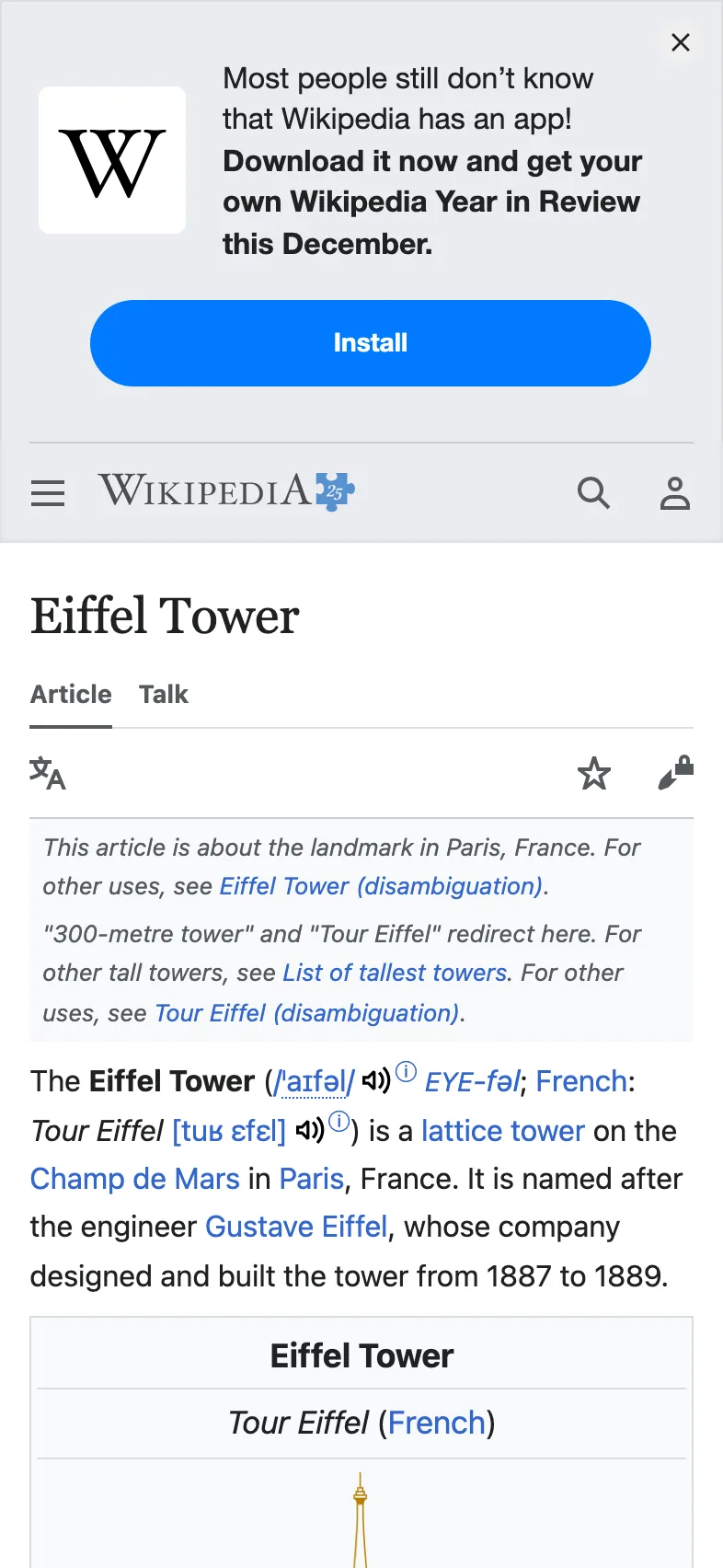
Here is what each option did:
| Option | What it changed |
| --- | --- |
| [`viewport_device`](https://curlshot.com/docs/devices.md) | The page was drawn on a phone-sized screen. |
| [`full_page`](https://curlshot.com/docs/full-page.md) | The capture runs to the bottom of the page, not just the first screen. |
| [`block_cookie_banners`](https://curlshot.com/docs/blocking.md) | A consent pop-up, if the page shows one, is hidden before the capture. |
| [`format`](https://curlshot.com/docs/options.md#format) | The file is a JPEG instead of a PNG. |
## When something goes wrong
A failed request never returns a broken image. It returns a short message in JSON, a text format for structured data, that says what happened.
This request leaves `https://` off the page address:
```bash
curl "https://curlshot.com/api/v1/screenshot?access_key=YOUR_ACCESS_KEY&url=example.com"
```
```json
{
"error_code": "invalid_options",
"error_message": "url: must be a full URL starting with http:// or https://",
"documentation_url": "https://curlshot.com/docs/errors#invalid_options",
"errors": [
{
"field": "url",
"message": "must be a full URL starting with http:// or https://"
}
]
}
```
`error_code` is a fixed word your code can check. `error_message` is written for you to read. The `errors` list comes with `invalid_options` only: it names each option that was refused.
Failed requests are not counted against your quota. The [errors page](https://curlshot.com/docs/errors.md) lists every code with its cause and its fix.
> **Common mistakes**
>
> - **The page address is cut off.** If it contains `&` or `?`, it must be encoded. See [The screenshot URL](https://curlshot.com/docs/screenshot-url.md#encode-the-url).
> - **You saved an error as a screenshot.** If the file will not open, look inside it: it probably holds the JSON error. Check the HTTP status before saving.
> - **A misspelled option.** Unknown options are refused, not ignored. The error message suggests the name you probably meant.
> - **The key is in your front-end code.** Anyone can read it there. Use a [signed link](https://curlshot.com/docs/signed-links.md).
## Where to go next
- [Authentication and API keys](https://curlshot.com/docs/authentication.md): the ways to send your key, and how to keep it safe.
- [The screenshot URL](https://curlshot.com/docs/screenshot-url.md): how the address is put together, and when to use POST.
- [Options reference](https://curlshot.com/docs/options.md): every option on one page.
- [Full-page screenshots](https://curlshot.com/docs/full-page.md), [Devices](https://curlshot.com/docs/devices.md) and [PDF rendering](https://curlshot.com/docs/pdf.md): the most common next steps.
- [Code examples](https://curlshot.com/docs/examples/node.md): longer samples for six languages.
---
Source: https://curlshot.com/docs/authentication
# Authentication and API keys
How to send your access key, what the secret key and signatures are for, and how to rotate, revoke and protect your keys.
Send your access key in a header, a named line that travels with the request, and the request is yours.
```bash
curl "https://curlshot.com/api/v1/screenshot?url=https://example.com" \
-H "X-Access-Key: YOUR_ACCESS_KEY" \
--output example.png
```
You get `example.png`, a screenshot of example.com. Without a key you get this instead:
```json
{
"error_code": "access_key_required",
"error_message": "An access key is required. Pass `access_key` or the `X-Access-Key` header.",
"documentation_url": "https://curlshot.com/docs/errors#access_key_required"
}
```
Every request to CurlShot needs an access key. It tells us whose quota, the monthly number of screenshots in your plan, the screenshot counts against.
## Where to find your key
1. [Create an account](https://curlshot.com/register), or [log in](https://curlshot.com/login).
2. Open **API keys** in the dashboard.
3. Copy the access key.
A key works once the email address of your account is confirmed. Until then, requests answer [`email_not_verified`](https://curlshot.com/docs/errors.md#email_not_verified).
You can have more than one key. Give each one a name, such as "production" or "staging", so you can tell them apart later.
## Three ways to send the key
All three do the same thing. Pick the one that fits your code.
| Where | What you send | Good for |
| --- | --- | --- |
| Query string | `access_key=YOUR_ACCESS_KEY` | Quick tests in a terminal. |
| Header | `X-Access-Key: YOUR_ACCESS_KEY` | Server code. The key stays out of the URL. |
| Header | `Authorization: Bearer YOUR_ACCESS_KEY` | HTTP clients and tools that already have a "bearer token" setting. |
If a request carries the key in more than one place, the query string wins.
Here is the header version in each language:
**cURL**
```bash
curl "https://curlshot.com/api/v1/screenshot?url=https://example.com" \
-H "X-Access-Key: YOUR_ACCESS_KEY" \
--output example.png
```
**Node.js**
```javascript
import { writeFile } from 'node:fs/promises'
const params = new URLSearchParams({ url: 'https://example.com' })
const response = await fetch(`https://curlshot.com/api/v1/screenshot?${params}`, {
headers: { 'X-Access-Key': process.env.SCREENSHOT_ACCESS_KEY },
})
if (!response.ok) throw new Error((await response.json()).error_message)
await writeFile('example.png', Buffer.from(await response.arrayBuffer()))
```
**Python**
```python
import os
import requests
response = requests.get(
"https://curlshot.com/api/v1/screenshot",
params={"url": "https://example.com"},
headers={"X-Access-Key": os.environ["SCREENSHOT_ACCESS_KEY"]},
)
response.raise_for_status()
with open("example.png", "wb") as f:
f.write(response.content)
```
**PHP**
```php
'https://example.com']);
$context = stream_context_create([
'http' => ['header' => 'X-Access-Key: ' . getenv('SCREENSHOT_ACCESS_KEY')],
]);
$image = file_get_contents("https://curlshot.com/api/v1/screenshot?$query", false, $context);
file_put_contents('example.png', $image);
```
**Go**
```go
package main
import (
"io"
"net/http"
"net/url"
"os"
)
func main() {
params := url.Values{}
params.Set("url", "https://example.com")
req, _ := http.NewRequest("GET", "https://curlshot.com/api/v1/screenshot?"+params.Encode(), nil)
req.Header.Set("X-Access-Key", os.Getenv("SCREENSHOT_ACCESS_KEY"))
resp, err := http.DefaultClient.Do(req)
if err != nil {
panic(err)
}
defer resp.Body.Close()
file, _ := os.Create("example.png")
defer file.Close()
io.Copy(file, resp.Body)
}
```
**Ruby**
```ruby
require "net/http"
uri = URI("https://curlshot.com/api/v1/screenshot")
uri.query = URI.encode_www_form(url: "https://example.com")
request = Net::HTTP::Get.new(uri)
request["X-Access-Key"] = ENV["SCREENSHOT_ACCESS_KEY"]
response = Net::HTTP.start(uri.host, uri.port, use_ssl: uri.scheme == "https") { |http| http.request(request) }
File.binwrite("example.png", response.body)
```
The samples read the key from an environment variable. That is a setting stored on your server, outside your code, so the key never ends up in your repository.
## Limits belong to the account, not the key
All your keys share one set of limits: the monthly quota, the number of requests per minute, and the number of renders that may run at the same time.
So a second key does not buy more requests per minute. Ten keys on one account have the same per-minute limit as one key.
Extra keys are for organisation and safety: one per app or environment, each one revocable on its own. [Usage and limits](https://curlshot.com/docs/usage-and-limits.md) explains the three limits.
## Access key and secret key
Each key you create is a pair: an access key and a secret key.
The **access key** identifies you. It travels with every request. Treat it like a password, even though it is the "public" half of the pair.
The **secret key** never travels. You use it on your own server to sign things, and we use our copy to check the signature. A signature is a short code computed from the request and the secret, so only someone who holds the secret can produce it.
You need the secret key in two places:
- [Signed links](https://curlshot.com/docs/signed-links.md), when a screenshot URL has to appear in a web page or an email.
- [Webhooks](https://curlshot.com/docs/async-and-webhooks.md), to check that a message really came from us.
If you only call the API from your server, you can ignore the secret key.
## Keep keys off the browser
Anything in a web page can be read by the person looking at it. That includes JavaScript files, HTML attributes and network requests.
So this is not safe in a public page:
```html
```
A visitor can copy the key and spend your quota on their own screenshots.
You have two safe choices:
- Call the API from your server and send the image to the browser yourself.
- Use a [signed link](https://curlshot.com/docs/signed-links.md). The signature covers every parameter, so a visitor cannot change the page being captured.
## What a signature covers
A signed link has one more parameter, `signature`. You compute it on your server from the link's parameters and your secret key. [Signed links](https://curlshot.com/docs/signed-links.md) shows how, with code.
Three rules decide what a signed link can do:
- **Nothing in it can be changed.** Edit, add or remove a parameter and the answer is [`signature_invalid`](https://curlshot.com/docs/errors.md#signature_invalid) with status `403`.
- **It works for one endpoint.** An endpoint is one address of the API, such as `/screenshot` or `/usage`. A signed screenshot link takes that one screenshot. It cannot be reused to read your usage, your jobs or your stored files.
- **It can have an end date.** Add [`expires`](https://curlshot.com/docs/options.md#expires) before you sign.
### expires
The moment a link stops working, as a Unix time in seconds. Unix time counts the seconds since 1 January 1970, so `1798761600` is 1 January 2027, 00:00 UTC.
There is no default. Leave it out and the link has no end date.
The link works until that moment and never after. Because `expires` is part of the signed parameters, nobody can move the date. An expired link answers like this:
```json
{
"error_code": "request_expired",
"error_message": "This request has expired: its `expires` time is in the past. Create a new link with a later `expires`.",
"documentation_url": "https://curlshot.com/docs/errors#request_expired"
}
```
> **Note**
>
> The other endpoints (`/usage`, `/jobs/:id`, `/batches/:id`, `/files/:id` and `/bulk`) can be signed too, each with its own short set of signed parameters. [Signed links](https://curlshot.com/docs/signed-links.md) has the details.
## Accept signed requests only
Each key has a **Require signature** setting in the dashboard. Turn it on, and that key refuses every request that has no valid `signature`.
An unsigned request then fails like this:
```json
{
"error_code": "signature_required",
"error_message": "This access key only accepts signed requests. Add a `signature` parameter.",
"documentation_url": "https://curlshot.com/docs/errors#signature_required"
}
```
This is the right setting for a key that appears in public pages. Even if someone copies the access key from a link, they cannot make new requests with it.
Without the setting, someone could delete the `signature` from your link and send their own parameters with your access key.
> **Tip**
>
> Use two keys. Keep one for your server, with no signature needed. Use a second one with **Require signature** on for links that end up in a browser.
## Rotate a key
Rotating means swapping an old key for a new one. Do it on a schedule, or right away if a key may have leaked.
1. Create a new key in the dashboard.
2. Put the new key in your server settings and deploy.
3. Check that requests work with the new key.
4. Revoke the old key.
Doing it in this order means there is no moment when your app has no working key.
## Revoke a key
Revoking switches a key off for good. Open **API keys**, pick the key and revoke it.
From then on, every request with that key fails with [`access_key_invalid`](https://curlshot.com/docs/errors.md#access_key_invalid) and status `401`. Signed links made with that key stop working too.
> **Common mistakes**
>
> - **The key is in a public repository.** Revoke it and create a new one. Deleting the commit is not enough, because the old version can still be found.
> - **The key is in front-end code.** Move the call to your server, or switch to [signed links](https://curlshot.com/docs/signed-links.md).
> - **You mixed up `Authorization` and `authorization`.** The `Authorization: Bearer` header on your request carries your access key to us. The [`authorization`](https://curlshot.com/docs/options.md#authorization) option is something else: a login for the site being captured. It goes only to the site in `url`, and so do `Cookie`, `Authorization` and API-key style entries in [`headers`](https://curlshot.com/docs/options.md#headers). Other hosts the page loads files from never see them.
> - **You created more keys to get a higher rate limit.** The limits are per account. See [Usage and limits](https://curlshot.com/docs/usage-and-limits.md) for what each plan allows.
> - **You signed with the wrong secret.** The secret must belong to the same access key that is in the request. Otherwise you get [`signature_invalid`](https://curlshot.com/docs/errors.md#signature_invalid).
## Where to go next
- [The screenshot URL](https://curlshot.com/docs/screenshot-url.md): how a request is put together.
- [Signed links](https://curlshot.com/docs/signed-links.md): safe screenshot URLs for public pages.
- [Usage and limits](https://curlshot.com/docs/usage-and-limits.md): check how much of your quota is left.
- [Errors](https://curlshot.com/docs/errors.md): every error code, including the key and signature ones.
---
Source: https://curlshot.com/docs/screenshot-url
# The screenshot URL
How a screenshot request is built, when to use GET or POST, how to encode the page address, and what the response contains.
A screenshot request is one web address. This one captures example.com as a JPEG, 800 pixels wide:
```bash
curl "https://curlshot.com/api/v1/screenshot?access_key=YOUR_ACCESS_KEY&url=https://example.com&format=jpeg&viewport_width=800" \
--output example.jpg
```
You get `example.jpg`. The response body is the image itself, with the header `Content-Type: image/jpeg`.
## Anatomy of the request
Here is the same address, split into its parts:
```text
https://curlshot.com/api/v1/screenshot the endpoint
?access_key=YOUR_ACCESS_KEY who is asking
&url=https://example.com what to capture
&format=jpeg an option
&viewport_width=800 another option
```
The endpoint is always `https://curlshot.com/api/v1/screenshot`. The address `https://curlshot.com/api/v1/take` is an alias and works the same way.
After the `?` come the options. Each one is `name=value`, and they are joined with `&`. The order does not matter.
You need exactly one source: [`url`](https://curlshot.com/docs/options.md#url), [`html`](https://curlshot.com/docs/options.md#html) or [`markdown`](https://curlshot.com/docs/options.md#markdown). Everything else is optional and has a default. The [Options reference](https://curlshot.com/docs/options.md) lists them all.
### url
Address of the page to capture.
There is no default. Send it, or send [`html` or `markdown`](https://curlshot.com/docs/html-and-markdown.md) in its place.
The address has to follow four rules:
- **It is a full address.** It starts with `http://` or `https://` and is at most 4096 characters long. `example.com` alone returns [`invalid_options`](https://curlshot.com/docs/errors.md#invalid_options).
- **It is public.** `localhost` and private network addresses are refused with [`host_not_allowed`](https://curlshot.com/docs/errors.md#host_not_allowed).
- **It has no username and password in it.** For a page behind a login, use the [`authorization`](https://curlshot.com/docs/options.md#authorization) option.
- **Its port is a web port.** The port is the number after the host name, as in `https://your-app.example:8443`. Most addresses have none and use `80` or `443`.
Ports `80` and `443` always work. So do most ports from `1024` up, such as `3000`, `8080` or `8443`.
Every other port below `1024` is refused. So are the ports of well-known services that are not websites: databases, caches, message queues, remote desktops and the like. Examples are `3306`, `5432`, `6379`, `9200`, `11211` and `27017`. A refused port answers `host_not_allowed`.
## GET or POST
You can send the same options in two ways.
**GET** puts the options in the address, as above. It works anywhere a URL works: a terminal, an `` tag with a [signed link](https://curlshot.com/docs/signed-links.md), a browser tab.
**POST** puts the options in a JSON body. JSON is a text format for structured data. Set the header `Content-Type: application/json`.
```bash
curl -X POST "https://curlshot.com/api/v1/screenshot" \
-H "X-Access-Key: YOUR_ACCESS_KEY" \
-H "Content-Type: application/json" \
-d '{
"url": "https://example.com",
"format": "jpeg",
"viewport_width": 800
}' \
--output example.jpg
```
The result is the same `example.jpg`.
Use POST when:
- You send [`html`](https://curlshot.com/docs/html-and-markdown.md), `markdown`, [`styles`](https://curlshot.com/docs/customize.md) or `scripts`. These are long and full of characters that are awkward in a URL.
- A value is long, such as a big cookie or a list of headers.
- You want the access key out of the URL. Addresses often end up in server logs.
In JSON you can use real types: `true` instead of `"true"`, `800` instead of `"800"`, and arrays for lists.
A body that is not valid JSON, or is not a JSON object, returns [`invalid_request`](https://curlshot.com/docs/errors.md#invalid_request).
## Encode the URL
The page address you want to capture is itself a URL, and it sits inside another URL. If it contains `&`, `?`, `=`, `#` or a space, the two get mixed up.
Take this page address:
```text
https://news.ycombinator.com/front?day=2024-01-15&p=2
```
Paste it in as it is, and the request breaks:
```text
https://curlshot.com/api/v1/screenshot?access_key=YOUR_ACCESS_KEY&url=https://news.ycombinator.com/front?day=2024-01-15&p=2
```
The `&` ends the `url` value early. We receive `url=https://news.ycombinator.com/front?day=2024-01-15` and a separate option called `p`. There is no option called `p`, so the request fails with [`invalid_options`](https://curlshot.com/docs/errors.md#invalid_options) and the message `p: is not a known option`.
The fix is percent-encoding. Each special character is replaced by `%` and a two-character code, so it can no longer be mistaken for part of the outer address.
```text
https://curlshot.com/api/v1/screenshot?access_key=YOUR_ACCESS_KEY&url=https%3A%2F%2Fnews.ycombinator.com%2Ffront%3Fday%3D2024-01-15%26p%3D2
```
Now `&` has become `%26` and `?` has become `%3F`. The whole page address arrives as one value.
You do not need to do this by hand. Every language has a function for it:
**cURL**
```bash
# -G sends a GET request; --data-urlencode encodes each value for you.
curl -G "https://curlshot.com/api/v1/screenshot" \
--data-urlencode "access_key=YOUR_ACCESS_KEY" \
--data-urlencode "url=https://news.ycombinator.com/front?day=2024-01-15&p=2" \
--output hn.png
```
**Node.js**
```javascript
// URLSearchParams encodes every value.
const params = new URLSearchParams({
access_key: 'YOUR_ACCESS_KEY',
url: 'https://news.ycombinator.com/front?day=2024-01-15&p=2',
})
const requestUrl = `https://curlshot.com/api/v1/screenshot?${params}`
```
**Python**
```python
from urllib.parse import urlencode
# urlencode encodes every value.
query = urlencode({
"access_key": "YOUR_ACCESS_KEY",
"url": "https://news.ycombinator.com/front?day=2024-01-15&p=2",
})
request_url = f"https://curlshot.com/api/v1/screenshot?{query}"
```
**PHP**
```php
'YOUR_ACCESS_KEY',
'url' => 'https://news.ycombinator.com/front?day=2024-01-15&p=2',
]);
$requestUrl = "https://curlshot.com/api/v1/screenshot?$query";
```
**Go**
```go
package main
import (
"fmt"
"net/url"
)
func main() {
// url.Values encodes every value.
params := url.Values{}
params.Set("access_key", "YOUR_ACCESS_KEY")
params.Set("url", "https://news.ycombinator.com/front?day=2024-01-15&p=2")
fmt.Println("https://curlshot.com/api/v1/screenshot?" + params.Encode())
}
```
**Ruby**
```ruby
require "uri"
# encode_www_form encodes every value.
query = URI.encode_www_form(
access_key: "YOUR_ACCESS_KEY",
url: "https://news.ycombinator.com/front?day=2024-01-15&p=2"
)
request_url = "https://curlshot.com/api/v1/screenshot?#{query}"
```
> **Note**
>
> A plain address such as `https://example.com` has no special characters, so it works without encoding. Encode anyway. It costs nothing and it keeps working when the address changes.
With POST there is nothing to encode. The address goes into the JSON body as an ordinary string.
## Booleans and lists
A boolean is an on or off option, such as [`full_page`](https://curlshot.com/docs/options.md#full_page). In a query string, these all mean on: `true`, `1`, `yes`, `on`. These all mean off: `false`, `0`, `no`, `off`.
Some options take a list: [`hide_selectors`](https://curlshot.com/docs/options.md#hide_selectors), [`block_resources`](https://curlshot.com/docs/options.md#block_resources), [`block_requests`](https://curlshot.com/docs/options.md#block_requests), [`headers`](https://curlshot.com/docs/options.md#headers) and [`cookies`](https://curlshot.com/docs/options.md#cookies). You can write a list in two ways:
```text
block_resources=font,media
block_resources=font&block_resources=media
```
In a POST body, send a JSON array: `"block_resources": ["font", "media"]`.
Any other option may appear only once. An empty value, such as `full_page=`, counts as not set, so the default applies.
## Get JSON instead of the file
By default the response is the file. Add [`response_type=json`](https://curlshot.com/docs/options.md#response_type) to get a description of the file and a link to it.
```bash
curl "https://curlshot.com/api/v1/screenshot?access_key=YOUR_ACCESS_KEY&url=https://example.com&response_type=json"
```
```json
{
"id": "a187741109b34d6c991bdab9b2c5da03",
"url": "https://curlshot.com/api/v1/files/a187741109b34d6c991bdab9b2c5da03.png?expires=1791155483&token=Zk3vQ8sT1nY6bW2xLr9cHd4JmPq7uAe0GfKoIiNtVyE",
"format": "png",
"width": 1280,
"height": 1024,
"bytes": 48213,
"render_ms": 1240,
"cached": false,
"expires_at": "2026-10-04T23:11:23.563Z"
}
```
This suits code that wants to pass a link along, not the bytes.
The `url` is a link to the stored file. It carries its own token, so it opens without an access key and you can hand it to a browser or another service. It stops working at `expires_at`. Download the file if you need it for longer.
| Field | What it holds |
| --- | --- |
| `id` | The id of this screenshot. |
| `url` | The expiring link to the file. |
| `format` | `png`, `jpeg`, `webp`, `pdf`, `mp4`, `webm` or `gif`. |
| `width`, `height` | Size of the image or the video in pixels. |
| `bytes` | Size of the file. |
| `render_ms` | How long the render took, in milliseconds. |
| `cached` | `true` when a stored copy was served. See [Caching](https://curlshot.com/docs/caching.md). |
| `expires_at` | When the link and the stored file expire. |
## Response headers
Every answer carries `X-Reference-Id`, including errors. Quote it when you [contact us](https://curlshot.com/contact).
A request that gets as far as a render also tells you where your limits stand, whether the answer is a file, JSON or a render error:
| Header | What it tells you |
| --- | --- |
| `X-Quota-Limit` | Screenshots your plan includes in the current period. |
| `X-Quota-Remaining` | Screenshots you have left: what remains of the plan, plus any bonus screenshots. |
| `X-Quota-Reset` | When the period resets, as an ISO date. |
| `X-RateLimit-Limit` | Requests your account may send per minute. |
| `X-RateLimit-Remaining` | Requests left in the current minute. |
| `X-RateLimit-Reset` | When the minute resets, in Unix seconds. |
| `X-Concurrency-Limit` | Renders your account may run at the same time. |
| `X-Concurrency-Remaining` | Free render slots right now. |
A request that is refused before that point, for example with `invalid_options` or a wrong key, has only `X-Reference-Id`.
A successful answer adds these:
| Header | What it tells you |
| --- | --- |
| `X-Cache` | `HIT` if a stored copy was served, `MISS` if the page was rendered. See [Caching](https://curlshot.com/docs/caching.md). |
| `X-Render-Ms` | How long the render took, in milliseconds. |
| `X-Image-Width`, `X-Image-Height` | Size of the image in pixels. Sent when the answer is the image itself. |
A `429` answer also has `Retry-After`: the number of seconds to wait before you try again. [Usage and limits](https://curlshot.com/docs/usage-and-limits.md) explains the three limits.
> **Common mistakes**
>
> - **A misspelled option.** Unknown options are not ignored. `fullpage=true` returns `invalid_options` with a hint: did you mean `full_page`?
> - **The same option twice.** Only list options may repeat. Two `format` values return `invalid_options`.
> - **A username and password in `url`.** An address like `https://user:pass@example.com` returns `invalid_options`. Use the [`authorization`](https://curlshot.com/docs/options.md#authorization) option.
> - **A local address or an unusual port.** Both return `host_not_allowed`. See the [`url`](https://curlshot.com/docs/screenshot-url.md#url) rules above.
> - **Saving an error as an image.** Check the HTTP status before you write the file. Errors are JSON, as shown on the [errors page](https://curlshot.com/docs/errors.md).
## Where to go next
- [Options reference](https://curlshot.com/docs/options.md): every option with its default and limits.
- [Authentication and API keys](https://curlshot.com/docs/authentication.md): the three ways to send your key.
- [HTML and Markdown input](https://curlshot.com/docs/html-and-markdown.md): render your own markup with POST.
- [Signed links](https://curlshot.com/docs/signed-links.md): put a screenshot URL in a public page safely.
---
Source: https://curlshot.com/docs/options
# Options reference
Every option of the screenshot API on one page, with its default, its limits and an example value.
An option is one `name=value` pair added to the request. This request uses three of them:
```bash
curl "https://curlshot.com/api/v1/screenshot?access_key=YOUR_ACCESS_KEY&url=https://example.com&format=webp&viewport_width=1440&dark_mode=true" \
--output example.webp
```
You get `example.webp`: example.com in a 1440 pixel wide window, as a WebP file, in its dark theme.
Options work the same in a GET query string and in a POST JSON body. [The screenshot URL](https://curlshot.com/docs/screenshot-url.md) explains both, and how to write booleans and lists.
A misspelled option is never silently ignored. You get [`invalid_options`](https://curlshot.com/docs/errors.md#invalid_options) with a hint naming the option you probably meant: `fullpage` gets "did you mean `full_page`?".
## All options at a glance
| Option | Group | What it does | Default |
| --- | --- | --- | --- |
| [`url`](https://curlshot.com/docs/options.md#url) | Source | Address of the page to capture. | |
| [`html`](https://curlshot.com/docs/options.md#html) | Source | HTML to render instead of a URL. | |
| [`markdown`](https://curlshot.com/docs/options.md#markdown) | Source | Markdown to render as a styled page instead of a URL. | |
| [`format`](https://curlshot.com/docs/options.md#format) | Output | File format of the result. mp4, webm and gif record a video of the page. | `png` |
| [`image_quality`](https://curlshot.com/docs/options.md#image_quality) | Output | Compression quality for jpeg and webp. | `80` |
| [`image_width`](https://curlshot.com/docs/options.md#image_width) | Output | Resize the final image to this width. | |
| [`image_height`](https://curlshot.com/docs/options.md#image_height) | Output | Resize the final image to this height. | |
| [`omit_background`](https://curlshot.com/docs/options.md#omit_background) | Output | Keep the page background transparent (png and webp). | `false` |
| [`response_type`](https://curlshot.com/docs/options.md#response_type) | Output | Return the file itself, or JSON with a link to it. | `by_format` |
| [`viewport_width`](https://curlshot.com/docs/options.md#viewport_width) | Viewport | Width of the browser window. | `1280` |
| [`viewport_height`](https://curlshot.com/docs/options.md#viewport_height) | Viewport | Height of the browser window. A video uses 720 unless you set it. | `1024` |
| [`device_scale_factor`](https://curlshot.com/docs/options.md#device_scale_factor) | Viewport | Pixel density; 2 gives a retina image. | `1` |
| [`viewport_device`](https://curlshot.com/docs/options.md#viewport_device) | Viewport | Emulate a phone, tablet or laptop preset. | |
| [`viewport_mobile`](https://curlshot.com/docs/options.md#viewport_mobile) | Viewport | Render the mobile layout (honours the viewport meta tag). | `false` |
| [`viewport_landscape`](https://curlshot.com/docs/options.md#viewport_landscape) | Viewport | Rotate the viewport to landscape. | `false` |
| [`full_page`](https://curlshot.com/docs/options.md#full_page) | Capture | Capture the whole page, not just the first screen. | `false` |
| [`full_page_scroll`](https://curlshot.com/docs/options.md#full_page_scroll) | Capture | Scroll through the page first so lazy-loaded images appear. | `true` |
| [`full_page_max_height`](https://curlshot.com/docs/options.md#full_page_max_height) | Capture | Cut a full-page capture off at this height. | `20000` |
| [`selector`](https://curlshot.com/docs/options.md#selector) | Capture | Capture only the first element matching this CSS selector. | |
| [`clip_x`](https://curlshot.com/docs/options.md#clip_x) | Capture | Left edge of the area to capture. | |
| [`clip_y`](https://curlshot.com/docs/options.md#clip_y) | Capture | Top edge of the area to capture. | |
| [`clip_width`](https://curlshot.com/docs/options.md#clip_width) | Capture | Width of the area to capture. | |
| [`clip_height`](https://curlshot.com/docs/options.md#clip_height) | Capture | Height of the area to capture. | |
| [`wait_until`](https://curlshot.com/docs/options.md#wait_until) | Waiting | Page event that marks the page as loaded. | `load` |
| [`delay`](https://curlshot.com/docs/options.md#delay) | Waiting | Extra time to wait after the page has loaded. | `0` |
| [`timeout`](https://curlshot.com/docs/options.md#timeout) | Waiting | Give up if the page is not ready after this long. | `30` |
| [`wait_for_selector`](https://curlshot.com/docs/options.md#wait_for_selector) | Waiting | Wait until this element is visible before capturing. | |
| [`dark_mode`](https://curlshot.com/docs/options.md#dark_mode) | Customize | Ask the page for its dark theme. | `false` |
| [`reduced_motion`](https://curlshot.com/docs/options.md#reduced_motion) | Customize | Ask the page to turn animations off. | `false` |
| [`media_type`](https://curlshot.com/docs/options.md#media_type) | Customize | CSS media type to render with. | `screen` |
| [`hide_selectors`](https://curlshot.com/docs/options.md#hide_selectors) | Customize | Hide every element matching these CSS selectors. | |
| [`styles`](https://curlshot.com/docs/options.md#styles) | Customize | CSS to add to the page. | |
| [`scripts`](https://curlshot.com/docs/options.md#scripts) | Customize | JavaScript to run on the page before the capture. | |
| [`click`](https://curlshot.com/docs/options.md#click) | Customize | Click the first element matching this selector before the capture. | |
| [`user_agent`](https://curlshot.com/docs/options.md#user_agent) | Request | User-Agent header the browser sends. | |
| [`headers`](https://curlshot.com/docs/options.md#headers) | Request | Extra HTTP headers, as "Name: value". | |
| [`cookies`](https://curlshot.com/docs/options.md#cookies) | Request | Cookies to set, as "name=value; Domain=example.com". | |
| [`authorization`](https://curlshot.com/docs/options.md#authorization) | Request | Authorization header sent to the target site only. | |
| [`time_zone`](https://curlshot.com/docs/options.md#time_zone) | Request | IANA time zone the page sees. | |
| [`block_ads`](https://curlshot.com/docs/options.md#block_ads) | Blocking | Block requests to ad networks. | `false` |
| [`block_trackers`](https://curlshot.com/docs/options.md#block_trackers) | Blocking | Block analytics and tracking scripts. | `false` |
| [`block_cookie_banners`](https://curlshot.com/docs/options.md#block_cookie_banners) | Blocking | Hide cookie consent banners. | `false` |
| [`block_chats`](https://curlshot.com/docs/options.md#block_chats) | Blocking | Block live-chat widgets. | `false` |
| [`block_resources`](https://curlshot.com/docs/options.md#block_resources) | Blocking | Block whole kinds of resources. | |
| [`block_requests`](https://curlshot.com/docs/options.md#block_requests) | Blocking | Block requests whose URL matches these patterns (* is a wildcard). | |
| [`pdf_paper_format`](https://curlshot.com/docs/options.md#pdf_paper_format) | PDF | Paper size of the PDF. | `a4` |
| [`pdf_landscape`](https://curlshot.com/docs/options.md#pdf_landscape) | PDF | Use landscape pages. | `false` |
| [`pdf_print_background`](https://curlshot.com/docs/options.md#pdf_print_background) | PDF | Print background colors and images. | `true` |
| [`pdf_margin`](https://curlshot.com/docs/options.md#pdf_margin) | PDF | Margin on all four sides. | |
| [`pdf_margin_top`](https://curlshot.com/docs/options.md#pdf_margin_top) | PDF | Top margin; overrides pdf_margin. | |
| [`pdf_margin_right`](https://curlshot.com/docs/options.md#pdf_margin_right) | PDF | Right margin; overrides pdf_margin. | |
| [`pdf_margin_bottom`](https://curlshot.com/docs/options.md#pdf_margin_bottom) | PDF | Bottom margin; overrides pdf_margin. | |
| [`pdf_margin_left`](https://curlshot.com/docs/options.md#pdf_margin_left) | PDF | Left margin; overrides pdf_margin. | |
| [`pdf_fit_one_page`](https://curlshot.com/docs/options.md#pdf_fit_one_page) | PDF | Put the whole page on a single tall PDF page. | `false` |
| [`video_duration`](https://curlshot.com/docs/options.md#video_duration) | Video | Length of the video. Left out, it follows the height of the page. | |
| [`video_max_duration`](https://curlshot.com/docs/options.md#video_max_duration) | Video | Longest the video may get when its length follows the page. A taller page then scrolls faster. | `30` |
| [`video_fps`](https://curlshot.com/docs/options.md#video_fps) | Video | Frames per second. A gif takes at most 15. | `24` |
| [`video_scroll`](https://curlshot.com/docs/options.md#video_scroll) | Video | Scroll from the top of the page to the bottom while recording. | `true` |
| [`video_scroll_back`](https://curlshot.com/docs/options.md#video_scroll_back) | Video | Scroll back to the top at the end, so the video loops cleanly. | `false` |
| [`video_scroll_easing`](https://curlshot.com/docs/options.md#video_scroll_easing) | Video | How the scroll moves: a soft start and stop, or one even speed. | `ease_in_out` |
| [`cache`](https://curlshot.com/docs/options.md#cache) | Cache | Serve a stored copy when the same request was made before. | `false` |
| [`cache_ttl`](https://curlshot.com/docs/options.md#cache_ttl) | Cache | How long a cached copy stays valid. | `14400` |
| [`cache_key`](https://curlshot.com/docs/options.md#cache_key) | Cache | Change this value to force a fresh render. | |
| [`async`](https://curlshot.com/docs/options.md#async) | Async and webhooks | Return at once and render in the background. | `false` |
| [`webhook_url`](https://curlshot.com/docs/options.md#webhook_url) | Async and webhooks | Address that receives the result when the render is done. | |
| [`webhook_sign`](https://curlshot.com/docs/options.md#webhook_sign) | Async and webhooks | Sign the webhook body so you can verify it came from us. | `true` |
| [`access_key`](https://curlshot.com/docs/options.md#access_key) | Authentication | Your API access key. | |
| [`signature`](https://curlshot.com/docs/options.md#signature) | Authentication | HMAC-SHA256 signature of the query string, for signed links. | |
| [`expires`](https://curlshot.com/docs/options.md#expires) | Authentication | Unix time in seconds after which the request is refused. Put it in a signed link to give the link a lifetime. | |
## Source
These options say what to render. You always need exactly one of them. Use `url` for a page that is already online. Use `html` or `markdown` when you have the content yourself, such as an invoice or a social card.
A `url` must be a full `http://` or `https://` address on the public internet. [The screenshot URL](https://curlshot.com/docs/screenshot-url.md#url) lists the rules, including which ports are accepted.
```bash
curl "https://curlshot.com/api/v1/screenshot?access_key=YOUR_ACCESS_KEY&url=https://example.com" --output example.png
```
### url
Address of the page to capture.
There is no default; leave it out and it is not applied.
Type: text.
Example: `url=https://example.com`
### html
HTML to render instead of a URL.
There is no default; leave it out and it is not applied.
Type: text.
Example: `html=%3Ch1%3EHello%3C/h1%3E`
### markdown
Markdown to render as a styled page instead of a URL.
There is no default; leave it out and it is not applied.
Type: text.
Example: `markdown=%23%20Hello`
Read more: [The screenshot URL](https://curlshot.com/docs/screenshot-url.md), [HTML and Markdown input](https://curlshot.com/docs/html-and-markdown.md).
## Output
Reach for these when the file itself needs to change: a smaller JPEG for a thumbnail, a transparent PNG, or a JSON answer with a link in place of the bytes. The page is drawn the same way. Only what you receive is different.
```bash
curl "https://curlshot.com/api/v1/screenshot?access_key=YOUR_ACCESS_KEY&url=https://example.com&format=jpeg&image_quality=70&image_width=640" --output thumb.jpg
```
### format
File format of the result. mp4, webm and gif record a video of the page.
The default is `png`.
Type: one of a fixed list. Allowed values: `png`, `jpeg`, `webp`, `pdf`, `mp4`, `webm`, `gif`.
Example: `format=png`
### image_quality
Compression quality for jpeg and webp.
The default is `80`.
Type: whole number. From 1 to 100.
Example: `image_quality=80`
### image_width
Resize the final image to this width.
There is no default; leave it out and it is not applied.
Type: whole number. From 1 to 8000 pixels.
Example: `image_width=640`
### image_height
Resize the final image to this height.
There is no default; leave it out and it is not applied.
Type: whole number. From 1 to 8000 pixels.
Example: `image_height=400`
### omit_background
Keep the page background transparent (png and webp).
The default is `false`.
Type: true or false.
Example: `omit_background=true`
### response_type
Return the file itself, or JSON with a link to it.
The default is `by_format`.
Type: one of a fixed list. Allowed values: `by_format`, `json`.
Example: `response_type=json`
Read more: [The screenshot URL](https://curlshot.com/docs/screenshot-url.md).
## Viewport
The viewport is the browser window the page is drawn in. Its size decides which layout a site shows, so this is the group to use when you want the phone version, a wide desktop version, or a sharper image for high-density screens. A device preset sets several of these at once.
```bash
curl "https://curlshot.com/api/v1/screenshot?access_key=YOUR_ACCESS_KEY&url=https://example.com&viewport_device=iphone_15_pro" --output phone.png
```
### viewport_width
Width of the browser window.
The default is `1280` pixels.
Type: whole number. From 100 to 3840 pixels.
Example: `viewport_width=1280`
### viewport_height
Height of the browser window. A video uses 720 unless you set it.
The default is `1024` pixels.
Type: whole number. From 100 to 4320 pixels.
Example: `viewport_height=1024`
### device_scale_factor
Pixel density; 2 gives a retina image.
The default is `1`.
Type: number. From 1 to 3.
Example: `device_scale_factor=2`
### viewport_device
Emulate a phone, tablet or laptop preset.
There is no default; leave it out and it is not applied.
Type: one of a fixed list. Allowed values: every name on the [Devices](https://curlshot.com/docs/devices.md) page.
Example: `viewport_device=iphone_15_pro`
### viewport_mobile
Render the mobile layout (honours the viewport meta tag).
The default is `false`.
Type: true or false.
Example: `viewport_mobile=true`
### viewport_landscape
Rotate the viewport to landscape.
The default is `false`.
Type: true or false.
Example: `viewport_landscape=true`
Read more: [Devices](https://curlshot.com/docs/devices.md).
## Capture
These decide which part of the page ends up in the screenshot. By default you get the first screen. Use this group to capture the page from top to bottom, one element, or a rectangle you choose.
```bash
curl "https://curlshot.com/api/v1/screenshot?access_key=YOUR_ACCESS_KEY&url=https://example.com&full_page=true" --output full.png
```
### full_page
Capture the whole page, not just the first screen.
The default is `false`.
Type: true or false.
Example: `full_page=true`
### full_page_scroll
Scroll through the page first so lazy-loaded images appear.
The default is `true`.
Type: true or false.
Example: `full_page_scroll=false`
### full_page_max_height
Cut a full-page capture off at this height.
The default is `20000` pixels.
Type: whole number. From 100 to 30000 pixels.
Example: `full_page_max_height=10000`
### selector
Capture only the first element matching this CSS selector.
There is no default; leave it out and it is not applied.
Type: text.
Example: `selector=%23pricing`
### clip_x
Left edge of the area to capture.
There is no default; leave it out and it is not applied.
Type: whole number. 0 or more pixels.
Example: `clip_x=0`
### clip_y
Top edge of the area to capture.
There is no default; leave it out and it is not applied.
Type: whole number. 0 or more pixels.
Example: `clip_y=0`
### clip_width
Width of the area to capture.
There is no default; leave it out and it is not applied.
Type: whole number. From 1 to 8000 pixels.
Example: `clip_width=600`
### clip_height
Height of the area to capture.
There is no default; leave it out and it is not applied.
Type: whole number. From 1 to 30000 pixels.
Example: `clip_height=400`
Read more: [Full-page screenshots](https://curlshot.com/docs/full-page.md), [Capturing an element](https://curlshot.com/docs/element.md).
## Waiting
Pages do not appear all at once. These options decide the moment the capture is taken. Use them when a screenshot comes back half-loaded, or when a slow page runs out of time.
`delay` and `timeout` are in seconds, not milliseconds: `delay=1` waits one second, and `timeout` can be from 1 to 90.
```bash
curl "https://curlshot.com/api/v1/screenshot?access_key=YOUR_ACCESS_KEY&url=https://example.com&wait_until=networkidle&delay=1" --output ready.png
```
### wait_until
Page event that marks the page as loaded.
The default is `load`.
Type: one of a fixed list. Allowed values: `load`, `domcontentloaded`, `networkidle`, `commit`.
Example: `wait_until=networkidle`
### delay
Extra time to wait after the page has loaded.
The default is `0` seconds.
Type: number. From 0 to 30 seconds.
Example: `delay=2`
### timeout
Give up if the page is not ready after this long.
The default is `30` seconds.
Type: number. From 1 to 90 seconds.
Example: `timeout=60`
### wait_for_selector
Wait until this element is visible before capturing.
There is no default; leave it out and it is not applied.
Type: text.
Example: `wait_for_selector=.chart-ready`
Read more: [Waiting and timing](https://curlshot.com/docs/waiting.md).
## Customize
Use these to change how the page looks before the capture. You can ask for the dark theme, hide an element that is in the way, add your own CSS, run a bit of JavaScript, or click a button.
```bash
curl "https://curlshot.com/api/v1/screenshot?access_key=YOUR_ACCESS_KEY&url=https://developer.mozilla.org&dark_mode=true&hide_selectors=.top-banner" --output dark.png
```
### dark_mode
Ask the page for its dark theme.
The default is `false`.
Type: true or false.
Example: `dark_mode=true`
### reduced_motion
Ask the page to turn animations off.
The default is `false`.
Type: true or false.
Example: `reduced_motion=true`
### media_type
CSS media type to render with.
The default is `screen`.
Type: one of a fixed list. Allowed values: `screen`, `print`.
Example: `media_type=print`
### hide_selectors
Hide every element matching these CSS selectors.
There is no default; leave it out and it is not applied.
Type: list of text values.
Example: `hide_selectors=.cookie-bar,%23chat`
### styles
CSS to add to the page.
There is no default; leave it out and it is not applied.
Type: text.
Example: `styles=body%7Bbackground:%23fff%7D`
### scripts
JavaScript to run on the page before the capture.
There is no default; leave it out and it is not applied.
Type: text.
Example: `scripts=document.title%3D'Hi'`
### click
Click the first element matching this selector before the capture.
There is no default; leave it out and it is not applied.
Type: text.
Example: `click=%23accept`
Read more: [Dark mode and emulation](https://curlshot.com/docs/dark-mode-and-emulation.md), [Custom CSS, JavaScript and clicks](https://curlshot.com/docs/customize.md).
## Request
These change what our browser sends to the site. Reach for them when the page needs a login cookie, a special header, a certain time zone, or a different browser name.
Login details stay with the site you capture. `authorization`, and any entry in `headers` that carries a credential (`Cookie`, `Authorization`, or a name containing words like `token` or `key`), is sent only to the origin of your `url`. The origin is its scheme, host and port together. Other hosts the page loads files from, or redirects to, do not receive them.
```bash
curl "https://curlshot.com/api/v1/screenshot?access_key=YOUR_ACCESS_KEY&url=https://example.com&time_zone=Europe/Berlin&headers=Accept-Language:%20de" --output berlin.png
```
### user_agent
User-Agent header the browser sends.
There is no default; leave it out and it is not applied.
Type: text.
Example: `user_agent=MyBot/1.0`
### headers
Extra HTTP headers, as "Name: value".
There is no default; leave it out and it is not applied.
Type: name and value pairs.
Example: `headers=X-Preview:%201`
### cookies
Cookies to set, as "name=value; Domain=example.com".
There is no default; leave it out and it is not applied.
Type: list of name and value pairs.
Example: `cookies=session%3Dabc123`
### authorization
Authorization header sent to the target site only.
There is no default; leave it out and it is not applied.
Type: text.
Example: `authorization=Basic%20dXNlcjpwYXNz`
### time_zone
IANA time zone the page sees.
There is no default; leave it out and it is not applied.
Type: text.
Example: `time_zone=Europe/Berlin`
Read more: [How to screenshot a page behind a login](https://curlshot.com/docs/guides/screenshot-behind-login.md).
## Blocking
Real pages come with noise: ads, consent pop-ups, chat bubbles. These options remove the common ones so the screenshot shows the content. Blocking is best-effort, so keep `hide_selectors` in mind for anything that slips through.
```bash
curl "https://curlshot.com/api/v1/screenshot?access_key=YOUR_ACCESS_KEY&url=https://example.com&block_ads=true&block_cookie_banners=true" --output clean.png
```
### block_ads
Block requests to ad networks.
The default is `false`.
Type: true or false.
Example: `block_ads=true`
### block_trackers
Block analytics and tracking scripts.
The default is `false`.
Type: true or false.
Example: `block_trackers=true`
### block_cookie_banners
Hide cookie consent banners.
The default is `false`.
Type: true or false.
Example: `block_cookie_banners=true`
### block_chats
Block live-chat widgets.
The default is `false`.
Type: true or false.
Example: `block_chats=true`
### block_resources
Block whole kinds of resources.
There is no default; leave it out and it is not applied.
Type: list from a fixed list. Allowed values: `document`, `stylesheet`, `image`, `media`, `font`, `script`, `xhr`, `fetch`, `websocket`, `texttrack`, `eventsource`, `manifest`, `other`.
Example: `block_resources=font,media`
### block_requests
Block requests whose URL matches these patterns (* is a wildcard).
There is no default; leave it out and it is not applied.
Type: list of text values.
Example: `block_requests=*.example.com/ads/*`
Read more: [Blocking ads, cookie banners, trackers and chats](https://curlshot.com/docs/blocking.md).
## PDF
These apply only when `format=pdf`. Use them to pick the paper size, turn the page sideways, add margins, or put a whole page on one long sheet. With any other format they have no effect.
```bash
curl "https://curlshot.com/api/v1/screenshot?access_key=YOUR_ACCESS_KEY&url=https://example.com&format=pdf&pdf_paper_format=letter&pdf_margin=10mm" --output example.pdf
```
### pdf_paper_format
Paper size of the PDF.
The default is `a4`.
Type: one of a fixed list. Allowed values: `a0`, `a1`, `a2`, `a3`, `a4`, `a5`, `a6`, `letter`, `legal`, `tabloid`, `ledger`.
Example: `pdf_paper_format=letter`
### pdf_landscape
Use landscape pages.
The default is `false`.
Type: true or false.
Example: `pdf_landscape=true`
### pdf_print_background
Print background colors and images.
The default is `true`.
Type: true or false.
Example: `pdf_print_background=false`
### pdf_margin
Margin on all four sides.
There is no default; leave it out and it is not applied.
Type: text.
Example: `pdf_margin=10mm`
### pdf_margin_top
Top margin; overrides pdf_margin.
There is no default; leave it out and it is not applied.
Type: text.
Example: `pdf_margin_top=20mm`
### pdf_margin_right
Right margin; overrides pdf_margin.
There is no default; leave it out and it is not applied.
Type: text.
Example: `pdf_margin_right=10mm`
### pdf_margin_bottom
Bottom margin; overrides pdf_margin.
There is no default; leave it out and it is not applied.
Type: text.
Example: `pdf_margin_bottom=20mm`
### pdf_margin_left
Left margin; overrides pdf_margin.
There is no default; leave it out and it is not applied.
Type: text.
Example: `pdf_margin_left=10mm`
### pdf_fit_one_page
Put the whole page on a single tall PDF page.
The default is `false`.
Type: true or false.
Example: `pdf_fit_one_page=true`
Read more: [PDF rendering](https://curlshot.com/docs/pdf.md).
## Video
These apply only when `format` is `mp4`, `webm` or `gif`. The result is then a video of the page scrolling from top to bottom, and these options set how long it is, how smooth it is and how the scroll moves. With any other format they have no effect. The [Scrolling videos](https://curlshot.com/docs/video.md) page shows each one at work.
```bash
curl "https://curlshot.com/api/v1/screenshot?access_key=YOUR_ACCESS_KEY&url=https://example.com&format=mp4&video_duration=8" --output example.mp4
```
### video_duration
Length of the video. Left out, it follows the height of the page.
There is no default; leave it out and it is not applied.
Type: number. From 1 to 30 seconds.
Example: `video_duration=8`
### video_max_duration
Longest the video may get when its length follows the page. A taller page then scrolls faster.
The default is `30` seconds.
Type: number. From 1 to 30 seconds.
Example: `video_max_duration=15`
### video_fps
Frames per second. A gif takes at most 15.
The default is `24`.
Type: whole number. From 5 to 30.
Example: `video_fps=30`
### video_scroll
Scroll from the top of the page to the bottom while recording.
The default is `true`.
Type: true or false.
Example: `video_scroll=false`
### video_scroll_back
Scroll back to the top at the end, so the video loops cleanly.
The default is `false`.
Type: true or false.
Example: `video_scroll_back=true`
### video_scroll_easing
How the scroll moves: a soft start and stop, or one even speed.
The default is `ease_in_out`.
Type: one of a fixed list. Allowed values: `ease_in_out`, `linear`.
Example: `video_scroll_easing=linear`
Read more: [Scrolling videos](https://curlshot.com/docs/video.md).
## Caching options
Caching stores a result so that the same request can be answered again without a new render. A cached answer is fast and does not use your quota. Turn it on for pages that do not change every minute.
```bash
curl "https://curlshot.com/api/v1/screenshot?access_key=YOUR_ACCESS_KEY&url=https://example.com&cache=true&cache_ttl=86400" --output example.png
```
### cache
Serve a stored copy when the same request was made before.
The default is `false`.
Type: true or false.
Example: `cache=true`
### cache_ttl
How long a cached copy stays valid.
The default is `14400` seconds.
Type: whole number. From 60 to 2592000 seconds.
Example: `cache_ttl=86400`
### cache_key
Change this value to force a fresh render.
There is no default; leave it out and it is not applied.
Type: text.
Example: `cache_key=v2`
Read more: [Caching](https://curlshot.com/docs/caching.md).
## Async and webhooks
Normally you wait for the screenshot. With these options the request returns at once and the render happens in the background. Use them for slow pages, or when your code should not hold a connection open. A webhook is a request we send to your server when the job ends.
```bash
curl "https://curlshot.com/api/v1/screenshot?access_key=YOUR_ACCESS_KEY&url=https://example.com&async=true&webhook_url=https://your-app.example/hooks/screenshot"
```
### async
Return at once and render in the background.
The default is `false`.
Type: true or false.
Example: `async=true`
### webhook_url
Address that receives the result when the render is done.
There is no default; leave it out and it is not applied.
Type: text.
Example: `webhook_url=https://example.com/hook`
### webhook_sign
Sign the webhook body so you can verify it came from us.
The default is `true`.
Type: true or false.
Example: `webhook_sign=false`
Read more: [Async and webhooks](https://curlshot.com/docs/async-and-webhooks.md), [Bulk screenshots](https://curlshot.com/docs/bulk.md).
## Authentication
These say who is making the request. Every request needs `access_key`, in the query string or in a header.
`signature` and `expires` are for signed links, which let you put a screenshot URL in a public page safely. `signature` proves the link was not changed. `expires` gives the link an end date: after that moment it answers [`request_expired`](https://curlshot.com/docs/errors.md#request_expired).
```bash
curl "https://curlshot.com/api/v1/screenshot?access_key=YOUR_ACCESS_KEY&url=https://example.com" --output example.png
```
### access_key
Your API access key.
There is no default; leave it out and it is not applied.
Type: text.
Example: `access_key=YOUR_ACCESS_KEY`
### signature
HMAC-SHA256 signature of the query string, for signed links.
There is no default; leave it out and it is not applied.
Type: text.
Example: `signature=9f86d081...`
### expires
Unix time in seconds after which the request is refused. Put it in a signed link to give the link a lifetime.
There is no default; leave it out and it is not applied.
Type: whole number.
Example: `expires=1767225600`
Read more: [Authentication and API keys](https://curlshot.com/docs/authentication.md), [Signed links](https://curlshot.com/docs/signed-links.md).
## Where to go next
- [The screenshot URL](https://curlshot.com/docs/screenshot-url.md): how to write options in GET and POST requests.
- [Devices](https://curlshot.com/docs/devices.md): the full list of values for `viewport_device`.
- [Errors](https://curlshot.com/docs/errors.md): what `invalid_options` and the other codes mean.
- [Code examples](https://curlshot.com/docs/examples/curl.md): complete scripts that use these options.
---
Source: https://curlshot.com/docs/devices
# Devices
Capture a page as a phone, tablet, laptop or desktop would show it, using one option and a list of ready-made presets.
Add `viewport_device` and the page is drawn as that device would show it.
```bash
curl "https://curlshot.com/api/v1/screenshot?access_key=YOUR_ACCESS_KEY&url=https://en.wikipedia.org/wiki/Eiffel_Tower&viewport_device=iphone_15_pro" \
--output eiffel-iphone.png
```
You get the mobile version of the article, in a file that is 1179 by 2556 pixels.

## What a device preset sets
A preset is a bundle of settings with a name. One value of [`viewport_device`](https://curlshot.com/docs/options.md#viewport_device) sets all of these:
| Setting | What it means | iPhone 15 Pro |
| --- | --- | --- |
| Width and height | The size of the viewport. The viewport is the browser window the page is drawn in. | 393 x 852 |
| Pixel density | How many image pixels are drawn for each page pixel. | 3 |
| Mobile layout | Whether the page is treated as a phone or tablet page. | yes |
| Touch | Whether the browser reports a touch screen. | yes |
| User agent | The browser name sent to the site. Some sites pick their layout from it. | iPhone Safari |
Presets for phones and tablets turn on the mobile layout. Presets for laptops and desktops do not.
Without a preset, the page is drawn in a 1280 by 1024 window at density 1, as a desktop browser.
## Try a tablet
Change one word and you get a different device.
```bash
curl "https://curlshot.com/api/v1/screenshot?access_key=YOUR_ACCESS_KEY&url=https://en.wikipedia.org/wiki/Eiffel_Tower&viewport_device=ipad" \
--output eiffel-ipad.png
```
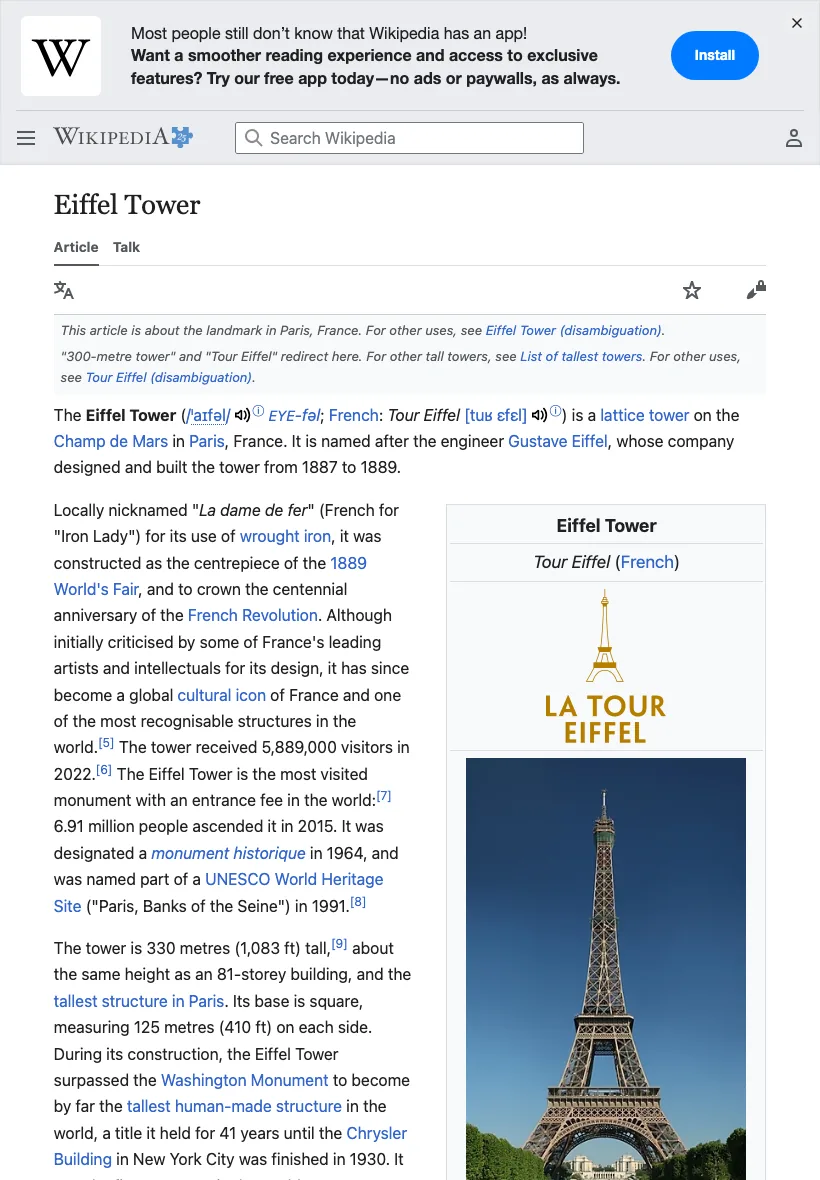
The name is forgiving about spelling. `iphone_15_pro`, `iphone-15-pro` and `iPhone 15 Pro` all pick the same preset.
## Pixel density in one line
Pixel density multiplies the image size: a 393 x 852 viewport at density 3 gives a 1179 x 2556 image, with sharper text and the same layout.
That is why device screenshots are larger than the viewport numbers suggest. The option behind it is [`device_scale_factor`](https://curlshot.com/docs/options.md#device_scale_factor). The default is `1`. The largest value is `3`. For [full-page screenshots](https://curlshot.com/docs/full-page.md#limits-of-your-plan), your plan can set a lower maximum.
## Override part of a preset
Any viewport option you send yourself wins over the preset. The rest of the preset stays.
This keeps the iPhone layout and user agent, but asks for density 1, so the file is a light 393 by 852 pixels:
```bash
curl "https://curlshot.com/api/v1/screenshot?access_key=YOUR_ACCESS_KEY&url=https://en.wikipedia.org/wiki/Eiffel_Tower&viewport_device=iphone_15_pro&device_scale_factor=1" \
--output eiffel-iphone-small.png
```
You can override these:
- [`viewport_width`](https://curlshot.com/docs/options.md#viewport_width) and [`viewport_height`](https://curlshot.com/docs/options.md#viewport_height), for a taller or shorter first screen.
- [`device_scale_factor`](https://curlshot.com/docs/options.md#device_scale_factor), for a lighter or sharper file.
- [`viewport_mobile`](https://curlshot.com/docs/options.md#viewport_mobile), to turn the mobile layout on or off.
- [`user_agent`](https://curlshot.com/docs/options.md#user_agent), to send your own browser name.
> **Tip**
>
> For a small file that still shows the phone layout, keep the preset and add [`image_width`](https://curlshot.com/docs/options.md#image_width). The page is drawn at full quality and the final image is resized.
## Landscape
Phone and tablet presets are in portrait, which means taller than wide. Add [`viewport_landscape=true`](https://curlshot.com/docs/options.md#viewport_landscape) to turn the device on its side.
```bash
curl "https://curlshot.com/api/v1/screenshot?access_key=YOUR_ACCESS_KEY&url=https://en.wikipedia.org/wiki/Eiffel_Tower&viewport_device=ipad&viewport_landscape=true" \
--output eiffel-ipad-landscape.png
```
The iPad viewport becomes 1180 by 820 in place of 820 by 1180.
The default is `false`. On a preset that is already wider than tall, such as a laptop, it changes nothing.
## Without a preset
You do not need a preset to get a phone-sized screenshot. Set the numbers yourself:
```bash
curl "https://curlshot.com/api/v1/screenshot?access_key=YOUR_ACCESS_KEY&url=https://en.wikipedia.org/wiki/Eiffel_Tower&viewport_width=400&viewport_height=800&viewport_mobile=true&device_scale_factor=2" \
--output eiffel-custom.png
```
`viewport_mobile=true` matters here. It makes the browser respect the page's own mobile settings, the way a phone does. Without it, a narrow window is still treated as a desktop browser.
The width can be from 100 to 3840 pixels. The height can be from 100 to 4320 pixels.
> **Common mistakes**
>
> - **An unknown device name.** A name that is not in the [list below](https://curlshot.com/docs/devices.md#all-devices) returns [`invalid_options`](https://curlshot.com/docs/errors.md#invalid_options).
> - **Expecting the device frame.** A preset changes how the page is drawn. It does not draw a phone body around the screenshot.
> - **Expecting a whole page.** A preset sets the first screen. Add [`full_page=true`](https://curlshot.com/docs/full-page.md) to capture down to the bottom.
> - **Huge files from phones.** Density 3 makes nine times as many pixels as density 1. Lower `device_scale_factor` or switch to `format=jpeg` if size matters.
## All devices
### Phones
| `viewport_device` | Device | Viewport | Pixel density | Mobile layout |
| --- | --- | --- | --- | --- |
| `iphone_se` | iPhone SE | 375 x 667 | 2 | yes |
| `iphone_12` | iPhone 12 | 390 x 844 | 3 | yes |
| `iphone_13` | iPhone 13 | 390 x 844 | 3 | yes |
| `iphone_13_mini` | iPhone 13 mini | 375 x 812 | 3 | yes |
| `iphone_14` | iPhone 14 | 390 x 844 | 3 | yes |
| `iphone_14_plus` | iPhone 14 Plus | 428 x 926 | 3 | yes |
| `iphone_14_pro` | iPhone 14 Pro | 393 x 852 | 3 | yes |
| `iphone_14_pro_max` | iPhone 14 Pro Max | 430 x 932 | 3 | yes |
| `iphone_15` | iPhone 15 | 393 x 852 | 3 | yes |
| `iphone_15_plus` | iPhone 15 Plus | 430 x 932 | 3 | yes |
| `iphone_15_pro` | iPhone 15 Pro | 393 x 852 | 3 | yes |
| `iphone_15_pro_max` | iPhone 15 Pro Max | 430 x 932 | 3 | yes |
| `iphone_16` | iPhone 16 | 393 x 852 | 3 | yes |
| `iphone_16_plus` | iPhone 16 Plus | 430 x 932 | 3 | yes |
| `iphone_16_pro` | iPhone 16 Pro | 402 x 874 | 3 | yes |
| `iphone_16_pro_max` | iPhone 16 Pro Max | 440 x 956 | 3 | yes |
| `pixel_5` | Pixel 5 | 393 x 851 | 2.75 | yes |
| `pixel_7` | Pixel 7 | 412 x 915 | 2.625 | yes |
| `pixel_8` | Pixel 8 | 412 x 915 | 2.625 | yes |
| `pixel_8_pro` | Pixel 8 Pro | 448 x 998 | 3 | yes |
| `pixel_9` | Pixel 9 | 412 x 923 | 2.625 | yes |
| `pixel_9_pro` | Pixel 9 Pro | 410 x 914 | 3 | yes |
| `galaxy_s23` | Galaxy S23 | 360 x 780 | 3 | yes |
| `galaxy_s24` | Galaxy S24 | 360 x 780 | 3 | yes |
| `galaxy_s24_ultra` | Galaxy S24 Ultra | 384 x 824 | 3 | yes |
| `galaxy_a54` | Galaxy A54 | 360 x 800 | 3 | yes |
### Tablets
| `viewport_device` | Device | Viewport | Pixel density | Mobile layout |
| --- | --- | --- | --- | --- |
| `ipad` | iPad (10th gen) | 820 x 1180 | 2 | yes |
| `ipad_mini` | iPad mini | 744 x 1133 | 2 | yes |
| `ipad_air` | iPad Air | 820 x 1180 | 2 | yes |
| `ipad_pro_11` | iPad Pro 11" | 834 x 1194 | 2 | yes |
| `ipad_pro_13` | iPad Pro 13" | 1024 x 1366 | 2 | yes |
| `galaxy_tab_s9` | Galaxy Tab S9 | 800 x 1280 | 2 | yes |
| `pixel_tablet` | Pixel Tablet | 800 x 1280 | 2 | yes |
### Laptops
| `viewport_device` | Device | Viewport | Pixel density | Mobile layout |
| --- | --- | --- | --- | --- |
| `macbook_air_13` | MacBook Air 13" | 1440 x 900 | 2 | no |
| `macbook_pro_14` | MacBook Pro 14" | 1512 x 982 | 2 | no |
| `macbook_pro_16` | MacBook Pro 16" | 1728 x 1117 | 2 | no |
| `laptop_hd` | Laptop (1366 x 768) | 1366 x 768 | 1 | no |
| `laptop_hidpi` | Laptop HiDPI (1440 x 900 @2x) | 1440 x 900 | 2 | no |
### Desktops
| `viewport_device` | Device | Viewport | Pixel density | Mobile layout |
| --- | --- | --- | --- | --- |
| `desktop_hd` | Desktop HD (1280 x 720) | 1280 x 720 | 1 | no |
| `desktop_full_hd` | Desktop Full HD (1920 x 1080) | 1920 x 1080 | 1 | no |
| `desktop_qhd` | Desktop QHD (2560 x 1440) | 2560 x 1440 | 1 | no |
| `desktop_4k` | Desktop 4K (3840 x 2160) | 3840 x 2160 | 1 | no |
| `imac_24` | iMac 24" | 2240 x 1260 | 2 | no |
## Get the list as JSON
The same list is available from the API, for a device picker in your own app. This request needs no access key and does not count against your quota.
```bash
curl "https://curlshot.com/api/v1/devices"
```
```json
{
"devices": [
{
"name": "iphone_se",
"label": "iPhone SE",
"category": "phone",
"viewport_width": 375,
"viewport_height": 667,
"device_scale_factor": 2,
"viewport_mobile": true,
"has_touch": true,
"user_agent": "Mozilla/5.0 (iPhone; CPU iPhone OS 17_5 like Mac OS X) AppleWebKit/605.1.15 (KHTML, like Gecko) Version/17.0 Mobile/15E148 Safari/604.1"
}
]
}
```
The real answer holds one entry like this for every device in the tables above. `category` is `phone`, `tablet`, `laptop` or `desktop`.
## Where to go next
- [Full-page screenshots](https://curlshot.com/docs/full-page.md): capture the whole page on any device.
- [Dark mode and emulation](https://curlshot.com/docs/dark-mode-and-emulation.md): dark theme, time zone and user agent.
- [Options reference](https://curlshot.com/docs/options.md#viewport_device): every viewport option with its limits.
---
Source: https://curlshot.com/docs/full-page
# Full-page screenshots
Capture a page from top to bottom, load lazy images on the way, and keep very tall pages under control.
Add `full_page=true` and the capture runs to the bottom of the page.
```bash
curl "https://curlshot.com/api/v1/screenshot?access_key=YOUR_ACCESS_KEY&url=https://en.wikipedia.org/wiki/Eiffel_Tower&full_page=true" \
--output eiffel-full.png
```
You get one tall image with the whole article in it.

Without the option, you get only the first screen. That is the part a visitor sees before scrolling.
```bash
curl "https://curlshot.com/api/v1/screenshot?access_key=YOUR_ACCESS_KEY&url=https://en.wikipedia.org/wiki/Eiffel_Tower&viewport_height=800" \
--output eiffel-first-screen.png
```
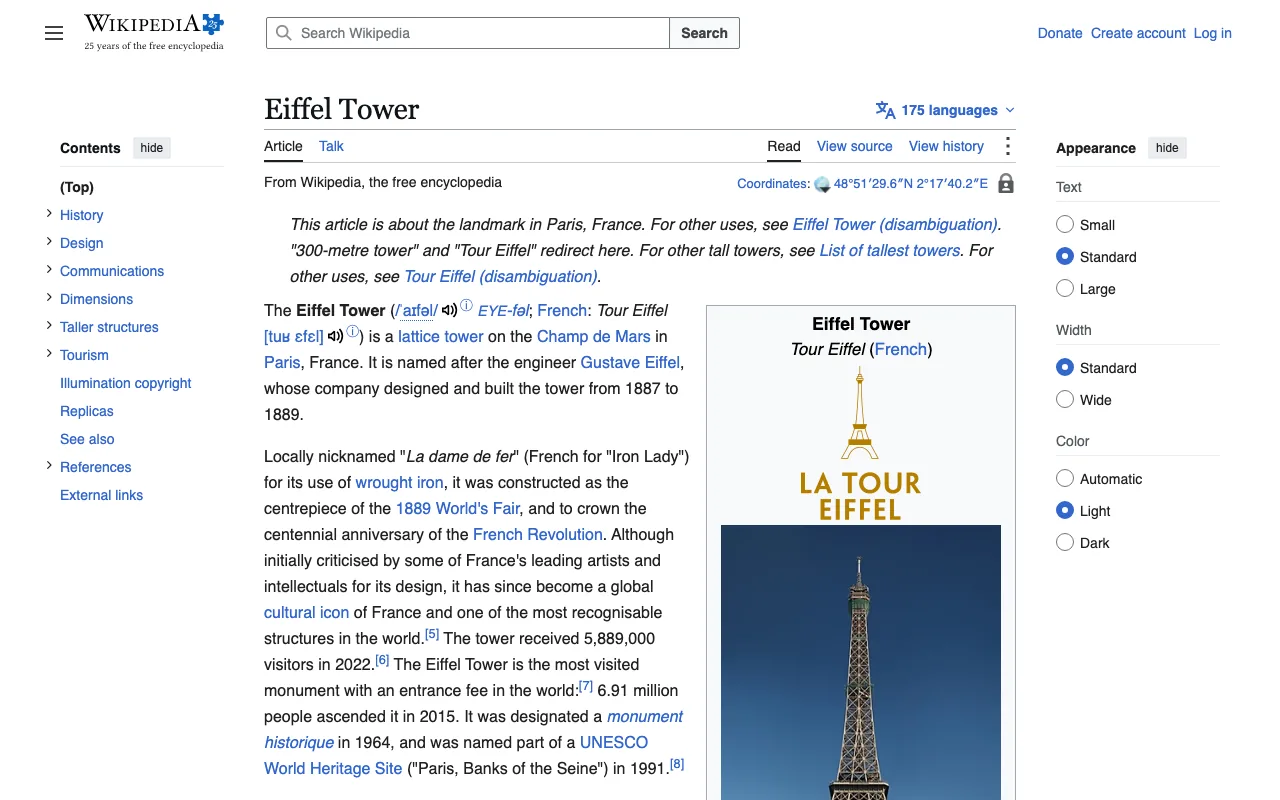
## How it works
The width of the image still comes from the viewport. The viewport is the browser window the page is drawn in. The height is as tall as the page turns out to be.
So [`viewport_width`](https://curlshot.com/docs/options.md#viewport_width) and [`viewport_device`](https://curlshot.com/docs/devices.md) still matter. A full-page capture on a phone preset gives you the long mobile version of the page.
### full_page
Capture the whole page, not only the first screen.
The default is `false`.
## Lazy images
Many sites load images only when you scroll near them. This is called lazy loading. A capture taken without scrolling would show empty boxes further down the page.
To avoid that, a full-page capture first scrolls through the page from top to bottom. It gives the images a moment to arrive, then goes back to the top and takes the screenshot.
### full_page_scroll
Scroll through the page before the capture so lazy-loaded images appear.
The default is `true`.
You rarely need to change it. Turn it off in two cases:
- The page is short and has no lazy images, and you want the fastest render.
- Scrolling changes the page in a way you do not want. Some sites load more and more content as you scroll, or shrink their header.
```bash
curl "https://curlshot.com/api/v1/screenshot?access_key=YOUR_ACCESS_KEY&url=https://en.wikipedia.org/wiki/Eiffel_Tower&full_page=true&full_page_scroll=false" \
--output eiffel-no-scroll.png
```
> **Note**
>
> The scroll has a time budget. On a very long page with slow images, a few may still be missing. Adding a [`delay`](https://curlshot.com/docs/options.md#delay) does not extend the scroll. A lower `full_page_max_height` does help, because there is less to scroll through.
## Very tall pages
Some pages never end. News feeds and shop listings keep adding content. To keep the image a usable size, a full-page capture stops at a maximum height.
### full_page_max_height
Cut a full-page capture off at this height, in pixels.
The default is `20000`. The smallest value is `100` and the largest is `30000`.
A page shorter than the limit is not stretched. A page taller than the limit is cut off at the limit, and you still get a valid image.
This request keeps only the first 5000 pixels of the article:
```bash
curl "https://curlshot.com/api/v1/screenshot?access_key=YOUR_ACCESS_KEY&url=https://en.wikipedia.org/wiki/Eiffel_Tower&full_page=true&full_page_max_height=5000" \
--output eiffel-5000.png
```
The height is counted in page pixels. With a pixel density above 1, the file has more pixels than that. A 5000 pixel page at [`device_scale_factor=2`](https://curlshot.com/docs/options.md#device_scale_factor) is 10000 pixels tall in the file.
Very large captures can hit other limits too:
- At a high pixel density, the capture may be cut shorter than `full_page_max_height` to keep the total pixel count within bounds.
- If the finished file is too big, you get [`content_too_large`](https://curlshot.com/docs/errors.md#content_too_large). Use `format=jpeg` or `format=webp`, a lower [`image_quality`](https://curlshot.com/docs/options.md#image_quality), or a smaller `full_page_max_height`.
### Limits of your plan
A full-page screenshot counts as one screenshot against your quota, however tall it is. What a plan limits is the size:
- **Height.** A plan can have a lower maximum height than `30000`. A larger `full_page_max_height` is lowered to the plan's maximum, and the capture is cut off there.
- **Pixel density.** A plan can limit the [`device_scale_factor`](https://curlshot.com/docs/options.md#device_scale_factor) of a full-page capture. A higher value is lowered to the plan's maximum. This also applies to the density a [device preset](https://curlshot.com/docs/devices.md) brings along.
In both cases you still get a valid screenshot, not an error. Screenshots of the first screen and [element captures](https://curlshot.com/docs/element.md) keep the density you asked for.
Your own values are `full_page_max_height` and `full_page_max_scale` in the answer of [`GET /usage`](https://curlshot.com/docs/usage-and-limits.md).
> **Tip**
>
> For tall pages, JPEG or WebP is usually the better choice. A PNG of a 20000 pixel page can be many megabytes.
## Sticky headers and floating bars
A sticky header is a menu bar that stays at the top of the window while you scroll. Cookie bars and chat bubbles float in a similar way.
In a full-page capture these can land in odd places. A bar may cover part of the content, or appear in a spot where it makes no sense.
The fix is to hide the element before the capture with [`hide_selectors`](https://curlshot.com/docs/options.md#hide_selectors). A selector is a short pattern that points at an element, such as `.site-header` for an element with the class `site-header`.
```bash
curl "https://curlshot.com/api/v1/screenshot?access_key=YOUR_ACCESS_KEY&url=https://en.wikipedia.org/wiki/Eiffel_Tower&full_page=true&hide_selectors=.vector-sticky-header" \
--output eiffel-clean.png
```
To find the right selector, open the page in your browser, right-click the bar and choose **Inspect**. Look for its `class` or `id`.
For consent pop-ups and chat widgets, try [`block_cookie_banners`](https://curlshot.com/docs/blocking.md) and `block_chats` first. They cover the common ones without a selector.
> **Common mistakes**
>
> - **Combining it with an element capture.** When you send [`selector`](https://curlshot.com/docs/element.md) or the `clip_*` options, those decide the area and `full_page` is not used.
> - **A page that looks cut off.** It probably reached `full_page_max_height`. Raise it, up to `30000` or the maximum of [your plan](#limits-of-your-plan).
> - **A full-page phone screenshot that is less sharp than expected.** Your plan limits the pixel density of full-page captures. See [Limits of your plan](#limits-of-your-plan).
> - **Blank areas in the middle.** The content there appears only after an animation or a script. Try [`wait_until=networkidle`](https://curlshot.com/docs/waiting.md) or a short `delay`.
> - **Timeouts on heavy pages.** Long pages take longer. Raise [`timeout`](https://curlshot.com/docs/options.md#timeout), or run the request with [`async=true`](https://curlshot.com/docs/async-and-webhooks.md).
## Where to go next
- [Capturing an element](https://curlshot.com/docs/element.md): when you need one part of the page, not all of it.
- [PDF rendering](https://curlshot.com/docs/pdf.md): a long page as a document with real pages.
- [Waiting and timing](https://curlshot.com/docs/waiting.md): make sure the page is ready before the capture.
- [Blocking ads, cookie banners, trackers and chats](https://curlshot.com/docs/blocking.md): remove the usual floating clutter.
---
Source: https://curlshot.com/docs/element
# Capturing an element
Capture one element with a CSS selector, or a rectangle you choose, with an optional transparent background.
Add `selector` and the image contains only that element.
```bash
curl "https://curlshot.com/api/v1/screenshot?access_key=YOUR_ACCESS_KEY&url=https://en.wikipedia.org/wiki/Eiffel_Tower&selector=.infobox" \
--output eiffel-infobox.png
```
You get the fact box from the side of the article and nothing else. The image is exactly as big as the element.

## Pick an element with a selector
A CSS selector is a short pattern that points at an element on a page. It is the same language web designers use to style pages.
| Selector | What it matches |
| --- | --- |
| `.infobox` | An element with the class `infobox`. |
| `#content` | The element with the id `content`. |
| `table` | A `
` element. |
| `main article` | An `` inside ``. |
To find one, open the page in your browser, right-click the part you want and choose **Inspect**. Look at the element's `class` or `id`.
### selector
Capture only the first element that matches this CSS selector.
There is no default. Leave it out and the capture is not limited to an element.
If several elements match, the first one on the page is used. The element does not have to be on the first screen. An element further down the page is captured too.
A selector can be up to 1000 characters long.
> **Heads up**
>
> The `#` character has a special meaning in a web address. Write it as `%23`, so `#content` becomes `selector=%23content`. Spaces become `%20`. Your language's URL functions do this for you, as shown in [Encode the URL](https://curlshot.com/docs/screenshot-url.md#encode-the-url).
## Capture a rectangle
Sometimes there is no handy element. Then you can cut out a rectangle by its position and size.
```bash
curl "https://curlshot.com/api/v1/screenshot?access_key=YOUR_ACCESS_KEY&url=https://en.wikipedia.org/wiki/Eiffel_Tower&clip_x=0&clip_y=0&clip_width=1280&clip_height=300" \
--output eiffel-top-strip.png
```
You get a strip 1280 pixels wide and 300 pixels tall, from the top of the page.
The position is measured from the top left corner of the whole page, not of the first screen. So a large `clip_y` reaches content far down the page.
### clip_x
Left edge of the area, in pixels from the left of the page.
There is no default. If you leave it out while clipping, the area starts at `0`.
### clip_y
Top edge of the area, in pixels from the top of the page.
There is no default. If you leave it out while clipping, the area starts at `0`.
### clip_width
Width of the area in pixels.
There is no default. It is required when you use any `clip_*` option. The smallest value is `1` and the largest is `8000`.
### clip_height
Height of the area in pixels.
There is no default. It is required when you use any `clip_*` option. The smallest value is `1` and the largest is `30000`.
If the rectangle sticks out past the edge of the page, it is trimmed to fit. If it starts outside the page, you get [`invalid_options`](https://curlshot.com/docs/errors.md#invalid_options).
> **Sizes and pixel density**
>
> Selector and clip sizes are in page pixels. With [`device_scale_factor=2`](https://curlshot.com/docs/options.md#device_scale_factor), a 600 pixel wide element gives a 1200 pixel wide image.
## Transparent background
By default the page is drawn on white. With [`omit_background=true`](https://curlshot.com/docs/options.md#omit_background) the white is left out, so areas the page does not paint stay see-through.
This is useful for logos, badges and charts that you want to place on your own background.
```bash
curl -X POST "https://curlshot.com/api/v1/screenshot" \
-H "X-Access-Key: YOUR_ACCESS_KEY" \
-H "Content-Type: application/json" \
-d '{
"html": "
Eiffel Tower
",
"selector": "h1",
"omit_background": true
}' \
--output heading.png
```
You get the title, "Eiffel Tower", as a small image with nothing behind the letters. This works because the HTML sets no background of its own.
### omit_background
Keep the page background transparent.
The default is `false`.
Two things to know:
- It needs a format that can store transparency. Use `png` or `webp`. With `format=jpeg` you get `invalid_options`.
- It removes only the browser's default white. If the site sets its own background colour, that colour stays in the screenshot.
When you control the markup yourself, the second point is yours to decide. See [HTML and Markdown input](https://curlshot.com/docs/html-and-markdown.md).
## When the element is not there
If nothing matches the selector, you do not get an empty image. You get an error:
```bash
curl "https://curlshot.com/api/v1/screenshot?access_key=YOUR_ACCESS_KEY&url=https://en.wikipedia.org/wiki/Eiffel_Tower&selector=.does-not-exist"
```
```json
{
"error_code": "selector_not_found",
"error_message": "No element matches the selector \".does-not-exist\".",
"documentation_url": "https://curlshot.com/docs/errors#selector_not_found"
}
```
The same error code comes back when the element exists but is hidden, because there is nothing to photograph.
It is not counted against your quota.
The usual causes:
- A typo in the selector. Test it in your browser console with `document.querySelector('.infobox')`.
- The element appears late, after a script has run. Add [`wait_for_selector`](https://curlshot.com/docs/options.md#wait_for_selector) with the same selector, so the capture waits until the element is visible.
- The site shows a different layout to our browser. Phone and desktop layouts often use different class names. Check which [device](https://curlshot.com/docs/devices.md) you asked for.
```bash
curl "https://curlshot.com/api/v1/screenshot?access_key=YOUR_ACCESS_KEY&url=https://en.wikipedia.org/wiki/Eiffel_Tower&selector=.infobox&wait_for_selector=.infobox" \
--output eiffel-infobox.png
```
> **Common mistakes**
>
> - **Using `selector` together with `clip_*`.** Pick one. Sending both returns `invalid_options`.
> - **Sending only `clip_x` and `clip_y`.** A rectangle needs a size. Add `clip_width` and `clip_height`.
> - **Using them with `format=pdf`.** Element and clip captures produce images only.
> - **An unencoded `#`.** Everything after a bare `#` is dropped from the address before it is sent. Write `%23`.
> - **A selector that is not valid CSS.** That returns `invalid_options`, not `selector_not_found`.
> - **An element that is too big.** A very large element at a high pixel density returns [`content_too_large`](https://curlshot.com/docs/errors.md#content_too_large). Lower `device_scale_factor`.
## Where to go next
- [Waiting and timing](https://curlshot.com/docs/waiting.md): wait for an element that appears late.
- [Custom CSS, JavaScript and clicks](https://curlshot.com/docs/customize.md): hide or restyle things around the element.
- [Full-page screenshots](https://curlshot.com/docs/full-page.md): when you want everything.
- [Options reference](https://curlshot.com/docs/options.md#selector): the capture options with their limits.
---
Source: https://curlshot.com/docs/pdf
# PDF rendering
Turn any page into a PDF, choose the paper size, orientation and margins, or put the whole page on one long sheet.
Set `format=pdf` and you get a document in place of an image.
```bash
curl "https://curlshot.com/api/v1/screenshot?access_key=YOUR_ACCESS_KEY&url=https://en.wikipedia.org/wiki/Eiffel_Tower&format=pdf" \
--output eiffel.pdf
```
You get `eiffel.pdf`: the whole article, split over A4 pages, with text you can select and search. The response has the header `Content-Type: application/pdf`.
A PDF always covers the whole page, from top to bottom. You do not need [`full_page`](https://curlshot.com/docs/full-page.md) for that.
## Paper size
### pdf_paper_format
The paper size of the PDF.
The default is `a4`.
The allowed values are `a0`, `a1`, `a2`, `a3`, `a4`, `a5`, `a6`, `letter`, `legal`, `tabloid` and `ledger`.
Use `letter` for readers in the United States and Canada. Use `a4` almost everywhere else.
```bash
curl "https://curlshot.com/api/v1/screenshot?access_key=YOUR_ACCESS_KEY&url=https://en.wikipedia.org/wiki/Eiffel_Tower&format=pdf&pdf_paper_format=letter" \
--output eiffel-letter.pdf
```
## Landscape
### pdf_landscape
Turn the paper on its side, so each page is wider than it is tall.
The default is `false`.
Landscape suits wide content, such as tables and dashboards.
```bash
curl "https://curlshot.com/api/v1/screenshot?access_key=YOUR_ACCESS_KEY&url=https://github.com/microsoft/playwright&format=pdf&pdf_landscape=true" \
--output playwright-landscape.pdf
```
## Margins
A margin is the empty border between the content and the edge of the paper. Without any margin option, the content runs to the edge.
### pdf_margin
The margin on all four sides.
There is no default. Leave it out and no margin is added.
Write a number with a unit: `10mm`, `1cm`, `0.5in` or `20px`. A number without a unit is read as pixels.
One margin can be at most `4800px`, which is 50 inches. The margins must also leave room for content: when left plus right is wider than the paper, or top plus bottom is taller, there is nothing to print and the request is refused with [`invalid_options`](https://curlshot.com/docs/errors.md#invalid_options). On A4 paper, which is 210 mm wide, `pdf_margin=100mm` still fits and `pdf_margin=105mm` does not.
### pdf_margin_top
The top margin. It wins over `pdf_margin` for that side.
There is no default.
### pdf_margin_right
The right margin. It wins over `pdf_margin` for that side.
There is no default.
### pdf_margin_bottom
The bottom margin. It wins over `pdf_margin` for that side.
There is no default.
### pdf_margin_left
The left margin. It wins over `pdf_margin` for that side.
There is no default.
This request sets 10 mm all round, with a larger 20 mm margin at the top:
```bash
curl "https://curlshot.com/api/v1/screenshot?access_key=YOUR_ACCESS_KEY&url=https://en.wikipedia.org/wiki/Eiffel_Tower&format=pdf&pdf_margin=10mm&pdf_margin_top=20mm" \
--output eiffel-margins.pdf
```
## Background colours
### pdf_print_background
Print the background colours and background images of the page.
The default is `true`.
With `true`, the PDF looks like the page on screen. Set it to `false` to drop backgrounds, which saves ink when the PDF is meant for a printer.
## One long page
Paper sizes cut content wherever a page ends. That can split an image or a table in two. If the PDF is for reading on a screen, you can skip the page breaks.
### pdf_fit_one_page
Put the whole page on a single PDF page that is as tall as the content.
The default is `false`.
```bash
curl "https://curlshot.com/api/v1/screenshot?access_key=YOUR_ACCESS_KEY&url=https://en.wikipedia.org/wiki/Eiffel_Tower&format=pdf&pdf_fit_one_page=true" \
--output eiffel-one-page.pdf
```
You get a PDF with one page. It is as wide and as tall as the web page itself.
In this mode `pdf_paper_format` and `pdf_landscape` are not used, because the page size comes from the content. Margins still apply. The width follows the browser window, so [`viewport_width`](https://curlshot.com/docs/options.md#viewport_width) changes how wide the sheet is.
> **Note**
>
> A single PDF page can be at most 150 inches long, which is about 3.8 metres. An extremely long web page is cut off at that length. For such pages, leave `pdf_fit_one_page` off and let the content flow over several pages.
## Screen or print styles
Many sites have two looks. One is for screens. The other is for printing, and often hides menus, removes colours and widens the text.
### media_type
Which of the two looks the page is drawn with.
The default is `screen`.
The allowed values are `screen` and `print`.
With the default, the PDF looks like the site does in a browser, menus and all. With `media_type=print`, you get what the site's own authors designed for paper.
```bash
curl "https://curlshot.com/api/v1/screenshot?access_key=YOUR_ACCESS_KEY&url=https://en.wikipedia.org/wiki/Eiffel_Tower&format=pdf&media_type=print" \
--output eiffel-print.pdf
```
For articles, `print` often gives the cleaner document. Wikipedia, for example, drops its sidebar and navigation in print. Try both and keep the one you like.
> **Tip**
>
> `media_type` is not only for PDFs. `format=png&media_type=print` gives you an image of the print layout.
## Other options that work with PDF
Most options behave the same as for images:
- [Blocking](https://curlshot.com/docs/blocking.md) removes ads and cookie banners before the PDF is made.
- [Waiting](https://curlshot.com/docs/waiting.md) options decide when the page is ready.
- [`hide_selectors` and `styles`](https://curlshot.com/docs/customize.md) let you remove or restyle parts of the page.
- [`html` and `markdown`](https://curlshot.com/docs/html-and-markdown.md) input turns your own content into a PDF, which is handy for invoices and reports.
- Lazy images are loaded first, the same way as for [full-page screenshots](https://curlshot.com/docs/full-page.md). Turn that off with `full_page_scroll=false`.
With [`response_type=json`](https://curlshot.com/docs/options.md#response_type), `width` and `height` describe one page of the PDF, in pixels at 96 per inch.
> **Common mistakes**
>
> - **Using `selector` or `clip_*` with PDF.** These work for images only and return [`invalid_options`](https://curlshot.com/docs/errors.md#invalid_options) with `format=pdf`.
> - **Expecting image options to apply.** `image_quality`, `image_width` and `image_height` have no effect on a PDF.
> - **Content running to the paper edge.** There is no margin unless you ask for one. Add `pdf_margin=10mm`.
> - **A PDF with menus and sidebars in it.** That is the screen layout. Try `media_type=print`, or hide the parts with `hide_selectors`.
> - **Saving with the wrong file ending.** The file is a PDF. Name it `.pdf`, not `.png`.
## Where to go next
- [How to archive pages as PDF](https://curlshot.com/docs/guides/archive-pages-as-pdf.md): a step-by-step guide.
- [HTML and Markdown input](https://curlshot.com/docs/html-and-markdown.md): make PDFs from your own content.
- [Async and webhooks](https://curlshot.com/docs/async-and-webhooks.md): render long documents in the background.
- [Options reference](https://curlshot.com/docs/options.md#pdf_paper_format): every PDF option.
---
Source: https://curlshot.com/docs/video
# Scrolling videos
Record a video of a page scrolling from top to bottom, as MP4, WebM or GIF, and set its length, smoothness and size.
Set `format=mp4` and you get a video of the page in place of an image. It starts at the top and scrolls to the bottom.
```bash
curl "https://curlshot.com/api/v1/screenshot?access_key=YOUR_ACCESS_KEY&url=https://en.wikipedia.org/wiki/Eiffel_Tower&format=mp4" \
--output eiffel.mp4
```
You get `eiffel.mp4`: the article in a 1280 by 720 window, resting on the top for a moment, scrolling down at a steady pace and resting on the last screen. The response has the header `Content-Type: video/mp4`. The video has no sound.
The page really scrolls while it is recorded. A menu that sticks to the top stays there, and content that appears as you scroll appears in the video too.
A video takes longer to make than it lasts: about twice as long, plus the time the page needs to load. For long videos, [render in the background](#long-videos).
## Formats
Three values of [`format`](https://curlshot.com/docs/options.md#format) give a video.
| Format | What you get | Good for |
| --- | --- | --- |
| `mp4` | An H.264 video. Every browser, phone and video editor plays it. | Almost everything. |
| `webm` | A VP9 video. Often a smaller file than MP4. | Web pages. |
| `gif` | An animated image. It needs no player, but the file is much larger. | Emails, chats and READMEs. |
A GIF is recorded at 15 frames per second at most and is scaled down to 640 pixels wide. Set [`image_width`](#size) for another width.
```bash
curl "https://curlshot.com/api/v1/screenshot?access_key=YOUR_ACCESS_KEY&url=https://example.com&format=gif&video_duration=4" \
--output example.gif
```
## Length
### video_duration
The length of the video, in seconds.
There is no default. Leave it out and the length follows the page.
The smallest value is `1` and the largest is `30`.
Without it, a taller page gives a longer video: the scroll moves about three quarters of a screen per second, which is easy to follow. With it, the video has exactly that length and the scroll gets faster or slower to fit.
This request gives an 8 second video, however tall the page is:
```bash
curl "https://curlshot.com/api/v1/screenshot?access_key=YOUR_ACCESS_KEY&url=https://en.wikipedia.org/wiki/Eiffel_Tower&format=mp4&video_duration=8" \
--output eiffel-8s.mp4
```
### video_max_duration
The longest the video may get when its length follows the page, in seconds.
The default is `30`. The smallest value is `1` and the largest is `30`.
A page too tall to scroll at the normal pace in this time is scrolled faster, so the video still ends on the bottom of the page. It has no effect when you set `video_duration`.
### How far the video scrolls
The video scrolls to the bottom of the page, or to [`full_page_max_height`](https://curlshot.com/docs/full-page.md#full_page_max_height) on a page taller than that. The default is `20000` pixels. Set a lower value to show only the top part of a long page:
```bash
curl "https://curlshot.com/api/v1/screenshot?access_key=YOUR_ACCESS_KEY&url=https://en.wikipedia.org/wiki/Eiffel_Tower&format=mp4&full_page_max_height=4000" \
--output eiffel-top.mp4
```
Before the recording starts, the page is scrolled through once so images that load late are there. [`full_page_scroll=false`](https://curlshot.com/docs/full-page.md#full_page_scroll) turns that off.
## Scrolling
### video_scroll
Scroll from the top of the page to the bottom while recording.
The default is `true`.
Set it to `false` to record the first screen without moving. That suits a page with an animation you want to show. The video is then 4 seconds long unless you set `video_duration`. A page that fits in the window is recorded the same way.
```bash
curl "https://curlshot.com/api/v1/screenshot?access_key=YOUR_ACCESS_KEY&url=https://example.com&format=mp4&video_scroll=false&video_duration=5" \
--output example-still.mp4
```
### video_scroll_back
Scroll back to the top at the end.
The default is `false`.
The video then ends where it started, so it loops without a jump. This is useful for a GIF, which repeats for ever.
### video_scroll_easing
How the scroll moves.
The default is `ease_in_out`.
The allowed values are `ease_in_out` and `linear`. With `ease_in_out` the scroll starts and stops softly and keeps one even speed in between. With `linear` it moves at one speed from the first frame to the last.
## Smoothness
### video_fps
The number of frames per second.
The default is `24`. The smallest value is `5` and the largest is `30`.
More frames give a smoother scroll and a larger file. With `format=gif` the largest value is `15`, and that is also what a GIF gets when you leave the option out.
## Size
A video is as large as the browser window. For a video the window is 1280 by 720 pixels unless you choose another size, with [`viewport_width`](https://curlshot.com/docs/options.md#viewport_width) and [`viewport_height`](https://curlshot.com/docs/options.md#viewport_height) or with a [device](https://curlshot.com/docs/devices.md).
This request records the mobile layout of the page, as a tall phone video:
```bash
curl "https://curlshot.com/api/v1/screenshot?access_key=YOUR_ACCESS_KEY&url=https://en.wikipedia.org/wiki/Eiffel_Tower&format=mp4&viewport_device=iphone_15_pro" \
--output eiffel-phone.mp4
```
Two options you know from images work for videos as well:
- [`image_width`](https://curlshot.com/docs/options.md#image_width) scales the video down to that width. The height follows. A video is never scaled up: a width larger than the recorded frames is refused.
- [`image_quality`](https://curlshot.com/docs/options.md#image_quality) sets how hard an MP4 or WebM is compressed. The default of `80` looks sharp. A lower value gives a smaller file.
One frame can hold at most 2,073,600 pixels, which is 1920 by 1080. The [`device_scale_factor`](https://curlshot.com/docs/options.md#device_scale_factor) counts: a 1280 by 720 window at `device_scale_factor=2` is over the limit and is refused with [`invalid_options`](https://curlshot.com/docs/errors.md#invalid_options). A device preset is different. Its pixel density is lowered until the frames fit, so `viewport_device=iphone_15_pro` gives a sharp 786 by 1704 video.
The sides of an MP4 are always even numbers. An odd side loses one pixel.
## What does not apply to a video
A video always shows the window, scrolling. These options are for still captures, and a request that combines one of them with a video format is refused with [`invalid_options`](https://curlshot.com/docs/errors.md#invalid_options):
- [`full_page=true`](https://curlshot.com/docs/full-page.md). A video already goes through the whole page.
- [`selector`](https://curlshot.com/docs/element.md) and the `clip_*` options.
- [`omit_background`](https://curlshot.com/docs/options.md#omit_background) and [`image_height`](https://curlshot.com/docs/options.md#image_height).
Everything that prepares the page works as usual: [blocking](https://curlshot.com/docs/blocking.md), [dark mode](https://curlshot.com/docs/dark-mode-and-emulation.md), [waiting](https://curlshot.com/docs/waiting.md), [custom CSS and clicks](https://curlshot.com/docs/customize.md), cookies and headers.
## Long videos
A request for a video stays open until the video is done. For a 30 second video that can be well over a minute. Some HTTP clients and proxies give up before that.
To avoid waiting, add [`async=true`](https://curlshot.com/docs/async-and-webhooks.md). The answer comes at once with a job id, and the finished video is sent to your [webhook](https://curlshot.com/docs/async-and-webhooks.md) or fetched with the job.
```bash
curl "https://curlshot.com/api/v1/screenshot?access_key=YOUR_ACCESS_KEY&url=https://en.wikipedia.org/wiki/Eiffel_Tower&format=mp4&async=true"
```
## Showing a video on a web page
Do not point a `