Custom CSS, JavaScript and clicks
Hide elements, add your own CSS, run JavaScript and click a button on the page before the capture is taken.
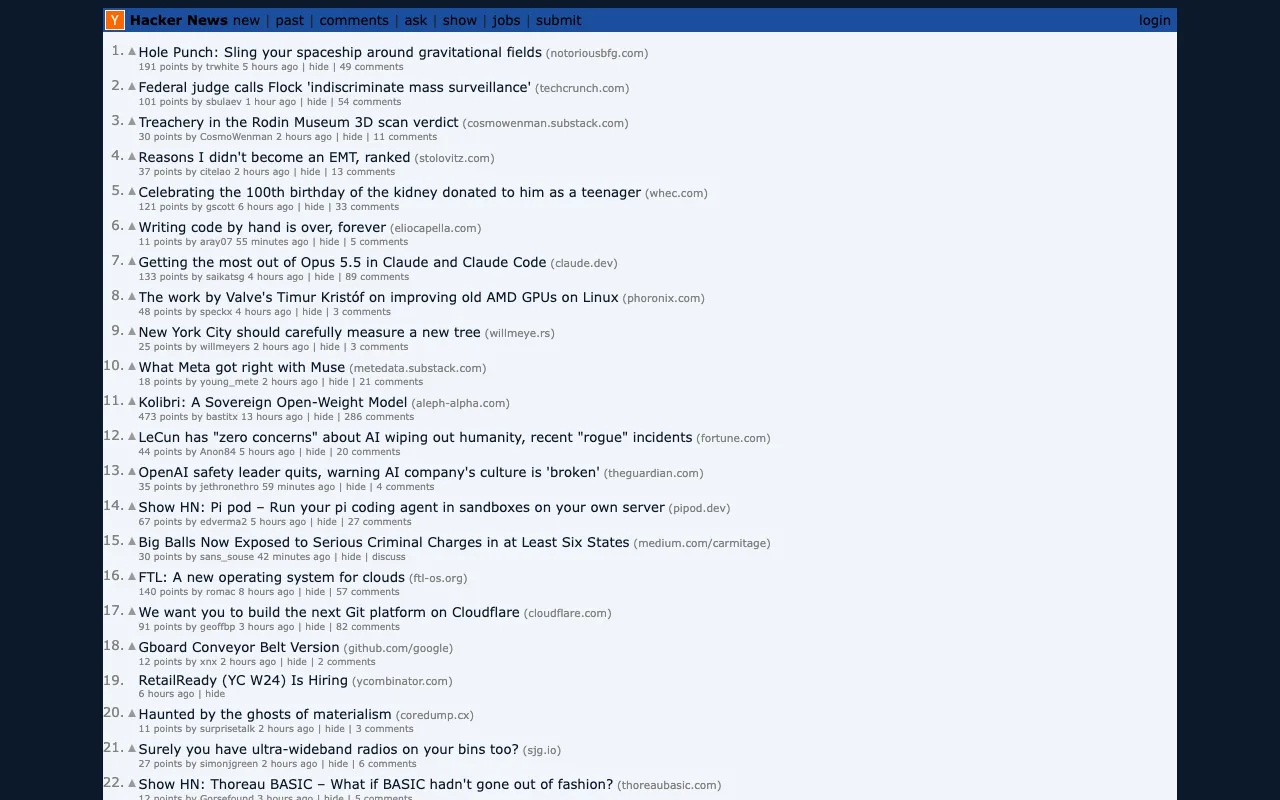
You can change a page before it is captured. This request restyles Hacker News with a few lines of CSS:
curl -X POST "https://curlshot.com/api/v1/screenshot" \
  -H "X-Access-Key: YOUR_ACCESS_KEY" \
  -H "Content-Type: application/json" \
  -d '{
    "url": "https://news.ycombinator.com",
    "styles": "body, #hnmain { background: #14171a !important; } td, a, .titleline a { color: #e6e6e6 !important; } .subtext a { color: #8b949e !important; }"
  }' \
  --output hn-custom.png
You get the same front page in your colours.
Here is the page as it normally looks:
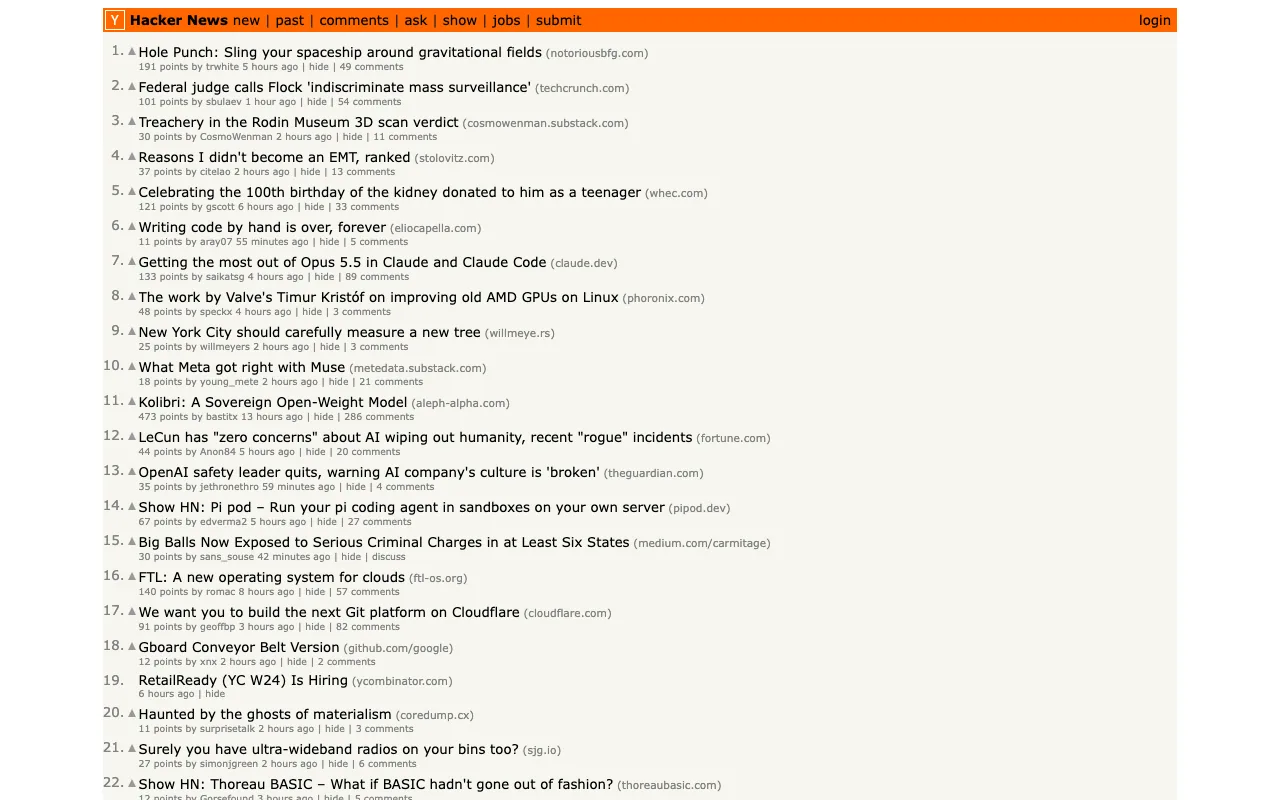
Nothing changes on the real site. The changes exist only inside our browser, for this one capture.
There are four tools, from the lightest to the heaviest: hide something, add CSS, run JavaScript, click.
#Hide elements
#hide_selectors
Hides every element that matches one of these CSS selectors.
There is no default. Leave it out and nothing is hidden.
A CSS selector is a short pattern that points at elements on a page. .banner means every element with the class banner. #footer means the element with the id footer.
This is the tool for a header that is in the way, a promo bar, or a pop-up that blocking did not catch.
curl -G "https://curlshot.com/api/v1/screenshot" \
  --data-urlencode "access_key=YOUR_ACCESS_KEY" \
  --data-urlencode "url=https://en.wikipedia.org/wiki/Eiffel_Tower" \
  --data-urlencode "hide_selectors=#siteNotice,.vector-sticky-header,.mw-editsection" \
  --output eiffel-tidy.png
You get the article without the site notice, the sticky header and the small "edit" links.
It is a list option. Separate selectors with commas or repeat the option. In a POST body, send an array. You can send up to 50 selectors, each up to 1000 characters.
A hidden element takes up no space. The rest of the page moves up to fill the gap. A selector that matches nothing is not an error.
To find a selector, open the page in your browser, right-click the element and choose Inspect. Look for its class or id.
#Add your own CSS
#styles
CSS that is added to the page.
There is no default. Leave it out and no CSS is added.
CSS is the language that sets colours, fonts, sizes and spacing on web pages. Whatever you send is added on top of the site's own styles.
Use it to change fonts and colours, widen a column, or hide something while keeping its space:
/* Hide an element but keep the gap it leaves */
.sidebar { visibility: hidden !important; }

/* Make the text column wider */
main { max-width: 1100px !important; }

/* Remove rounded corners and shadows for a flat look */
* { border-radius: 0 !important; box-shadow: none !important; }
styles can be up to 200 KB. Send it with POST, because CSS is full of characters that are awkward in a web address.
#Run JavaScript
#scripts
JavaScript that runs on the page before the capture.
There is no default. Leave it out and no script is run.
JavaScript is the programming language of web pages. Use it for changes CSS cannot make: rewrite a text, remove an element for good, scroll a container, fill in a form field.
curl -X POST "https://curlshot.com/api/v1/screenshot" \
  -H "X-Access-Key: YOUR_ACCESS_KEY" \
  -H "Content-Type: application/json" \
  -d '{
    "url": "https://example.com",
    "scripts": "document.querySelector(\"p\").textContent = \"Captured for the weekly report\";"
  }' \
  --output example-edited.png
You get example.com with your sentence in place of its usual text.
scripts can be up to 200 KB. Send it with POST.
Three things to know:
- Errors are silent. If your script throws an error, the capture still happens and you get the unchanged page. Test the script in your browser console first.
- Only immediate work is certain to show. The script runs and the capture follows soon after. Work that finishes later, such as a timer or a data fetch, may not be done in time.
- It runs on any site. A site's own security settings do not stop your script or your styles from being added.
#Click something
#click
Clicks the first element that matches this CSS selector.
There is no default. Leave it out and nothing is clicked.
Use it to open a menu, switch a tab, follow a link or close a pop-up.
curl "https://curlshot.com/api/v1/screenshot?access_key=YOUR_ACCESS_KEY&url=https://news.ycombinator.com&click=.morelink" \
  --output hn-page-2.png
The More link at the bottom of the front page is clicked, so you get the second page of stories.
If nothing clickable matches the selector, the request fails with selector_not_found. A selector that is not valid CSS returns invalid_options.
You can click one element per request. For several clicks in a row, write them in scripts.
#Clicks that change the page
A click often starts something: a panel slides open, new content is fetched, another page loads. The capture follows the click after only a brief pause.
That is enough for things that react at once, such as a menu or a tab. It may be too early for something slow.
Do not build on a particular order between click, scripts, styles and hide_selectors. Make each request work whichever one happens first. In practice:
- Make sure the thing you click is there. Add
wait_for_selectorwith the same selector asclick, so the page is ready for the click. - Give the page time to settle. A
delayhelps when the page is still moving while you try to click. - If the result of the click is slow, reach that state another way. Many sites have a direct address for the opened tab or the next page. Capture that address. Or set the state with
cookies, or force it open withstyles. - Stop the animation.
reduced_motion=truekeeps you from capturing a panel that is halfway open.
Waiting and timing explains delay and wait_for_selector in full.
#Which tool to use
| You want to | Use |
|---|---|
| Remove an element | hide_selectors |
| Remove a cookie banner, ad or chat bubble | Blocking first, then hide_selectors |
| Change colours, fonts or sizes | styles |
| Change text or page content | scripts |
| Open a menu or switch a tab | click |
| Get the dark theme | dark_mode first, then styles |
Pick the lightest tool that does the job. CSS is more predictable than JavaScript, and hiding is more predictable than clicking.
#Where to go next
- Waiting and timing: control when the capture is taken.
- Blocking ads, cookie banners, trackers and chats: remove common clutter without selectors.
- Dark mode and emulation: dark theme, print styles, time zone and user agent.
- Options reference: the customize options with their limits.