Node.js examples
Runnable Node.js samples for screenshots, HTML input, JSON answers, retries, signed links and background jobs, with no packages to install.
Save this as basic.mjs and run it with node basic.mjs. It needs Node.js 18 or newer and no packages.
import { writeFile } from 'node:fs/promises'

const params = new URLSearchParams({
  access_key: 'YOUR_ACCESS_KEY',
  url: 'https://example.com',
})

const response = await fetch(`https://curlshot.com/api/v1/screenshot?${params}`)
if (!response.ok) throw new Error((await response.json()).error_message)

await writeFile('example.png', Buffer.from(await response.arrayBuffer()))
console.log('Saved example.png')Saved example.png
Every sample on this page is a complete file. The .mjs ending lets you use import and await at the top of the file.
URLSearchParams encodes the values for you. So you can write the page address as it is, even when it contains & or ?.
#Add options
Each option is one more entry in the parameters. Here the access key goes in the X-Access-Key header, which keeps it out of the address.
import { writeFile } from 'node:fs/promises'

const params = new URLSearchParams({
  url: 'https://en.wikipedia.org/wiki/Eiffel_Tower',
  viewport_device: 'iphone_15_pro',
  full_page: 'true',
  block_cookie_banners: 'true',
  format: 'jpeg',
  image_quality: '85',
})

const response = await fetch(`https://curlshot.com/api/v1/screenshot?${params}`, {
  headers: { 'X-Access-Key': 'YOUR_ACCESS_KEY' },
})
if (!response.ok) throw new Error((await response.json()).error_message)

await writeFile('eiffel.jpg', Buffer.from(await response.arrayBuffer()))
console.log('Saved eiffel.jpg')Saved eiffel.jpg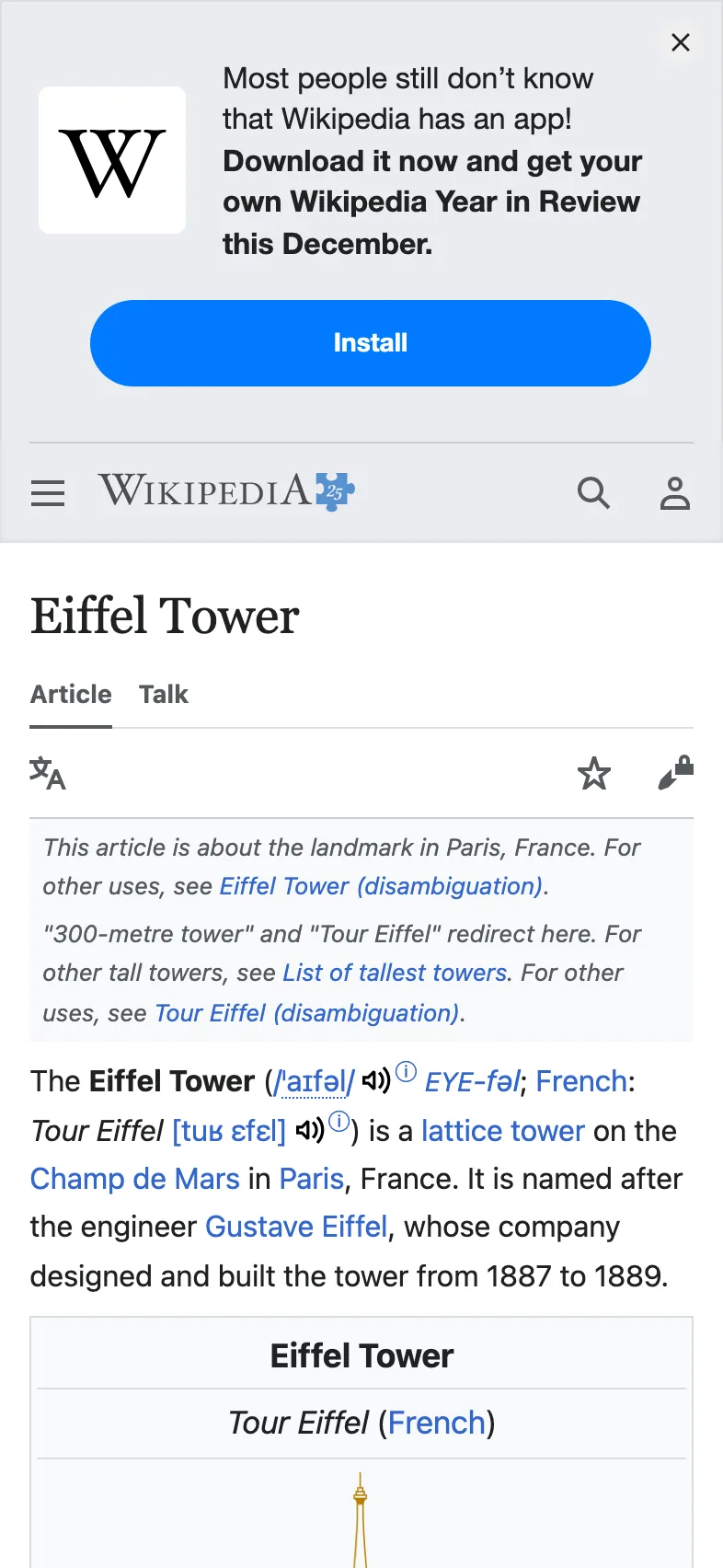
Option names must match exactly. An unknown name, such as fullpage for full_page, is rejected with invalid_options and a hint. Every option is explained in the options reference.
#Render your own HTML with POST
To turn your own HTML into an image, send the options as a JSON body in a POST request. See HTML and Markdown input.
import { writeFile } from 'node:fs/promises'

const html = `
  <body style="margin:0;display:grid;place-items:center;height:100vh;
               font:700 64px sans-serif;background:#0f172a;color:#fff">
    Hello from HTML
  </body>`

const response = await fetch('https://curlshot.com/api/v1/screenshot', {
  method: 'POST',
  headers: {
    'X-Access-Key': 'YOUR_ACCESS_KEY',
    'Content-Type': 'application/json',
  },
  // In a JSON body, booleans and numbers are real values, not text.
  body: JSON.stringify({ html, viewport_width: 1200, viewport_height: 630, format: 'png' }),
})
if (!response.ok) throw new Error((await response.json()).error_message)

await writeFile('card.png', Buffer.from(await response.arrayBuffer()))
console.log('Saved card.png')Saved card.pngYou get card.png, 1200 by 630 pixels: white text centered on a dark background.
#Get JSON instead of the file
With response_type=json the answer is a small JSON document: details about the render and a link to the stored file.
const params = new URLSearchParams({
  url: 'https://news.ycombinator.com',
  response_type: 'json',
})

const response = await fetch(`https://curlshot.com/api/v1/screenshot?${params}`, {
  headers: { 'X-Access-Key': 'YOUR_ACCESS_KEY' },
})
const result = await response.json()
if (!response.ok) throw new Error(result.error_message)

console.log(result){
id: 'a187741109b34d6c991bdab9b2c5da03',
url: 'https://curlshot.com/api/v1/files/a187741109b34d6c991bdab9b2c5da03.png?expires=1791155483&token=wr0Y6nTqXC-yLpWGbch_RVMyZqjGaUgnu2Eeq-shclg',
format: 'png',
width: 1280,
height: 1024,
bytes: 265066,
render_ms: 1464,
cached: false,
expires_at: '2026-10-04T23:11:23.563Z'
}The url needs no access key, so you can hand it to a browser or to another service. It stops working at the time in expires_at, so download the file before then if you need to keep it.
#Handle errors and retry
A failed request returns JSON with an error_code and an error_message, not an image. Some codes are temporary and worth a second try. The rest fail the same way until you change the request. This helper retries the temporary ones and waits a little longer each time.
import { writeFile } from 'node:fs/promises'

const API = 'https://curlshot.com/api/v1/screenshot'
const ACCESS_KEY = 'YOUR_ACCESS_KEY'

// Temporary problems. Everything else needs a change to the request.
const RETRYABLE = new Set([
  'renderer_busy',
  'renderer_unavailable',
  'service_unavailable',
  'internal_error',
  'timeout',
  'navigation_failed',
  'rate_limited',
  'concurrency_limit',
])

const sleep = (ms) => new Promise((resolve) => setTimeout(resolve, ms))

class ScreenshotError extends Error {
  constructor(status, body) {
    super(`${body.error_code}: ${body.error_message}`)
    this.status = status
    this.code = body.error_code
  }
}

async function takeScreenshot(options, tries = 4) {
  const params = new URLSearchParams(options)

  for (let attempt = 1; ; attempt++) {
    const response = await fetch(`${API}?${params}`, {
      headers: { 'X-Access-Key': ACCESS_KEY },
    })
    if (response.ok) return Buffer.from(await response.arrayBuffer())

    // If the body is not JSON, treat it as a temporary failure.
    const body = await response.json().catch(() => ({
      error_code: 'internal_error',
      error_message: `Unexpected answer with status ${response.status}`,
    }))
    const error = new ScreenshotError(response.status, body)
    if (!RETRYABLE.has(error.code) || attempt === tries) throw error

    // Use Retry-After when the API sends it. Otherwise wait 1, 2, 4 seconds.
    const seconds = Number(response.headers.get('retry-after')) || 2 ** (attempt - 1)
    console.warn(`Attempt ${attempt} failed (${error.code}). Waiting ${seconds}s.`)
    await sleep(seconds * 1000)
  }
}

try {
  const image = await takeScreenshot({ url: 'https://github.com/microsoft/playwright' })
  await writeFile('playwright.png', image)
  console.log('Saved playwright.png')
} catch (error) {
  console.error('Gave up:', error.message)
  process.exitCode = 1
}Attempt 1 failed (renderer_busy). Waiting 1s.
Saved playwright.pngGave up: invalid_options: url: must be a full URL starting with http:// or https://When the API knows how long to wait, it says so in the Retry-After header, in seconds. The errors page lists every code and says which ones can be retried.
#Create a signed link
A signed link is a screenshot address with a signature at the end. It is safe to show in a web page, because nobody can change it without your secret key. Build it on your server.
The signature is an HMAC-SHA256, a checksum made with your secret key, of the sorted and encoded parameters.
import { createHmac } from 'node:crypto'

// Strict percent-encoding: encodeURIComponent leaves ! ' ( ) * alone, so finish the job.
const encode = (text) =>
  encodeURIComponent(text).replace(/[!'()*]/g, (c) => '%' + c.charCodeAt(0).toString(16).toUpperCase())

function signedLink(endpoint, params, secretKey) {
  const canonical = Object.entries(params)
    .map(([name, value]) => [name, String(value)])
    // Every parameter, sorted by name, then by value.
    .sort(([an, av], [bn, bv]) => (an < bn ? -1 : an > bn ? 1 : av < bv ? -1 : av > bv ? 1 : 0))
    .map(([name, value]) => `${encode(name)}=${encode(value)}`)
    .join('&')

  const signature = createHmac('sha256', secretKey).update(canonical).digest('hex')
  return `${endpoint}?${canonical}&signature=${signature}`
}

const link = signedLink(
  'https://curlshot.com/api/v1/screenshot',
  {
    access_key: 'YOUR_ACCESS_KEY',
    url: 'https://en.wikipedia.org/wiki/Eiffel_Tower',
    format: 'webp',
    viewport_width: 1280,
    cache: 'true',
    // Optional: the link stops working at this time, in Unix seconds. Here: one hour from now.
    expires: Math.floor(Date.now() / 1000) + 3600,
  },
  'YOUR_SECRET_KEY',
)

console.log(link)https://curlshot.com/api/v1/screenshot?access_key=YOUR_ACCESS_KEY&cache=true&expires=1791159083&format=webp&url=https%3A%2F%2Fen.wikipedia.org%2Fwiki%2FEiffel_Tower&viewport_width=1280&signature=6c5f73bd40f701699781ec1faf569d8c164f5936c823d1c2a293fa1ff9170e7eexpires is optional. It is a Unix time, the number of seconds since 1970. The link works until that time and never after: the API then answers 403 signature_invalid. It is part of the signed text, so nobody can move it. Leave it out for a link that never expires.
To test your signing code, keep the placeholder keys and leave out expires. The signature must then be b565e2249494a979e38a79a4c9556b316ff64f15df96febf44c69b9709a52213.
#Run a render in the background and poll
With async=true the API answers at once with a job, and the render runs in the background. You then poll: ask the job address every two seconds until the job is done or failed. More on this in Async and webhooks.
import { writeFile } from 'node:fs/promises'

const headers = { 'X-Access-Key': 'YOUR_ACCESS_KEY' }
const sleep = (ms) => new Promise((resolve) => setTimeout(resolve, ms))

// 1. Start the job.
const params = new URLSearchParams({
  url: 'https://en.wikipedia.org/wiki/Eiffel_Tower',
  full_page: 'true',
  async: 'true',
})
const started = await fetch(`https://curlshot.com/api/v1/screenshot?${params}`, { headers })
const startedBody = await started.json()
if (!started.ok) throw new Error(startedBody.error_message)
console.log('Started', startedBody.job_id)

// 2. Ask every two seconds until the job is done or has failed. Give up after two minutes.
let job
for (let i = 0; i < 60; i++) {
  await sleep(2000)
  const response = await fetch(startedBody.job_url, { headers })
  job = await response.json()
  if (!response.ok) throw new Error(job.error_message)
  console.log('Status:', job.status)
  if (job.status === 'done' || job.status === 'failed') break
}

if (job?.status === 'failed') throw new Error(`${job.error_code}: ${job.error_message}`)
if (job?.status !== 'done') throw new Error('The job did not finish in time')

// 3. Download the finished file from the link in the job.
const file = await fetch(job.screenshot.url)
await writeFile('eiffel-full.png', Buffer.from(await file.arrayBuffer()))
console.log('Saved eiffel-full.png,', job.screenshot.bytes, 'bytes')Started job_917e1044a2a8885401dae084
Status: processing
Status: done
Saved eiffel-full.png, 7373357 bytes
A finished job holds the result in screenshot, which is null until then. A failed job holds an error_code and an error_message instead.
Asking for the status does not use your quota. The file link in screenshot.url needs no access key and works until the job's screenshot.expires_at.
#Where to go next
- Options reference: every option you can put in the parameters.
- Errors: every error code with its cause and fix.
- Signed links: the signing steps explained one by one.
- Async and webhooks: get a call when the job ends, with no polling.
- Python examples: the same tasks in Python.