How to archive pages as PDF
Save web pages as clean PDF files, one at a time or in batches with webhooks, and keep your own copy of every file.
Add format=pdf and the answer is a PDF file, not an image.
curl "https://curlshot.com/api/v1/screenshot?access_key=YOUR_ACCESS_KEY\
&url=https://en.wikipedia.org/wiki/Eiffel_Tower\
&format=pdf" \
  --output eiffel.pdf
You get eiffel.pdf: the whole article, split over A4 pages, with text you can select and search.
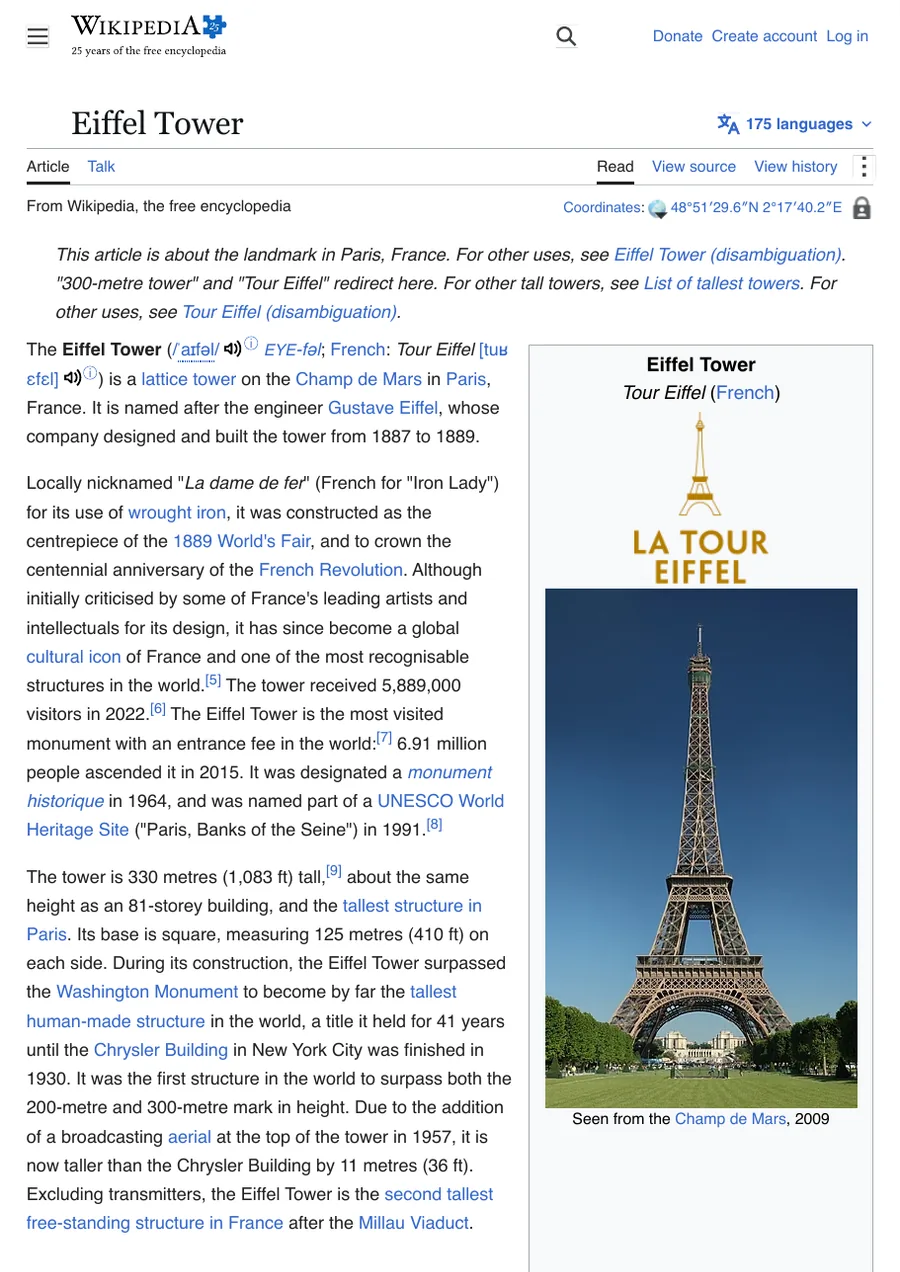
#1. Make your first PDF
The request above is all it takes. A PDF always holds the whole page from top to bottom, so you do not need full_page.
Before the PDF is made, the page is scrolled through once. That loads images that only appear when you scroll to them.
Check the response before you save it. A PDF answer has the header Content-Type: application/pdf. An error is JSON. See Errors.
Two image options do not work with PDF. selector and the clip_* options return invalid_options together with format=pdf.
#2. Remove banners and ads
An archive copy should show the article, not the cookie banner on top of it. Turn on the blocking options:
curl "https://curlshot.com/api/v1/screenshot?access_key=YOUR_ACCESS_KEY\
&url=https://en.wikipedia.org/wiki/Eiffel_Tower\
&format=pdf\
&block_cookie_banners=true\
&block_ads=true" \
  --output eiffel-clean.pdf
The result is the same article with no consent pop-up and no ad blocks.
Both options are off unless you ask for them. The default of block_cookie_banners is false. The default of block_ads is false.
If one stubborn element is left, hide it with hide_selectors. Blocking ads, cookie banners, trackers and chats covers all of these.
#3. Choose the screen or the print layout
Many sites have two looks. One for screens, and one for printing, usually without menus and sidebars. The media_type option picks which one the page uses.
#media_type
Which of the two looks the page is drawn with. The allowed values are screen and print.
The default is screen.
curl "https://curlshot.com/api/v1/screenshot?access_key=YOUR_ACCESS_KEY\
&url=https://en.wikipedia.org/wiki/Eiffel_Tower\
&format=pdf\
&media_type=print\
&block_cookie_banners=true" \
  --output eiffel-print.pdf
The result is the article the way the site intends it to be printed. On Wikipedia that means the text and images, without the navigation around them.
Which one to pick:
- Use
printfor articles and documents. It is usually the cleanest and uses the least paper. - Use
screenwhen you want proof of how the page looked to a visitor.
Not every site has a print layout. If print looks the same or looks broken, go back to screen.
#4. Set the paper size and margins
The PDF options control the paper. These are the ones you will reach for first.
| Option | What it does | Default |
|---|---|---|
pdf_paper_format | Paper size, such as a4 or letter. | a4 |
pdf_landscape | Turn the pages sideways. | false |
pdf_margin | Space on all four sides, such as 15mm. | No margin |
pdf_print_background | Print background colours and images. | true |
pdf_fit_one_page | Put the whole page on a single tall PDF page. | false |
curl "https://curlshot.com/api/v1/screenshot?access_key=YOUR_ACCESS_KEY\
&url=https://en.wikipedia.org/wiki/Eiffel_Tower\
&format=pdf\
&media_type=print\
&pdf_paper_format=letter\
&pdf_margin=15mm" \
  --output eiffel-letter.pdf
The result is the article on US Letter paper with a 15 millimetre margin around the text.
A margin can be written in mm, cm, in or px. A plain number counts as pixels.
For an archive that should look like one long scroll, with no page breaks cutting through images, use pdf_fit_one_page=true. The PDF rendering page explains every PDF option.
#5. Archive many pages in the background
One page at a time is fine for a handful. For a long list, start the renders in the background and let the API call you when each one is ready.
Send the list to the bulk endpoint with a webhook_url. A webhook is an address on your server that we call when a job ends.
curl -X POST "https://curlshot.com/api/v1/bulk" \
  -H "X-Access-Key: YOUR_ACCESS_KEY" \
  -H "Content-Type: application/json" \
  -d '{
    "webhook_url": "https://your-app.example/hooks/archive",
    "requests": [
      { "url": "https://en.wikipedia.org/wiki/Eiffel_Tower", "format": "pdf", "media_type": "print", "block_cookie_banners": true, "block_ads": true },
      { "url": "https://developer.mozilla.org", "format": "pdf", "block_cookie_banners": true, "block_ads": true },
      { "url": "https://github.com/microsoft/playwright", "format": "pdf", "block_cookie_banners": true, "block_ads": true }
    ]
}'{
"batch_id": "batch_fb25e0f51f9e8897ae9e",
"batch_url": "https://curlshot.com/api/v1/batches/batch_fb25e0f51f9e8897ae9e",
"jobs": [
{
"job_id": "job_54bd07ee26b45aea296beb07",
"status": "queued",
"job_url": "https://curlshot.com/api/v1/jobs/job_54bd07ee26b45aea296beb07",
"status_url": "https://curlshot.com/api/v1/jobs/job_54bd07ee26b45aea296beb07"
},
{
"job_id": "job_46a76fd421d91c315971efc6",
"status": "queued",
"job_url": "https://curlshot.com/api/v1/jobs/job_46a76fd421d91c315971efc6",
"status_url": "https://curlshot.com/api/v1/jobs/job_46a76fd421d91c315971efc6"
},
{
"job_id": "job_0c1f6b2e9d7a4c35b8e0f914",
"status": "queued",
"job_url": "https://curlshot.com/api/v1/jobs/job_0c1f6b2e9d7a4c35b8e0f914",
"status_url": "https://curlshot.com/api/v1/jobs/job_0c1f6b2e9d7a4c35b8e0f914"
}
]
}The jobs come back in the same order as your requests. Save each job_id next to the page address it belongs to. You need that pairing in the next step.
Save the batch_url too. One request to it shows how many jobs of the batch are done or failed. See Bulk screenshots.
One call takes up to 100 requests. For a longer list, send several calls. For a single page, async=true with a webhook_url on a normal request does the same thing. See Async and webhooks.
Each PDF that renders successfully uses one screenshot from your quota. Failed jobs are free.
#6. Save every file to your own storage
This is the step that makes it an archive. The files we store for you are removed after a while, and the link to each one expires. An archive needs copies that you control.
When a job ends, your webhook receives a message like this:
{
  "event": "screenshot.completed",
  "job_id": "job_54bd07ee26b45aea296beb07",
  "batch_id": "batch_fb25e0f51f9e8897ae9e",
  "status": "done",
  "job_url": "https://curlshot.com/api/v1/jobs/job_54bd07ee26b45aea296beb07",
  "screenshot": {
    "id": "fc8fa16ee40c4e109ca27fc00781dab1",
    "url": "https://curlshot.com/api/v1/files/fc8fa16ee40c4e109ca27fc00781dab1.pdf?expires=1791155499&token=ziDWnqWkJreYpWuBPtqbltnB9YJyt9uO_WapSMBENoc",
    "format": "pdf",
    "bytes": 2210345,
    "width": 794,
    "height": 1123,
    "render_ms": 5120,
    "cached": false,
    "expires_at": "2026-10-04T23:11:45.000Z"
  },
  "error_code": null,
  "error_message": null,
  "created_at": "2026-10-03T23:11:38.983Z",
  "finished_at": "2026-10-03T23:11:45.214Z"
}
Download screenshot.url right away and write the file to your own disk or storage bucket. The link needs no access key, because the token in it is the permission. It stops working when the stored file expires.
The message carries an x-timestamp header and an x-signature header. The signature is a code made from the timestamp, the body and your secret key. Check both before you trust the message: the signature proves who sent it, the timestamp proves it is not an old message sent again. The server below does that, and then stores the file. Check that the webhook is real explains each step.
import { createServer } from 'node:http'
import { createHmac, timingSafeEqual } from 'node:crypto'
import { mkdir, writeFile } from 'node:fs/promises'

const SECRET_KEY = process.env.SCREENSHOT_SECRET_KEY
const seen = new Set() // job ids we have already handled

function isValid(rawBody, signature, timestamp) {
  // Not from the last 5 minutes: refuse it, it may be a replay.
  if (!/^\d+$/.test(String(timestamp || ''))) return false
  if (Math.abs(Date.now() / 1000 - Number(timestamp)) > 300) return false

  // The signed text is "<timestamp>.<body>".
  const expected = createHmac('sha256', SECRET_KEY).update(`${timestamp}.`).update(rawBody).digest('hex')
  const a = Buffer.from(expected)
  const b = Buffer.from(String(signature || ''))
  return a.length === b.length && timingSafeEqual(a, b)
}

async function archive(payload) {
  if (seen.has(payload.job_id)) return // the same event can arrive twice
  seen.add(payload.job_id)

  if (payload.event === 'screenshot.failed') {
    console.error('Failed:', payload.job_id, payload.error_code, payload.error_message)
    return
  }

  const file = await fetch(payload.screenshot.url)
  if (!file.ok) throw new Error(`Download failed with status ${file.status}`)

  const day = payload.finished_at.slice(0, 10) // for example 2026-10-03
  await mkdir(`archive/${day}`, { recursive: true })
  await writeFile(`archive/${day}/${payload.job_id}.pdf`, Buffer.from(await file.arrayBuffer()))
  console.log('Archived', payload.job_id)
}

createServer((req, res) => {
  const chunks = []
  req.on('data', (chunk) => chunks.push(chunk))
  req.on('end', () => {
    const rawBody = Buffer.concat(chunks)

    // Check the signature on the raw bytes, before parsing.
    if (!isValid(rawBody, req.headers['x-signature'], req.headers['x-timestamp'])) {
      res.writeHead(401).end()
      return
    }

    res.writeHead(200).end() // answer fast, then do the slow part
    archive(JSON.parse(rawBody.toString('utf8'))).catch(console.error)
  })
}).listen(3000)Archived job_54bd07ee26b45aea296beb07
Archived job_0c1f6b2e9d7a4c35b8e0f914
Archived job_46a76fd421d91c315971efc6The files land in archive/2026-10-03/, one PDF per job. The order of the lines can differ from the order of your requests, because jobs finish at different times.
In a real system, keep the list of handled job ids in your database, not in memory. The signature check is explained in Async and webhooks.
#7. Deal with pages that fail
Some pages will not make it. A site may be down, or too slow. Those jobs arrive at your webhook with the event screenshot.failed and an error_code.
- For
timeout, start the job again with a largertimeout. The default is30seconds and the largest value is90. - For
navigation_failed, try again later. If it keeps failing, the page is gone or blocks visitors. - For
host_not_allowed, drop the address. It points at a private network or a port we do not open, and a retry gives the same answer.
An address that is not a full http:// or https:// link never becomes a job. The bulk call itself is refused with invalid_options, and its errors list names the item. See When an item is wrong.
Keep a small record per page: the address, the date, the file path, and the last error if there was one. That record is what turns a folder of PDFs into an archive you can search.
#Where to go next
- PDF rendering: every PDF option with examples.
- Bulk screenshots: the batch endpoint in detail.
- Async and webhooks: the webhook payload, signatures and retries.
- Blocking ads, cookie banners, trackers and chats: cleaner pages before they are saved.