Signed links
Put screenshot links in a web page without handing out a usable key. Signing steps, expiring links, signed status and bulk calls, six languages.
This is a signed link. The last parameter, signature, is what makes it safe to show in public.
curl "https://curlshot.com/api/v1/screenshot?access_key=YOUR_ACCESS_KEY\
&cache=true\
&format=webp\
&url=https%3A%2F%2Fen.wikipedia.org%2Fwiki%2FEiffel_Tower\
&viewport_width=1280\
&signature=b565e2249494a979e38a79a4c9556b316ff64f15df96febf44c69b9709a52213" \
  --output eiffel.webp
You get the screenshot, the same as with a normal request:
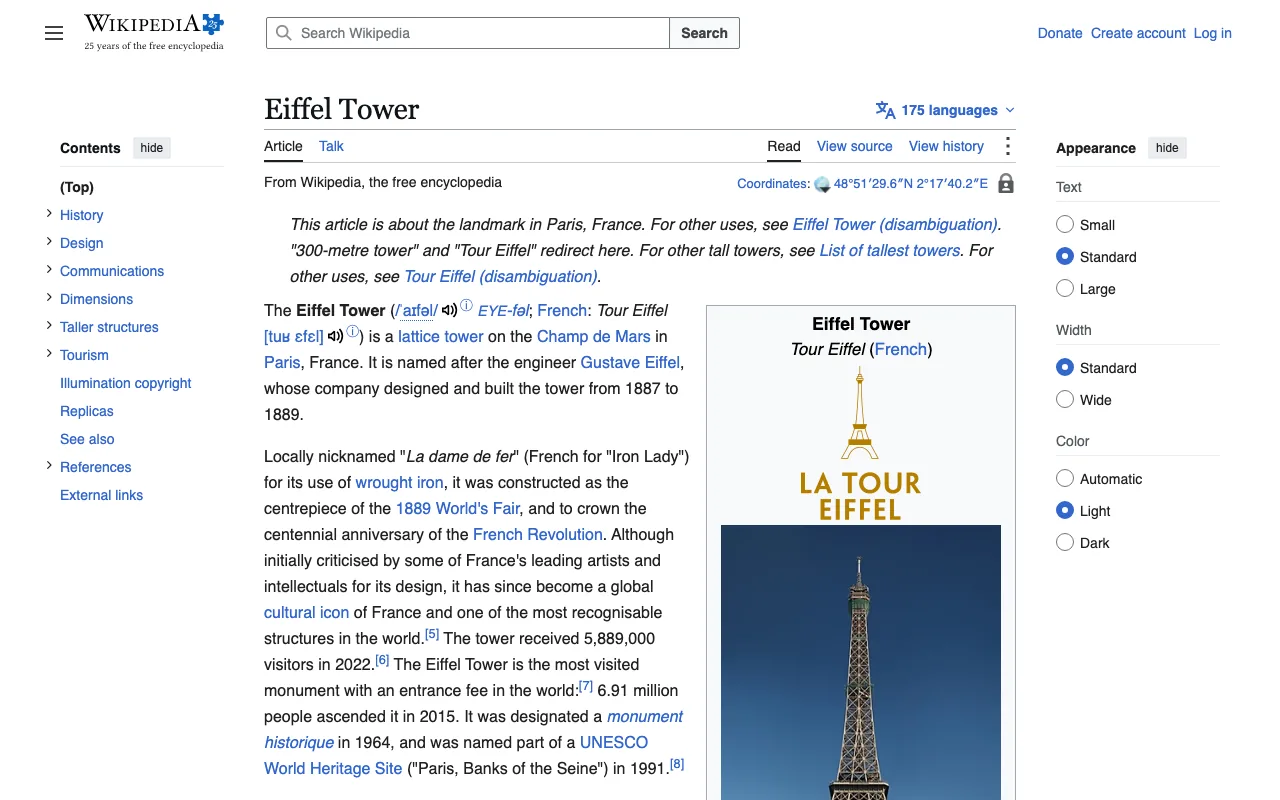
Change anything in that link, even one letter of the url, and the answer is an error:
{
  "error_code": "signature_invalid",
  "error_message": "The request signature does not match.",
  "documentation_url": "https://curlshot.com/docs/errors#signature_invalid"
}#Why sign a link
Say you want a screenshot inside a web page, with a plain <img> tag. The link has to contain your access key, and anyone can read the source of a web page.
Without a signature, a visitor could copy your key, swap the url for any site they like, and take screenshots on your account.
A signature stops that. It is a short code that you compute on your server from two things: the exact parameters of the link, and your secret key. We compute the same code on our side and compare.
The visitor sees the link but not the secret key. So they can use the link as it is, but they cannot change it.
#Your two keys
Every API key has two parts. You find both under API keys in your dashboard.
| Part | What it is for |
|---|---|
| Access key | Identifies you. It goes in the request. |
| Secret key | Signs links, and checks webhooks, the messages we send to your server when a background job ends. It never goes in a request. |
Keep the secret key on your server. It must not appear in HTML, in JavaScript that runs in the browser, or in a mobile app.
#How the signature is made
The signature is an HMAC-SHA256. That is a standard recipe that mixes a text with a secret and gives back a fixed-length code. Every common language has it built in.
Here are the steps, with the link from the top of this page as the example.
#1. Collect the parameters
Take every parameter you want in the link, including access_key. Leave signature out, because it does not exist yet.
url            = https://en.wikipedia.org/wiki/Eiffel_Tower
format         = webp
viewport_width = 1280
cache          = true
access_key = YOUR_ACCESS_KEY#2. Sort them
Sort by name, from a to z. If a name appears more than once, sort those entries by value.
#3. Encode names and values
Percent-encode each name and each value. Percent-encoding replaces characters that have a special meaning in a link with a % and a code. For example : becomes %3A and / becomes %2F.
Use the strict form, known as RFC 3986. Only letters, digits and -, _, ., ~ stay as they are. A space becomes %20, never +.
#4. Join them
Write each pair as name=value and join the pairs with &. The result is called the canonical string. Canonical means "the one agreed way to write it".
access_key=YOUR_ACCESS_KEY&cache=true&format=webp&url=https%3A%2F%2Fen.wikipedia.org%2Fwiki%2FEiffel_Tower&viewport_width=1280#5. Compute the HMAC
Compute HMAC-SHA256 of the canonical string, with your secret key as the key. Write the result as lowercase hex, which is 64 characters made of 0-9 and a-f.
With the secret key YOUR_SECRET_KEY, the canonical string above gives:
b565e2249494a979e38a79a4c9556b316ff64f15df96febf44c69b9709a52213#6. Add it to the link
Put the canonical string after the ?, then add &signature= and the code.
https://curlshot.com/api/v1/screenshot?access_key=YOUR_ACCESS_KEY&cache=true&format=webp&url=https%3A%2F%2Fen.wikipedia.org%2Fwiki%2FEiffel_Tower&viewport_width=1280&signature=b565e2249494a979e38a79a4c9556b316ff64f15df96febf44c69b9709a52213#Sign functions
Each sample builds the same link as the worked example. Copy the function, then pass in your real keys.
SECRET_KEY="YOUR_SECRET_KEY"

# In a shell script, write the canonical string by hand:
# names sorted from a to z, values already percent-encoded.
CANONICAL="access_key=YOUR_ACCESS_KEY&cache=true&format=webp&url=https%3A%2F%2Fen.wikipedia.org%2Fwiki%2FEiffel_Tower&viewport_width=1280"

# HMAC-SHA256 as lowercase hex. openssl prints a label first, so keep the last word.
SIGNATURE=$(printf '%s' "$CANONICAL" | openssl dgst -sha256 -hmac "$SECRET_KEY" -hex | awk '{print $NF}')

curl "https://curlshot.com/api/v1/screenshot?$CANONICAL&signature=$SIGNATURE" --output eiffel.webp
import { createHmac } from 'node:crypto'
// Strict percent-encoding: encodeURIComponent leaves ! ' ( ) * alone, so finish the job.
const encode = (text) =>
encodeURIComponent(text).replace(/[!'()*]/g, (c) => '%' + c.charCodeAt(0).toString(16).toUpperCase())
export function signedLink(endpoint, params, secretKey) {
const canonical = Object.entries(params)
.map(([name, value]) => [name, String(value)])
// Sort by name, then by value.
.sort(([an, av], [bn, bv]) => (an < bn ? -1 : an > bn ? 1 : av < bv ? -1 : av > bv ? 1 : 0))
.map(([name, value]) => `${encode(name)}=${encode(value)}`)
.join('&')
const signature = createHmac('sha256', secretKey).update(canonical).digest('hex')
return `${endpoint}?${canonical}&signature=${signature}`
}
const link = signedLink(
'https://curlshot.com/api/v1/screenshot',
{
access_key: 'YOUR_ACCESS_KEY',
url: 'https://en.wikipedia.org/wiki/Eiffel_Tower',
format: 'webp',
viewport_width: 1280,
cache: 'true',
},
'YOUR_SECRET_KEY',
)
console.log(link)import hashlib
import hmac
from urllib.parse import quote
def signed_link(endpoint, params, secret_key):
# Sort by name, then by value.
pairs = sorted((str(name), str(value)) for name, value in params.items())
# safe="" gives strict percent-encoding: a space becomes %20, a slash becomes %2F.
canonical = "&".join(f"{quote(name, safe='')}={quote(value, safe='')}" for name, value in pairs)
signature = hmac.new(secret_key.encode(), canonical.encode(), hashlib.sha256).hexdigest()
return f"{endpoint}?{canonical}&signature={signature}"
link = signed_link(
"https://curlshot.com/api/v1/screenshot",
{
"access_key": "YOUR_ACCESS_KEY",
"url": "https://en.wikipedia.org/wiki/Eiffel_Tower",
"format": "webp",
"viewport_width": 1280,
"cache": "true",
},
"YOUR_SECRET_KEY",
)
print(link)<?php
function signed_link(string $endpoint, array $params, string $secretKey): string
{
// Sort by name, comparing as plain text.
ksort($params, SORT_STRING);
$pairs = [];
foreach ($params as $name => $value) {
// rawurlencode is the strict form: a space becomes %20, not +.
$pairs[] = rawurlencode((string) $name) . '=' . rawurlencode((string) $value);
}
$canonical = implode('&', $pairs);
$signature = hash_hmac('sha256', $canonical, $secretKey);
return "$endpoint?$canonical&signature=$signature";
}
$link = signed_link(
'https://curlshot.com/api/v1/screenshot',
[
'access_key' => 'YOUR_ACCESS_KEY',
'url' => 'https://en.wikipedia.org/wiki/Eiffel_Tower',
'format' => 'webp',
'viewport_width' => '1280',
'cache' => 'true',
],
'YOUR_SECRET_KEY'
);
echo $link, "\n";package main
import (
"crypto/hmac"
"crypto/sha256"
"encoding/hex"
"fmt"
"net/url"
"sort"
"strings"
)
// Strict percent-encoding: QueryEscape writes a space as "+", so turn it into "%20".
func encode(text string) string {
return strings.ReplaceAll(url.QueryEscape(text), "+", "%20")
}
func signedLink(endpoint string, params map[string]string, secretKey string) string {
names := make([]string, 0, len(params))
for name := range params {
names = append(names, name)
}
sort.Strings(names)
pairs := make([]string, 0, len(names))
for _, name := range names {
pairs = append(pairs, encode(name)+"="+encode(params[name]))
}
canonical := strings.Join(pairs, "&")
mac := hmac.New(sha256.New, []byte(secretKey))
mac.Write([]byte(canonical))
signature := hex.EncodeToString(mac.Sum(nil))
return endpoint + "?" + canonical + "&signature=" + signature
}
func main() {
link := signedLink("https://curlshot.com/api/v1/screenshot", map[string]string{
"access_key": "YOUR_ACCESS_KEY",
"url": "https://en.wikipedia.org/wiki/Eiffel_Tower",
"format": "webp",
"viewport_width": "1280",
"cache": "true",
}, "YOUR_SECRET_KEY")
fmt.Println(link)
}require "erb"
require "openssl"
def signed_link(endpoint, params, secret_key)
# Sort by name, then by value.
pairs = params.map { |name, value| [name.to_s, value.to_s] }.sort
# ERB::Util.url_encode is the strict form: a space becomes %20, not +.
canonical = pairs
.map { |name, value| "#{ERB::Util.url_encode(name)}=#{ERB::Util.url_encode(value)}" }
.join("&")
signature = OpenSSL::HMAC.hexdigest("SHA256", secret_key, canonical)
"#{endpoint}?#{canonical}&signature=#{signature}"
end
link = signed_link(
"https://curlshot.com/api/v1/screenshot",
{
access_key: "YOUR_ACCESS_KEY",
url: "https://en.wikipedia.org/wiki/Eiffel_Tower",
format: "webp",
viewport_width: 1280,
cache: "true",
},
"YOUR_SECRET_KEY"
)
puts link#Use the link in a page
Build the link on your server while you render the page, then print it into the HTML.
<img
src="https://curlshot.com/api/v1/screenshot?access_key=YOUR_ACCESS_KEY&cache=true&format=webp&url=https%3A%2F%2Fen.wikipedia.org%2Fwiki%2FEiffel_Tower&viewport_width=1280&signature=b565e2249494a979e38a79a4c9556b316ff64f15df96febf44c69b9709a52213"
alt="Preview of the Eiffel Tower article"
width="640"
height="512"
/>Inside HTML, write each & as &. The browser turns it back into & before it asks for the screenshot.
Always put cache=true in a link that visitors load. The first visitor triggers the render. Everyone after that gets the stored copy, which is free. See Caching.
#Give a link an end date
A signature proves that a link was not changed. On its own it does not make the link expire: the link keeps working until you delete the API key it was made with.
To set an end date, add expires before you sign.
#expires
The moment the link stops working, as Unix time in seconds. Unix time is the number of seconds since 1 January 1970, the way most languages count time.
There is no default. Leave it out and the link has no end date.
This sample makes a link that works for one hour:
ACCESS_KEY="YOUR_ACCESS_KEY"
SECRET_KEY="YOUR_SECRET_KEY"

# One hour from now, in seconds.
EXPIRES=$(( $(date +%s) + 3600 ))

# Names sorted from a to z: access_key, expires, url.
CANONICAL="access_key=$ACCESS_KEY&expires=$EXPIRES&url=https%3A%2F%2Fen.wikipedia.org%2Fwiki%2FEiffel_Tower"
SIGNATURE=$(printf '%s' "$CANONICAL" | openssl dgst -sha256 -hmac "$SECRET_KEY" -hex | awk '{print $NF}')

curl "https://curlshot.com/api/v1/screenshot?$CANONICAL&signature=$SIGNATURE" --output eiffel.png
You get the screenshot for the next hour. After that, the same link answers:
{
  "error_code": "request_expired",
  "error_message": "This request has expired: its `expires` time is in the past. Create a new link with a later `expires`.",
  "documentation_url": "https://curlshot.com/docs/errors#request_expired"
}
An expired link has its own code, request_expired, so your code can tell "make a new link" apart from "the signature is wrong".
A value that cannot be read as a time is a different problem. expires=tomorrow, a date text, a decimal number, or the same parameter twice is answered with status 400:
{
  "error_code": "invalid_options",
  "error_message": "expires: must be a Unix time in whole seconds, such as 1767225600",
  "documentation_url": "https://curlshot.com/docs/errors#invalid_options",
  "errors": [
    { "field": "expires", "message": "must be a Unix time in whole seconds, such as 1767225600" }
  ]
}
Because expires is part of the signed text, a visitor cannot push the date forward. Changing it breaks the signature.
In the sign functions above, expires is one more parameter. In Node.js, for example, add expires: Math.floor(Date.now() / 1000) + 3600 to the list.
#Accept only signed requests
By default, a key accepts both signed and unsigned requests. That is fine while you test.
For a key whose links are shown in public, turn on Require signature for that key in your dashboard. From then on, a request with that key and no signature is refused:
{
  "error_code": "signature_required",
  "error_message": "This access key only accepts signed requests. Add a `signature` parameter.",
  "documentation_url": "https://curlshot.com/docs/errors#signature_required"
}
Without the setting, someone could delete the signature from your link and send their own parameters with your access key.
Once the setting is on, every call with that key needs a signature. That includes the status calls and bulk calls in the next section.
#One signature, one endpoint
An endpoint is one address of the API, such as /screenshot or /usage. A signature is only good for the endpoint it was made for.
So a signed screenshot link is not a pass for anything else. Someone who copies it from your page cannot use it to read your usage, your jobs or your stored files, and cannot turn it into a bulk call.
| Endpoint | What you sign |
|---|---|
/screenshot | Every parameter of the request. |
/usage, /jobs/:id, /batches/:id, /files/:id | access_key, and expires if you want an end date. Nothing else. |
/bulk | access_key and body_sha256, and expires if you want one. Nothing else. |
Send a signed screenshot link to one of the other endpoints and you get:
{
  "error_code": "signature_invalid",
  "error_message": "This signature was made for another endpoint. Sign a query that holds only `access_key` (and `expires`) for this one.",
  "documentation_url": "https://curlshot.com/docs/errors#signature_invalid"
}#Sign a status call
The status calls are GET /usage, GET /jobs/:id and GET /batches/:id. They take no options, so the signed text is short:
ACCESS_KEY="YOUR_ACCESS_KEY"
SECRET_KEY="YOUR_SECRET_KEY"

CANONICAL="access_key=$ACCESS_KEY"
SIGNATURE=$(printf '%s' "$CANONICAL" | openssl dgst -sha256 -hmac "$SECRET_KEY" -hex | awk '{print $NF}')

curl "https://curlshot.com/api/v1/usage?$CANONICAL&signature=$SIGNATURE"
You get the normal /usage answer. The same query string works for a job or a batch: put it after https://curlshot.com/api/v1/jobs/YOUR_JOB_ID?.
The file links inside job answers and webhooks need none of this. They carry their own token and work without a key or a signature until they expire.
#Sign a bulk call
A bulk call keeps its options in the body, not in the query. So the signature has to cover the body, or anyone holding the signature could send a different list.
You do that with body_sha256. It is the SHA-256 hash of the body, written as lowercase hex. A hash is a short fingerprint of a text: change one character of the body and the fingerprint changes.
- Write the body, and keep the exact text.
- Compute the SHA-256 of that text.
- Sign
access_keyandbody_sha256, sorted by name as always. - Send the same body text, byte for byte.
ACCESS_KEY="YOUR_ACCESS_KEY"
SECRET_KEY="YOUR_SECRET_KEY"

BODY='{"requests":[{"url":"https://example.com"},{"url":"https://en.wikipedia.org/wiki/Eiffel_Tower","format":"jpeg"}]}'

# The fingerprint of the body. openssl prints a label first, so keep the last word.
BODY_SHA256=$(printf '%s' "$BODY" | openssl dgst -sha256 -hex | awk '{print $NF}')

CANONICAL="access_key=$ACCESS_KEY&body_sha256=$BODY_SHA256"
SIGNATURE=$(printf '%s' "$CANONICAL" | openssl dgst -sha256 -hmac "$SECRET_KEY" -hex | awk '{print $NF}')

curl -X POST "https://curlshot.com/api/v1/bulk?$CANONICAL&signature=$SIGNATURE" \
  -H "Content-Type: application/json" \
  -d "$BODY"
You get the normal 202 answer with a batch_id and one job per request.
If the body that arrives does not match body_sha256, or the signed query holds any other parameter, the call is refused with signature_invalid.
#A POST body cannot change a signed link
Options can also be sent in a POST body. That does not open a way around the signature.
The signature has to cover every option of the request, wherever it is written. If a body adds an option, or gives a signed option another value, the signature no longer matches and the request is refused. A body also cannot remove a signed option by sending it as null.
So a signed link always renders exactly what you signed. The simple way to use signing is the one on this page: put every option in the query, sign it, and send it as a GET.
#Common mistakes
- The parameters changed after signing. The signature covers every parameter. If you add
&format=pngto a finished link, it no longer matches. Sign last. - You signed one thing and sent another. A common case is signing
viewport_width=1280and sendingviewport_width=1280.0, or signingTrueand sendingtrue. Sign the exact text that goes in the link. - A space became
+. Many "form" encoders write a space as+. The canonical string needs%20. Use the functions shown above:rawurlencodein PHP,quote(value, safe="")in Python,ERB::Util.url_encodein Ruby. - The parameters are not sorted.
access_keycomes beforeurl. The order in the link you send does not matter, but the order in the string you sign does. signaturewas part of the signed text. Leave it out of the canonical string. It is added at the end.- The wrong secret was used. Each access key has its own secret key. A link with access key A must be signed with the secret of A.
- The secret key is in the browser. If you sign in front-end JavaScript, your secret is public. Sign on the server.
expiresis in milliseconds. JavaScript'sDate.now()counts milliseconds. Divide by 1000 and round down. A 13-digit value is refused withinvalid_options, and a value that is not a whole number of seconds is too.- You reused a screenshot signature on another endpoint.
/usage,/jobs,/batches,/filesand/bulkeach need their own short signature. See One signature, one endpoint. - The bulk body changed after you hashed it. A JSON library that writes the body again can change spacing or key order. Hash and send the same text.
#Where to go next
- Caching: make signed links free to load after the first view.
- Authentication and API keys: the other ways to send your key.
- Async and webhooks: the other job of your secret key, checking webhooks.
- How to add website previews to your app: signed links in a real feature.
- Errors: what
signature_invalidandsignature_requiredmean.