Dark mode and emulation
Ask a site for its dark theme, stop animations, switch to print styles, and set the time zone, user agent and mobile mode.
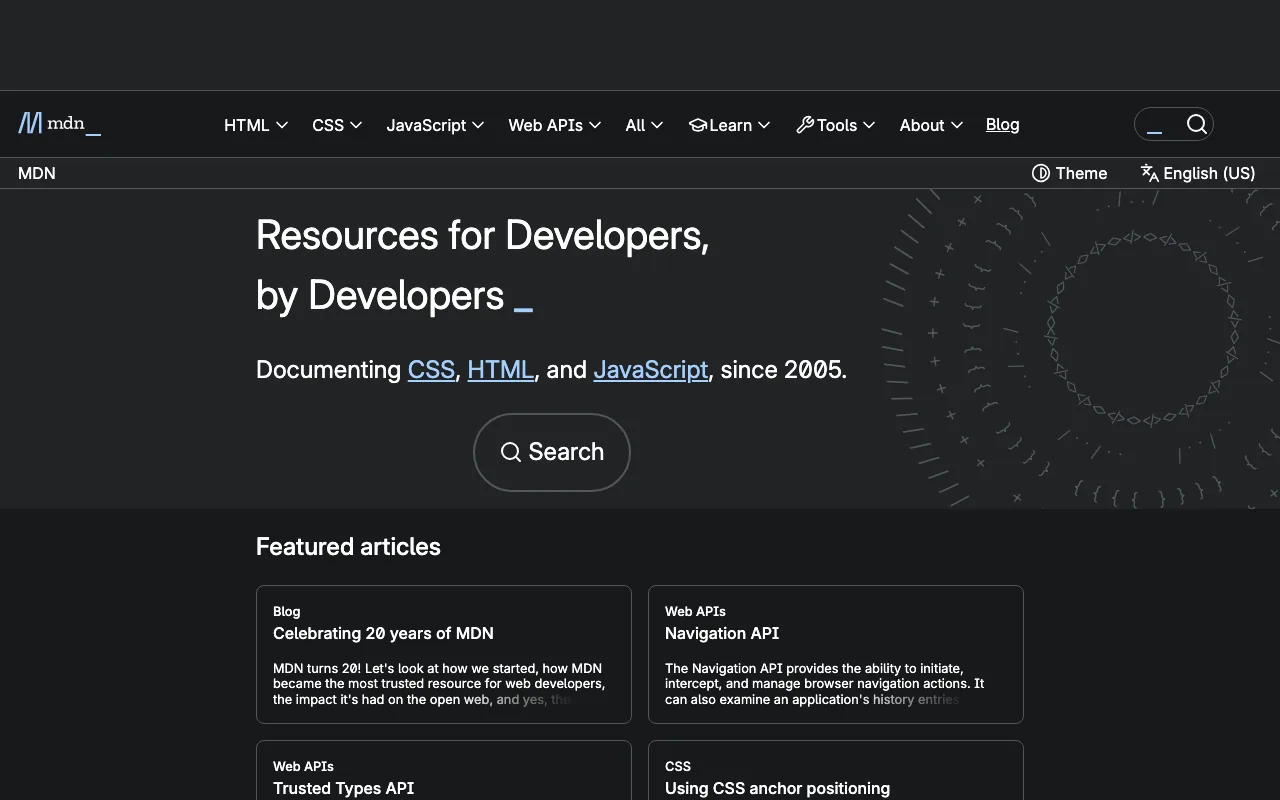
Add dark_mode=true and the site is asked for its dark theme.
curl "https://curlshot.com/api/v1/screenshot?access_key=YOUR_ACCESS_KEY&url=https://developer.mozilla.org&dark_mode=true" \
  --output mdn-dark.png
You get the same page in dark colours.
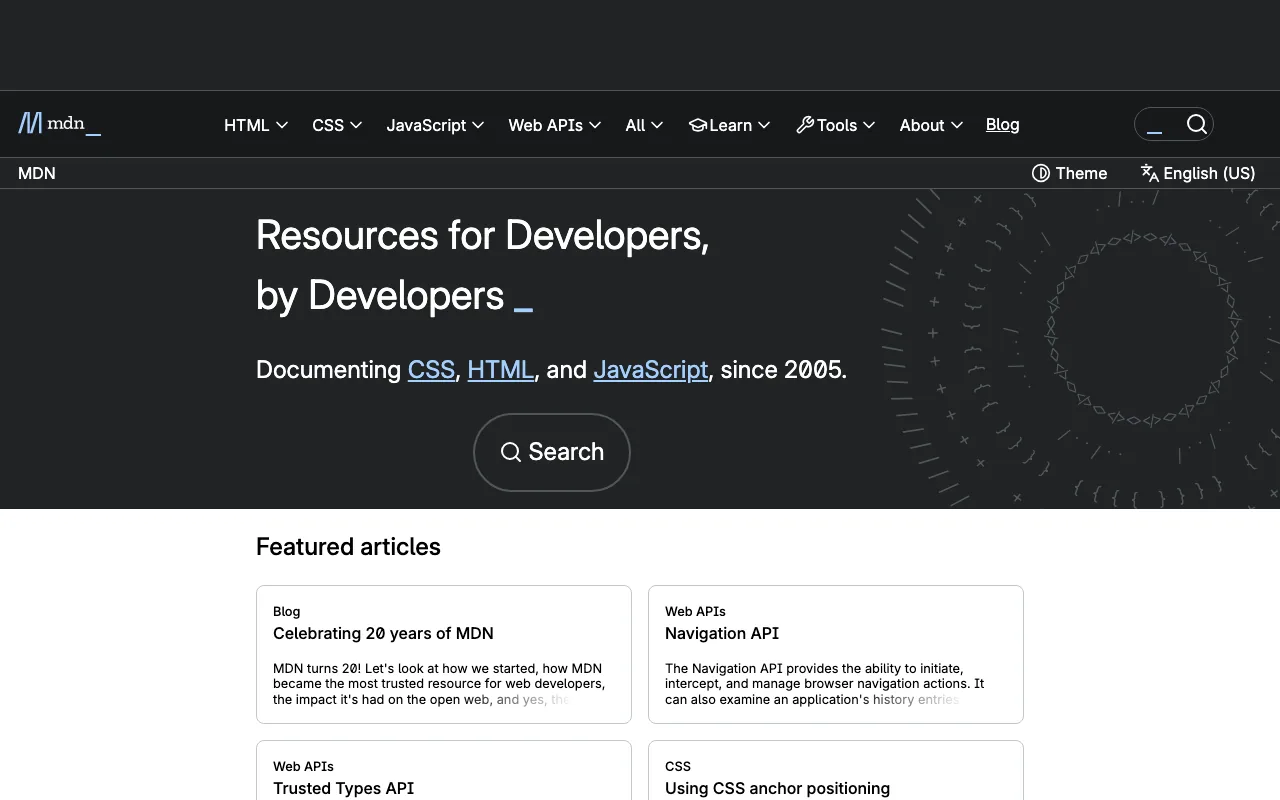
For comparison, here is the same request without the option:
Emulation means our browser pretends to be set up in a certain way. The site reads those settings and adapts, the same as it would for a real visitor with those settings.
#Dark mode
#dark_mode
Tells the page that the visitor prefers dark colours.
The default is false.
Your phone and computer have a light or dark setting. Browsers pass that setting on to websites, and many sites switch their colours to match. dark_mode=true turns that setting on in our browser.
If a site stays light, you have three ways forward:
- Press the site's theme button with
click. - Set the cookie the site uses to remember the theme, with
cookies. - Write your own dark colours with
styles.
With dark_mode=false the browser reports a light preference. So you get the light theme even on sites that default to dark for some visitors.
#Reduced motion
#reduced_motion
Tells the page that the visitor prefers little or no animation.
The default is false.
A screenshot freezes one instant. If that instant falls in the middle of a fade or a slide, you capture a half-visible element. This option helps in two ways:
- Sites that respect the setting skip their animations.
- For image captures, CSS animations and transitions are stopped at the moment of capture, whether the site respects the setting or not.
curl "https://curlshot.com/api/v1/screenshot?access_key=YOUR_ACCESS_KEY&url=https://github.com/microsoft/playwright&reduced_motion=true" \
  --output playwright-still.png
Turn it on when captures of the same page look different from one run to the next.
#Print or screen styles
#media_type
Which set of styles the page is drawn with.
The default is screen.
The allowed values are screen and print.
Many sites carry a second design for printing. It often hides menus and sidebars and uses plain colours. media_type=print shows that design.
curl "https://curlshot.com/api/v1/screenshot?access_key=YOUR_ACCESS_KEY&url=https://en.wikipedia.org/wiki/Eiffel_Tower&media_type=print&full_page=true" \
  --output eiffel-print.png
It works for images and for PDFs. The PDF rendering page shows when each value is the better choice.
#Time zone
#time_zone
The time zone the page sees.
There is no default. Leave it out and the page sees the time zone of our servers.
Pages that show "today", opening hours or a countdown work out the time in the visitor's browser. Set this option so the capture shows what a visitor in that place would see.
The value is an IANA time zone name. That is the standard Region/City form, such as Europe/Berlin, America/New_York or Asia/Tokyo. UTC works too. Upper and lower case do not matter: europe/berlin is read as Europe/Berlin.
An offset such as +02:00, UTC+2 or GMT+2 is not a time zone name, and is refused with invalid_options. An offset does not say when summer time starts, so a browser cannot use it. Pick the name of a place that has the offset you want.
curl "https://curlshot.com/api/v1/screenshot?access_key=YOUR_ACCESS_KEY&url=https://example.com&time_zone=Asia/Tokyo" \
  --output example-tokyo.png
A name that is not a real time zone returns invalid_options. Do not send an offset such as +02:00 or UTC+2: an offset is not a time zone name.
#User agent
#user_agent
The browser name sent to the site.
There is no default. Leave it out and a normal desktop browser name is sent, or the one that belongs to your device preset.
The user agent is a line of text every browser sends with each request. It says which browser and system it is. Some sites choose their layout from it, or use it to recognise known bots.
curl -G "https://curlshot.com/api/v1/screenshot" \
  --data-urlencode "access_key=YOUR_ACCESS_KEY" \
  --data-urlencode "url=https://example.com" \
  --data-urlencode "user_agent=MyPreviewBot/1.0 (+https://your-app.example/bot)" \
  --output example.png
A value you send wins over the one from a device preset. It can be up to 1000 characters.
To change the language a site answers in, the user agent is the wrong tool. Send an Accept-Language header with headers, for example headers=Accept-Language:%20de. The %20 is an encoded space.
#Mobile mode
#viewport_mobile
Draws the page the way a phone browser does.
The default is false. Phone and tablet device presets turn it on for you.
The viewport is the browser window the page is drawn in. A narrow window alone does not make a browser behave like a phone. Phones also follow a setting inside the page, the viewport meta tag, which tells them how wide to draw the page and how far to zoom. With viewport_mobile=true our browser follows that tag and reports a touch screen.
curl "https://curlshot.com/api/v1/screenshot?access_key=YOUR_ACCESS_KEY&url=https://en.wikipedia.org/wiki/Eiffel_Tower&viewport_width=400&viewport_height=800&viewport_mobile=true" \
  --output eiffel-mobile.png
For most cases a preset such as viewport_device=iphone_15_pro is the shorter route. It sets the size, the pixel density, mobile mode and a matching user agent together.
#Combine them
These options stack. This request captures the dark mobile version of a page, with animations off:
curl "https://curlshot.com/api/v1/screenshot?access_key=YOUR_ACCESS_KEY\
&url=https://developer.mozilla.org\
&viewport_device=iphone_15_pro\
&dark_mode=true\
&reduced_motion=true" \
--output mdn-dark-phone.png#Where to go next
- Devices: presets that set size, density and mobile mode at once.
- Custom CSS, JavaScript and clicks: for sites that need a push to change their look.
- PDF rendering: where
media_type=printis most useful. - Options reference: every option with its default.