Getting started
Take your first screenshot in about a minute. Send one request with a page address and get an image back.
Paste this into a terminal. Swap YOUR_ACCESS_KEY for your own access key.
curl "https://curlshot.com/api/v1/screenshot?access_key=YOUR_ACCESS_KEY&url=https://example.com" \
  --output example.png
You get a file called example.png. It looks like this:
That is the whole idea of CurlShot. You send an address, you get back a screenshot of that page.
#Get your access key
An access key is a short code that tells us the request is yours. It is free to get one.
- Create an account. You do not need a card.
- Confirm your email address. The key does not work until you do.
- Open API keys in the dashboard and copy the access key.
The free plan comes with a monthly quota of screenshots, so you can try everything in these docs without paying.
#Take the screenshot from your code
The API is a normal web address, so anything that can fetch a URL can use it. Pick your language:
curl "https://curlshot.com/api/v1/screenshot?access_key=YOUR_ACCESS_KEY&url=https://example.com" \
  --output example.png
import { writeFile } from 'node:fs/promises'
const params = new URLSearchParams({
access_key: 'YOUR_ACCESS_KEY',
url: 'https://example.com',
})
const response = await fetch(`https://curlshot.com/api/v1/screenshot?${params}`)
if (!response.ok) throw new Error((await response.json()).error_message)
await writeFile('example.png', Buffer.from(await response.arrayBuffer()))import requests
response = requests.get(
"https://curlshot.com/api/v1/screenshot",
params={"access_key": "YOUR_ACCESS_KEY", "url": "https://example.com"},
)
response.raise_for_status()
with open("example.png", "wb") as f:
f.write(response.content)<?php
$query = http_build_query([
'access_key' => 'YOUR_ACCESS_KEY',
'url' => 'https://example.com',
]);
$image = file_get_contents("https://curlshot.com/api/v1/screenshot?$query");
file_put_contents('example.png', $image);package main
import (
"io"
"net/http"
"net/url"
"os"
)
func main() {
params := url.Values{}
params.Set("access_key", "YOUR_ACCESS_KEY")
params.Set("url", "https://example.com")
resp, err := http.Get("https://curlshot.com/api/v1/screenshot?" + params.Encode())
if err != nil {
panic(err)
}
defer resp.Body.Close()
file, _ := os.Create("example.png")
defer file.Close()
io.Copy(file, resp.Body)
}require "net/http"
uri = URI("https://curlshot.com/api/v1/screenshot")
uri.query = URI.encode_www_form(access_key: "YOUR_ACCESS_KEY", url: "https://example.com")
File.binwrite("example.png", Net::HTTP.get(uri))Each sample does the same three things: builds the address, fetches it, and saves the bytes to a file.
#Change what you get
Everything else is an option: one more name=value pair in the address. Add an option, get a different screenshot.
This request captures the whole page as a JPEG, sized like an iPhone, with any cookie banner removed:
curl "https://curlshot.com/api/v1/screenshot?access_key=YOUR_ACCESS_KEY\
&url=https://en.wikipedia.org/wiki/Eiffel_Tower\
&viewport_device=iphone_15_pro\
&full_page=true\
&block_cookie_banners=true\
&format=jpeg" \
  --output eiffel.jpg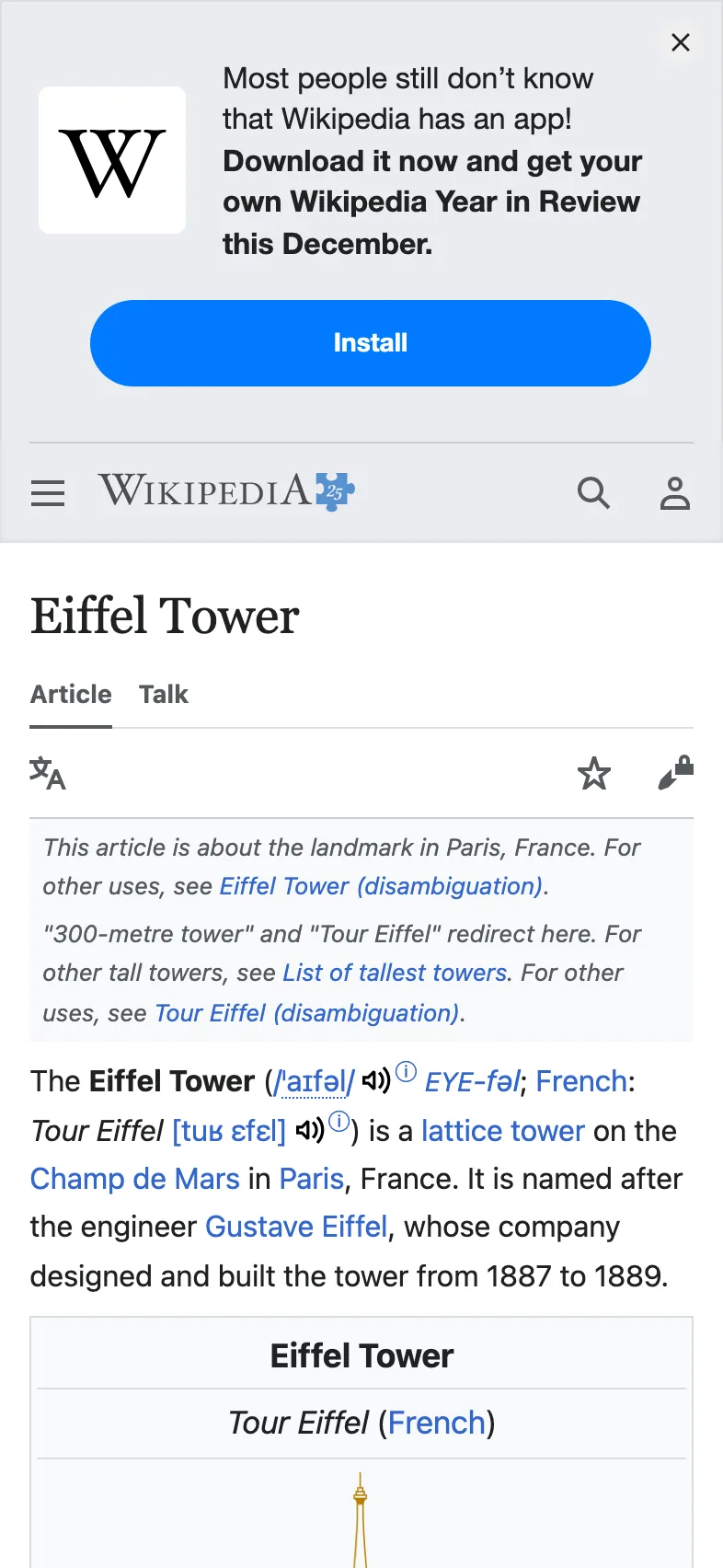
Here is what each option did:
| Option | What it changed |
|---|---|
viewport_device | The page was drawn on a phone-sized screen. |
full_page | The capture runs to the bottom of the page, not just the first screen. |
block_cookie_banners | A consent pop-up, if the page shows one, is hidden before the capture. |
format | The file is a JPEG instead of a PNG. |
#When something goes wrong
A failed request never returns a broken image. It returns a short message in JSON, a text format for structured data, that says what happened.
This request leaves https:// off the page address:
curl "https://curlshot.com/api/v1/screenshot?access_key=YOUR_ACCESS_KEY&url=example.com"{
"error_code": "invalid_options",
"error_message": "url: must be a full URL starting with http:// or https://",
"documentation_url": "https://curlshot.com/docs/errors#invalid_options",
"errors": [
{
"field": "url",
"message": "must be a full URL starting with http:// or https://"
}
]
}error_code is a fixed word your code can check. error_message is written for you to read. The errors list comes with invalid_options only: it names each option that was refused.
Failed requests are not counted against your quota. The errors page lists every code with its cause and its fix.
#Where to go next
- Authentication and API keys: the ways to send your key, and how to keep it safe.
- The screenshot URL: how the address is put together, and when to use POST.
- Options reference: every option on one page.
- Full-page screenshots, Devices and PDF rendering: the most common next steps.
- Code examples: longer samples for six languages.