How to add website previews to your app
Show a small thumbnail next to every link in your app, with small files, caching, signed links and a fallback image.
A website preview is a small screenshot of a page, shown next to a link. This one request makes a thumbnail that is 400 pixels wide:
curl "https://curlshot.com/api/v1/screenshot?access_key=YOUR_ACCESS_KEY\
&url=https://example.com\
&image_width=400\
&format=webp\
&cache=true" \
  --output preview.webp
You get preview.webp, a screenshot of the page scaled down to 400 by 320 pixels.
#1. Pick the size of the page and the size of the screenshot
Two sizes are in play, and they are not the same thing.
The viewport is the browser window the page is drawn in. Keep it at a normal desktop size, so the page looks the way people know it. The default is 1280 by 1024 pixels.
The thumbnail is the screenshot you show. Shrink the finished capture with image_width.
#image_width
Resize the final image to this width, in pixels. The height follows, so the screenshot keeps its shape. If you also set image_height, the screenshot is cropped to that box, keeping the top of the page.
There is no default. Leave it out and the image is not resized.
curl "https://curlshot.com/api/v1/screenshot?access_key=YOUR_ACCESS_KEY\
&url=https://github.com/microsoft/playwright\
&viewport_width=1280\
&viewport_height=800\
&image_width=400" \
  --output playwright-thumb.png
The result is a 400 by 250 pixel screenshot of the top of the page.
Do not make the viewport itself tiny. A viewport of 400 pixels makes most sites switch to their phone layout, which is not what a preview of a desktop site should show.
#2. Make the file small
Thumbnails are shown in lists, often dozens at a time. Small files keep your page fast.
Use format=webp. WebP is an image format that gives much smaller files than PNG for screenshots, and every current browser can show it.
curl "https://curlshot.com/api/v1/screenshot?access_key=YOUR_ACCESS_KEY\
&url=https://github.com/microsoft/playwright\
&viewport_height=800\
&image_width=400\
&format=webp\
&image_quality=75" \
  --output playwright-thumb.webp
The result looks the same as before to the eye, in a much smaller file.
image_quality goes from 1 to 100. The default is 80. For thumbnails, values around 70 to 80 are a good balance.
#3. Remove the clutter
A cookie banner covering half the page makes a poor preview. Turn on the blocking options:
curl "https://curlshot.com/api/v1/screenshot?access_key=YOUR_ACCESS_KEY\
&url=https://developer.mozilla.org\
&viewport_height=800\
&image_width=400\
&format=webp\
&block_cookie_banners=true\
&block_ads=true\
&block_chats=true" \
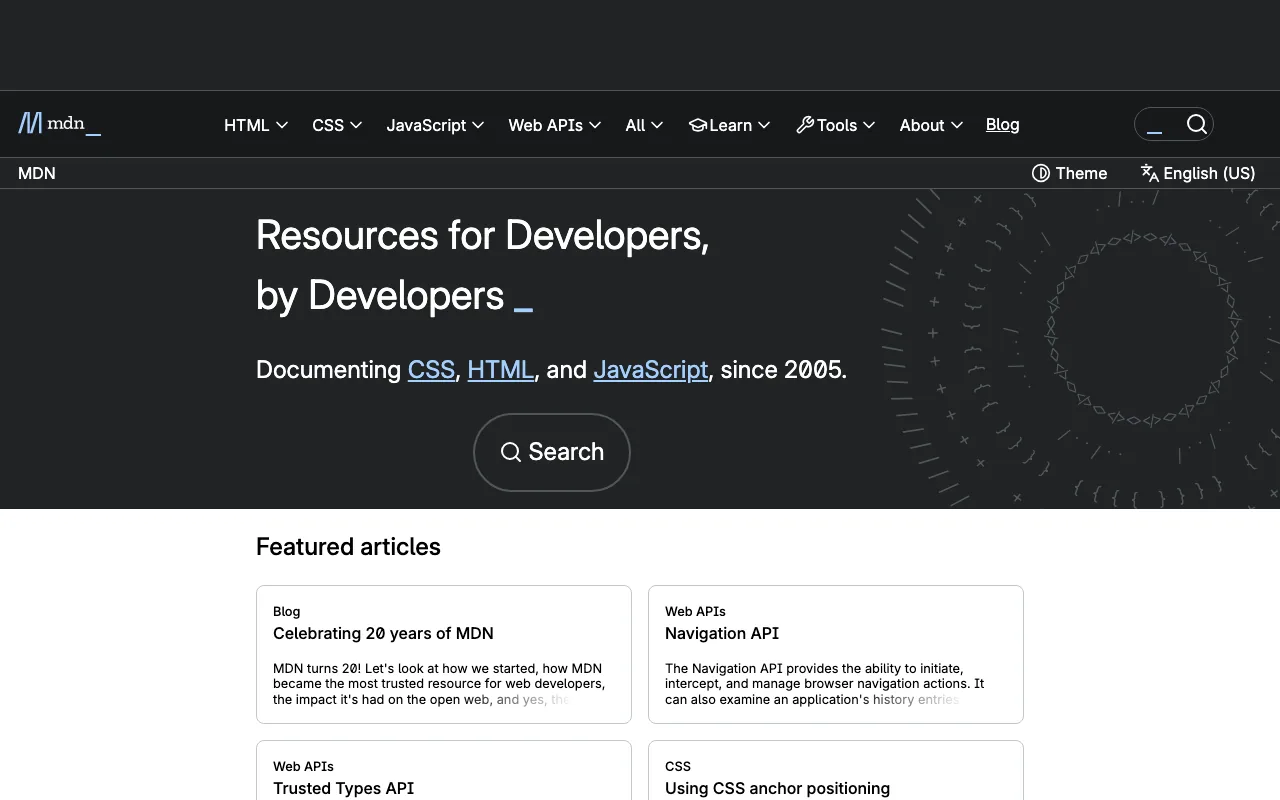
  --output mdn-thumb.webp
The result is a clean thumbnail of the page, with no consent pop-up, ads or chat bubble on top.
Blocking ads, cookie banners, trackers and chats explains each of these options.
#4. Cache the result for a long time
The look of a website changes slowly. There is no reason to render it again each time someone opens your list.
Add cache=true and a long cache_ttl. TTL means "time to live": how many seconds the stored copy stays valid.
curl "https://curlshot.com/api/v1/screenshot?access_key=YOUR_ACCESS_KEY\
&url=https://news.ycombinator.com\
&viewport_height=800\
&image_width=400\
&format=webp\
&cache=true\
&cache_ttl=2592000" \
  --output hn-thumb.webp -D -
The -D - part tells curl to print the response headers. The first request renders the page and answers with x-cache: MISS. Every later request with the same options answers with x-cache: HIT.
The answer also says cache-control: public, max-age=2592000, so the visitor's browser keeps the screenshot as well.
A hit is free. It does not use a screenshot from your quota.
2592000 seconds is 30 days, the longest time allowed. To refresh one preview sooner, change its cache_key.
#5. Put a signed link in your HTML
The handy way to show a thumbnail is an <img> tag that points straight at the API. But the link contains your access key, and a visitor could reuse it for their own screenshots.
A signed link fixes that. Your server adds a signature, a code computed from the link and your secret key, and the link can no longer be changed.
Build the link on your server while you render the page:
import { createHmac } from 'node:crypto'

const encode = (text) =>
  encodeURIComponent(text).replace(/[!'()*]/g, (c) => '%' + c.charCodeAt(0).toString(16).toUpperCase())

export function previewLink(pageUrl) {
  const params = {
    access_key: process.env.SCREENSHOT_ACCESS_KEY,
    url: pageUrl,
    viewport_height: '800',
    image_width: '800',
    format: 'webp',
    block_cookie_banners: 'true',
    cache: 'true',
    cache_ttl: '2592000',
  }

  // Sort by name, encode, join. Then sign with the secret key.
  const canonical = Object.keys(params)
    .sort()
    .map((name) => `${encode(name)}=${encode(params[name])}`)
    .join('&')
  const signature = createHmac('sha256', process.env.SCREENSHOT_SECRET_KEY).update(canonical).digest('hex')

  return `https://curlshot.com/api/v1/screenshot?${canonical}&signature=${signature}`
}
Then use it in your template:
<a href="https://news.ycombinator.com">
  <img src="SIGNED_LINK_GOES_HERE" alt="Preview of news.ycombinator.com"
       width="400" height="250" loading="lazy">
</a>
loading="lazy" tells the browser to fetch the screenshot only when it scrolls into view. The width and height keep your layout from jumping while it loads.
Sign functions for the other five languages are on the Signed links page. In the dashboard, set this API key to require a signature, so the access key is useless on its own.
A signed link is good for this one screenshot only. Nobody can use it to read your usage or your jobs, or to start other renders. If you want the link to stop working at some point, add expires before you sign.
#6. Show a fallback when a page fails
Some pages cannot be captured. The site may be down, or the address may be wrong. The API then returns a JSON error, and an <img> tag shows a broken-image icon.
Catch that in the browser and swap in an image of your own:
<img src="SIGNED_LINK_GOES_HERE" alt="Preview of news.ycombinator.com"
     width="400" height="250" loading="lazy"
     onerror="this.onerror=null; this.src='/images/preview-fallback.png'">
this.onerror=null stops a loop in case the fallback image is missing too.
Failed renders are free, so a dead link costs you nothing. But each visitor who loads it triggers a new try. If you store the links in a database, it is worth remembering which ones failed.
#7. Create previews ahead of time for big imports
With the setup so far, the first visitor to see a new link waits for the render. That is fine for one link. It is not fine when a user imports five hundred bookmarks.
For that case, fill the cache from your server before anyone looks. Send the same options through bulk, which starts up to 100 background jobs per call:
curl -X POST "https://curlshot.com/api/v1/bulk" \
  -H "X-Access-Key: YOUR_ACCESS_KEY" \
  -H "Content-Type: application/json" \
  -d '{
    "requests": [
      { "url": "https://example.com", "viewport_height": 800, "image_width": 800, "format": "webp", "block_cookie_banners": true, "cache": true, "cache_ttl": 2592000 },
      { "url": "https://developer.mozilla.org", "viewport_height": 800, "image_width": 800, "format": "webp", "block_cookie_banners": true, "cache": true, "cache_ttl": 2592000 }
    ]
}'{
"batch_id": "batch_fb25e0f51f9e8897ae9e",
"batch_url": "https://curlshot.com/api/v1/batches/batch_fb25e0f51f9e8897ae9e",
"jobs": [
{
"job_id": "job_54bd07ee26b45aea296beb07",
"status": "queued",
"job_url": "https://curlshot.com/api/v1/jobs/job_54bd07ee26b45aea296beb07",
"status_url": "https://curlshot.com/api/v1/jobs/job_54bd07ee26b45aea296beb07"
},
{
"job_id": "job_46a76fd421d91c315971efc6",
"status": "queued",
"job_url": "https://curlshot.com/api/v1/jobs/job_46a76fd421d91c315971efc6",
"status_url": "https://curlshot.com/api/v1/jobs/job_46a76fd421d91c315971efc6"
}
]
}Each job renders one page in the background and stores the result. Ask the batch_url to see when all of them are done. Bulk screenshots shows that call.
The options that shape the screenshot must match the ones in your signed links exactly. Then the stored copy from the job is the one your <img> tags get. Caching lists which options count.
For a single new link, async=true on a normal request does the same thing.
#Where to go next
- Caching: how hits and misses work, and how to refresh one preview.
- Signed links: the signing steps and code for six languages.
- Bulk screenshots: start many background jobs with one call.
- Blocking ads, cookie banners, trackers and chats: cleaner screenshots.