Full-page screenshots
Capture a page from top to bottom, load lazy images on the way, and keep very tall pages under control.
Add full_page=true and the capture runs to the bottom of the page.
curl "https://curlshot.com/api/v1/screenshot?access_key=YOUR_ACCESS_KEY&url=https://en.wikipedia.org/wiki/Eiffel_Tower&full_page=true" \
  --output eiffel-full.png
You get one tall image with the whole article in it.

Without the option, you get only the first screen. That is the part a visitor sees before scrolling.
curl "https://curlshot.com/api/v1/screenshot?access_key=YOUR_ACCESS_KEY&url=https://en.wikipedia.org/wiki/Eiffel_Tower&viewport_height=800" \
  --output eiffel-first-screen.png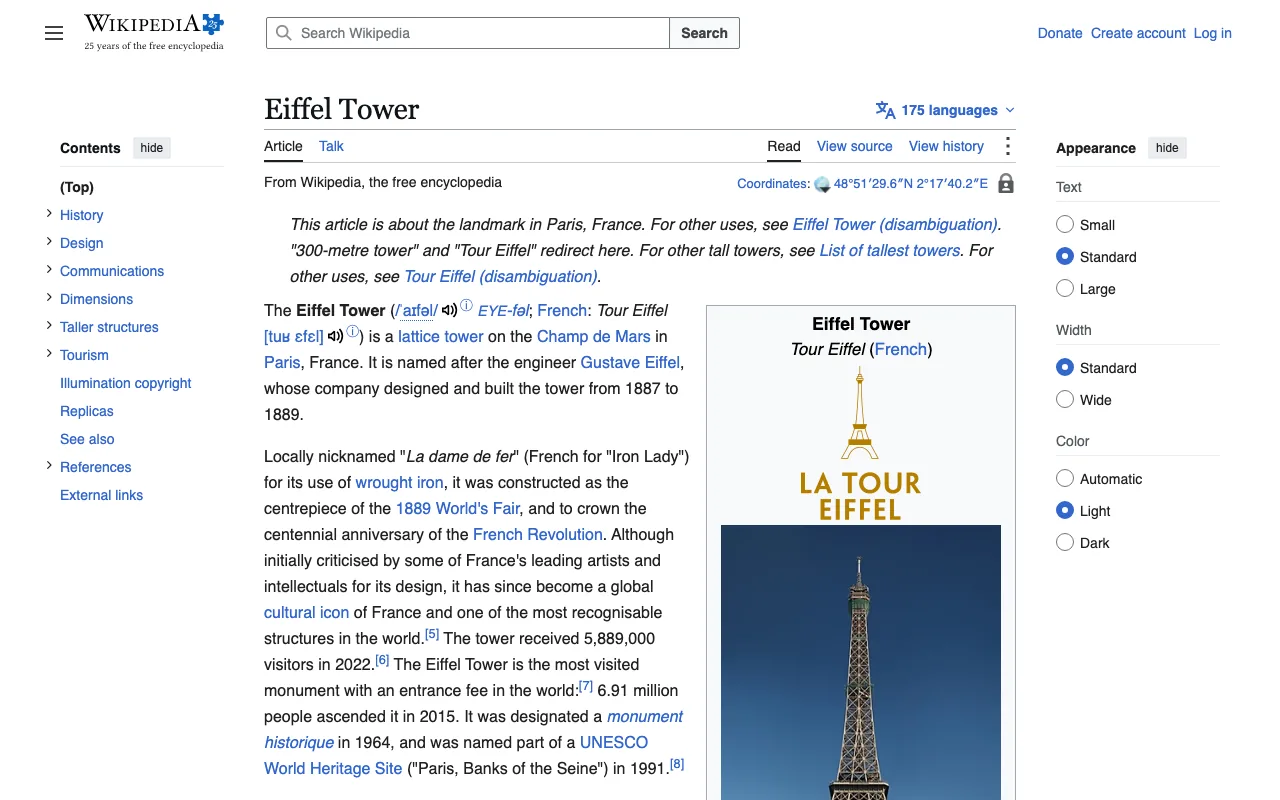
#How it works
The width of the image still comes from the viewport. The viewport is the browser window the page is drawn in. The height is as tall as the page turns out to be.
So viewport_width and viewport_device still matter. A full-page capture on a phone preset gives you the long mobile version of the page.
#full_page
Capture the whole page, not only the first screen.
The default is false.
#Lazy images
Many sites load images only when you scroll near them. This is called lazy loading. A capture taken without scrolling would show empty boxes further down the page.
To avoid that, a full-page capture first scrolls through the page from top to bottom. It gives the images a moment to arrive, then goes back to the top and takes the screenshot.
#full_page_scroll
Scroll through the page before the capture so lazy-loaded images appear.
The default is true.
You rarely need to change it. Turn it off in two cases:
- The page is short and has no lazy images, and you want the fastest render.
- Scrolling changes the page in a way you do not want. Some sites load more and more content as you scroll, or shrink their header.
curl "https://curlshot.com/api/v1/screenshot?access_key=YOUR_ACCESS_KEY&url=https://en.wikipedia.org/wiki/Eiffel_Tower&full_page=true&full_page_scroll=false" \
--output eiffel-no-scroll.png#Very tall pages
Some pages never end. News feeds and shop listings keep adding content. To keep the image a usable size, a full-page capture stops at a maximum height.
#full_page_max_height
Cut a full-page capture off at this height, in pixels.
The default is 20000. The smallest value is 100 and the largest is 30000.
A page shorter than the limit is not stretched. A page taller than the limit is cut off at the limit, and you still get a valid image.
This request keeps only the first 5000 pixels of the article:
curl "https://curlshot.com/api/v1/screenshot?access_key=YOUR_ACCESS_KEY&url=https://en.wikipedia.org/wiki/Eiffel_Tower&full_page=true&full_page_max_height=5000" \
  --output eiffel-5000.png
The height is counted in page pixels. With a pixel density above 1, the file has more pixels than that. A 5000 pixel page at device_scale_factor=2 is 10000 pixels tall in the file.
Very large captures can hit other limits too:
- At a high pixel density, the capture may be cut shorter than
full_page_max_heightto keep the total pixel count within bounds. - If the finished file is too big, you get
content_too_large. Useformat=jpegorformat=webp, a lowerimage_quality, or a smallerfull_page_max_height.
#Limits of your plan
A full-page screenshot counts as one screenshot against your quota, however tall it is. What a plan limits is the size:
- Height. A plan can have a lower maximum height than
30000. A largerfull_page_max_heightis lowered to the plan's maximum, and the capture is cut off there. - Pixel density. A plan can limit the
device_scale_factorof a full-page capture. A higher value is lowered to the plan's maximum. This also applies to the density a device preset brings along.
In both cases you still get a valid screenshot, not an error. Screenshots of the first screen and element captures keep the density you asked for.
Your own values are full_page_max_height and full_page_max_scale in the answer of GET /usage.
#Sticky headers and floating bars
A sticky header is a menu bar that stays at the top of the window while you scroll. Cookie bars and chat bubbles float in a similar way.
In a full-page capture these can land in odd places. A bar may cover part of the content, or appear in a spot where it makes no sense.
The fix is to hide the element before the capture with hide_selectors. A selector is a short pattern that points at an element, such as .site-header for an element with the class site-header.
curl "https://curlshot.com/api/v1/screenshot?access_key=YOUR_ACCESS_KEY&url=https://en.wikipedia.org/wiki/Eiffel_Tower&full_page=true&hide_selectors=.vector-sticky-header" \
  --output eiffel-clean.png
To find the right selector, open the page in your browser, right-click the bar and choose Inspect. Look for its class or id.
For consent pop-ups and chat widgets, try block_cookie_banners and block_chats first. They cover the common ones without a selector.
#Where to go next
- Capturing an element: when you need one part of the page, not all of it.
- PDF rendering: a long page as a document with real pages.
- Waiting and timing: make sure the page is ready before the capture.
- Blocking ads, cookie banners, trackers and chats: remove the usual floating clutter.